Stayntouch PMS
 How To Enable Pay By Link To Collect Payment After Check-Out
This article explains how to activate and use Pay by Link to collect outstanding payments from checked-out guests using secure payment link.
IMPORTANT NOTE: If your property previously had the Pay by Link functionality enabled, the PAYMENT LINK ON CONFIRMATION LETTER setting via Settings > Financials > Payment Links remains enabled by default for you.
When version 6.0 was released, hotels already using payment links in their confirmation emails began seeing the Custom Payment Link automatically applied to reservations and accounts.
However, please note the CUSTOM PAYMENT LINK setting via Settings > Financials > Payment Links is no longer enabled by default. This means that if you began using the custom payment link feature with version 6.0 and wish to continue using it, you will need to manually re-enable this option in your settings. Otherwise, the custom payment link will not appear.
HOW TO ACCESS THE PAYMENT LINK
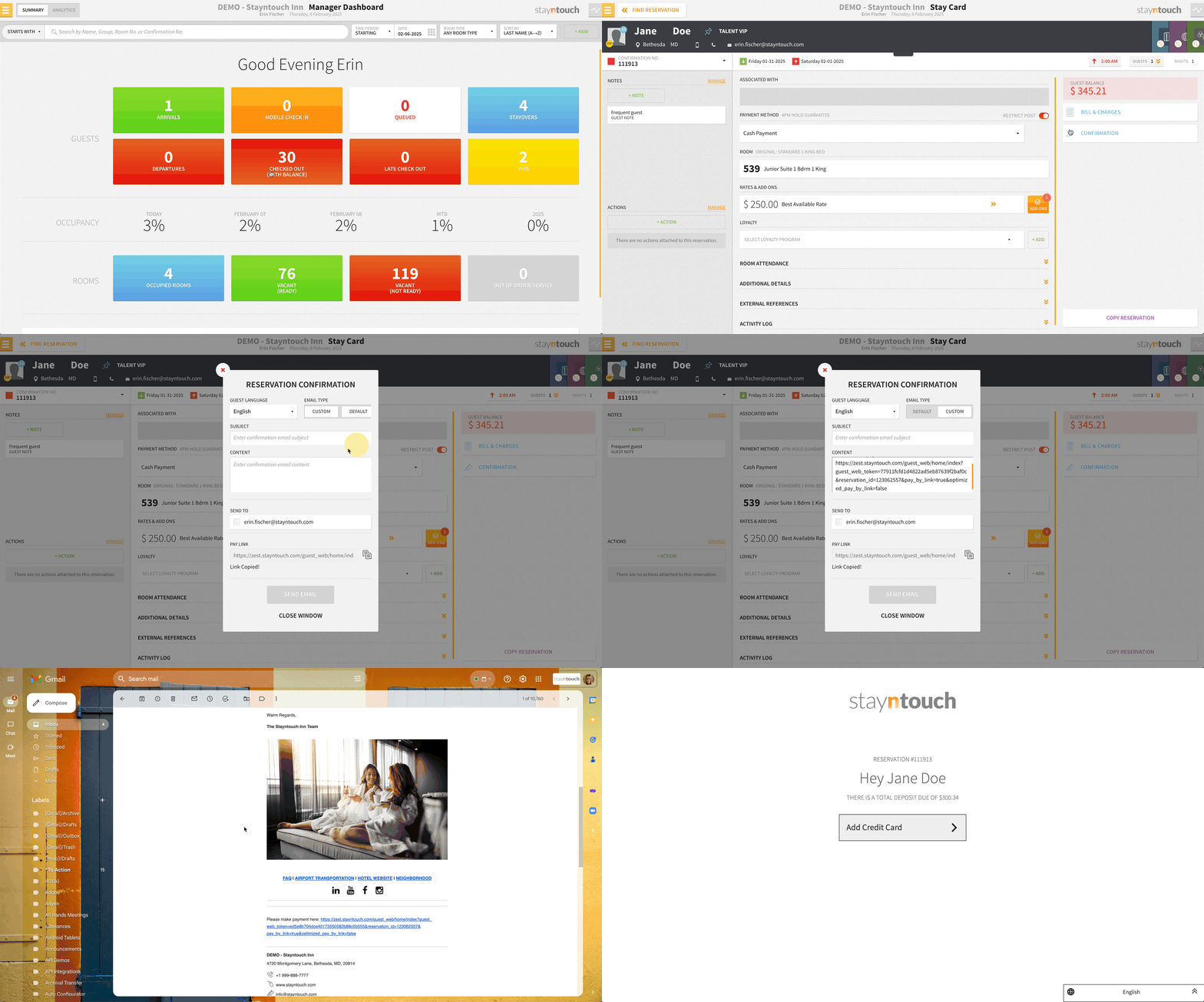
Ensure that the checked-out guest has an open balance on their folio and is listed under the dashboard CHECKED OUT (WITH BALANCE) tile.

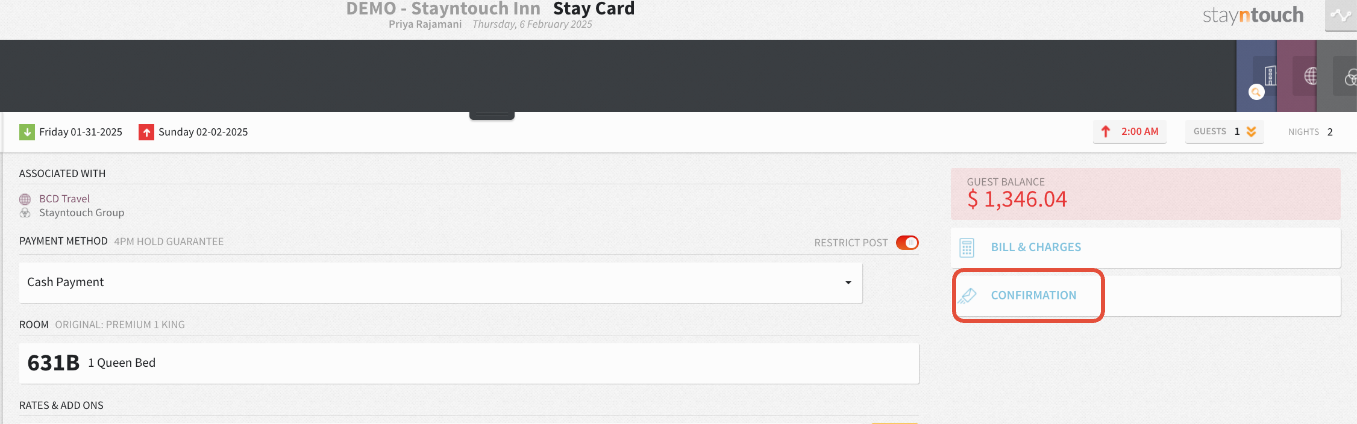
Click CONFIRMATION from the checked-out guest's stay card.
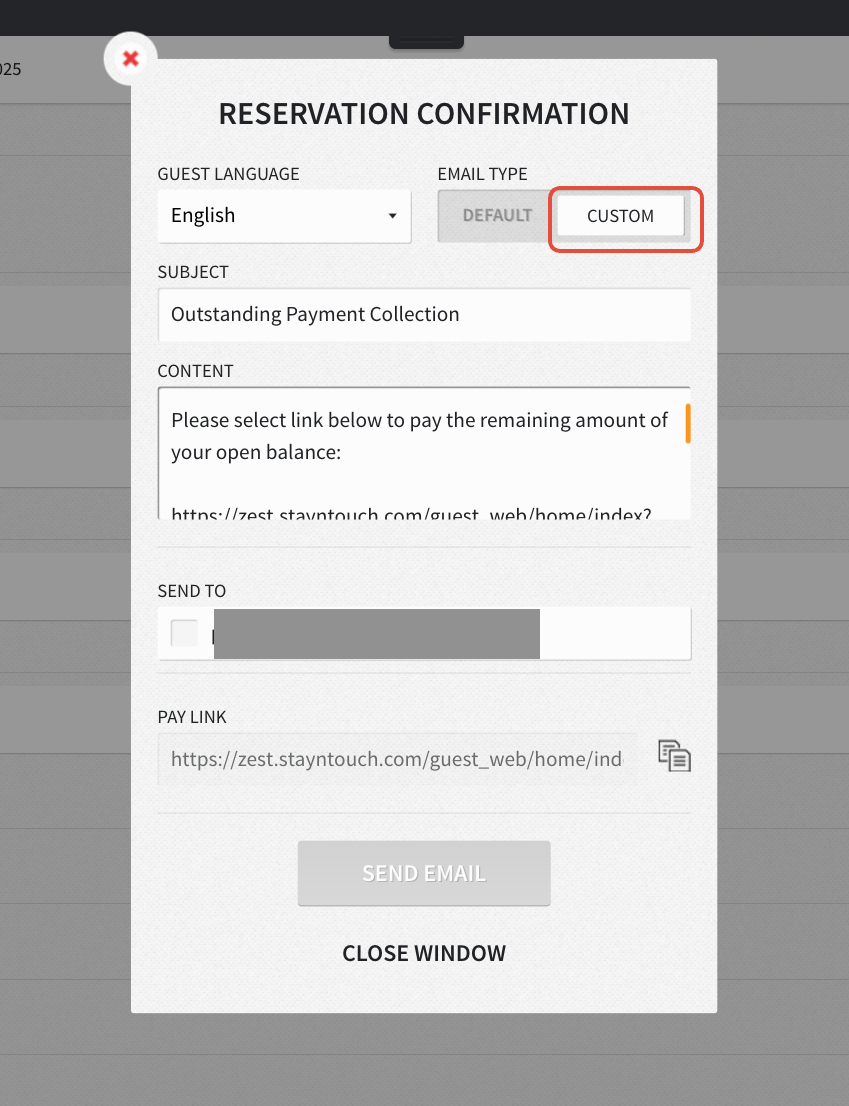
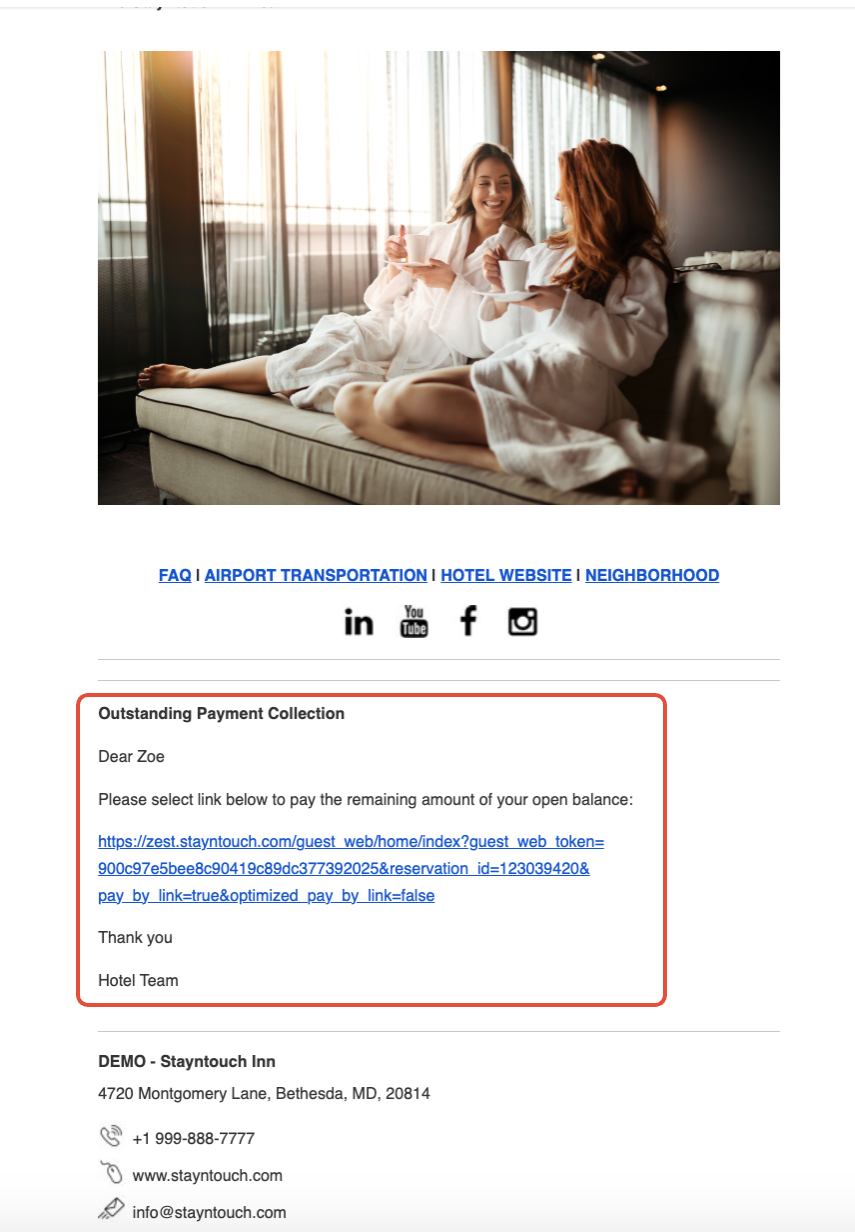
Copy the PAY LINK field to send the link via a separate email, or resend the confirmation letter by updating the custom text and using the SEND TO option to collect remaining open balance.
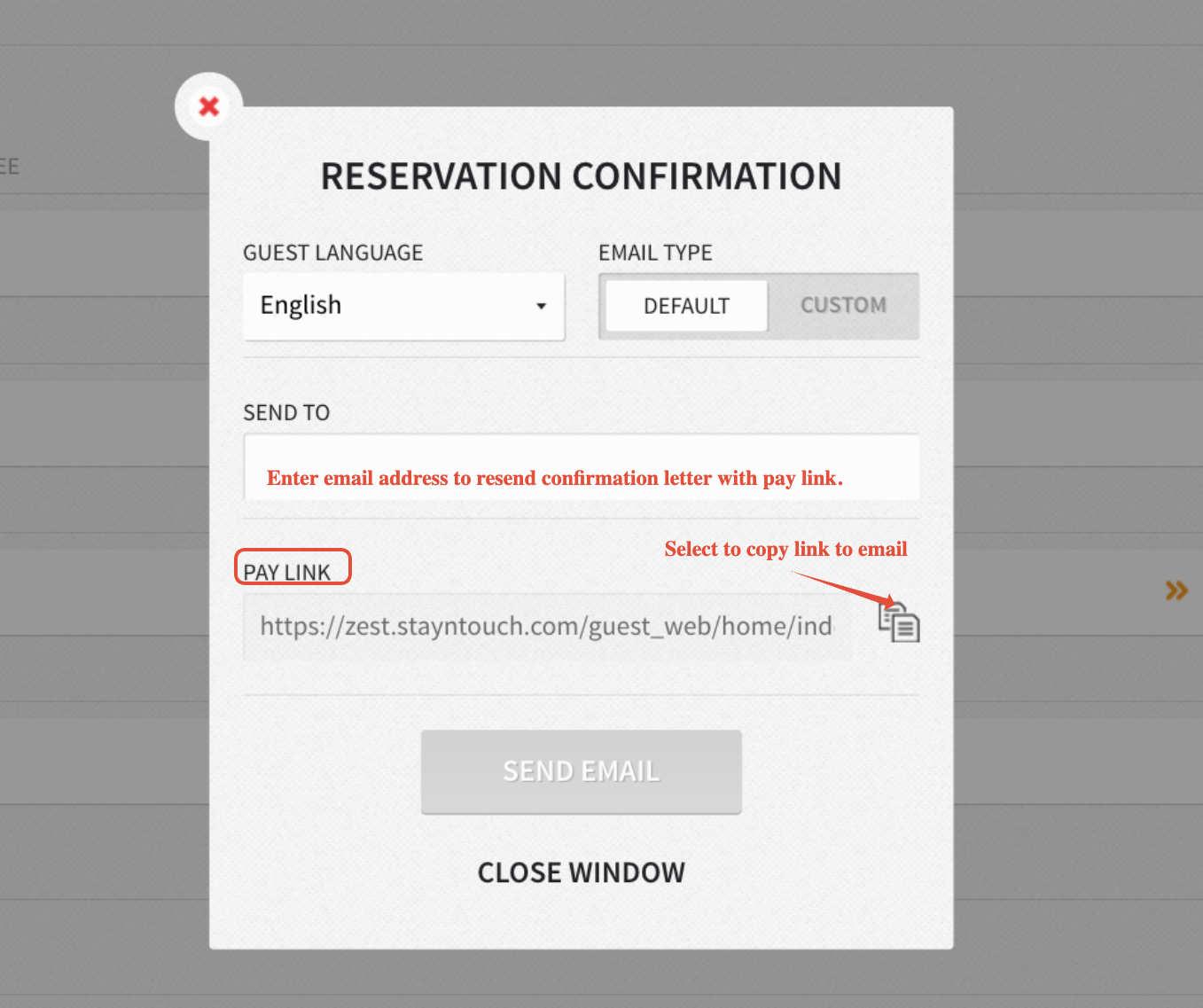
See the screenshot below for how to add custom text to an existing confirmation letter.