
Stayntouch PMS
Release Notes (v6.12)
Effective:
- 13 October 2026 (6am EST) for customers using https://app.us2.stayntouch.com/
- 15 October 2026 (6am EST) for customers using https://app.us1.stayntouch.com/
- 20 October 2026 (3pm EST) for customers using https://app.eu1.stayntouch.com/
TABLE OF CONTENTS
- Reservations
- Registration Card
- Groups & Allotments
- Reports/Exports
- Promotions Production Report: See What Each Promo Earns
- Reservations By User Report: Faster, More Reliable Runs
- Complimentary Room Report: More Detail on Every Comp
- Room Move Report: Schedule It and Track Every Move
- Scheduled Reservations By User Report: Today Option for Creation and Arrival Dates
- Nationality Statistics Export: Month to Date (MTD) Option
- Custom Exports: Sorted Alphabetically
- (In Pilot) Deposit & Cancellation Windows
- Multi-Property Functionality
- Stayntouch IBE
- Payments
- Integrations

- Custom Stayntouch IBE Branding Colors: Your booking engine in your brand colors.
- Go Green at Check In: Staff can offer Go Green on the PMS registration card, and guests can choose it themselves at the Kiosk or mobile check in.
- Deposit & Cancellation Windows: Stricter policies apply automatically on your busiest dates.
Reservations
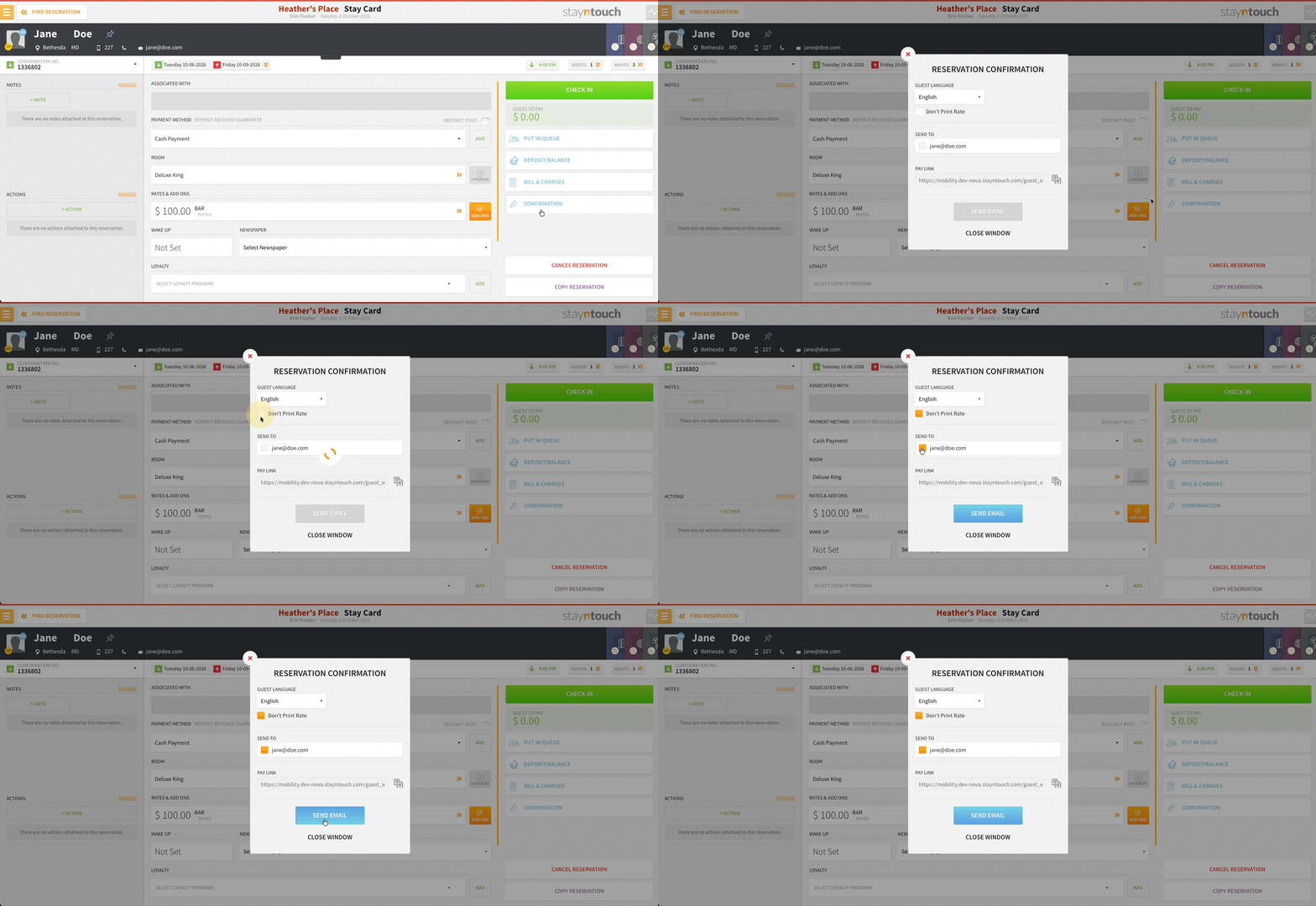
Resend Confirmations Without the Rate
Select Don't Print Rate when resending a confirmation from the stay card, and the letter goes out with no rate details. Ideal for company paid stays and VIP bookings. Group confirmations are not included.
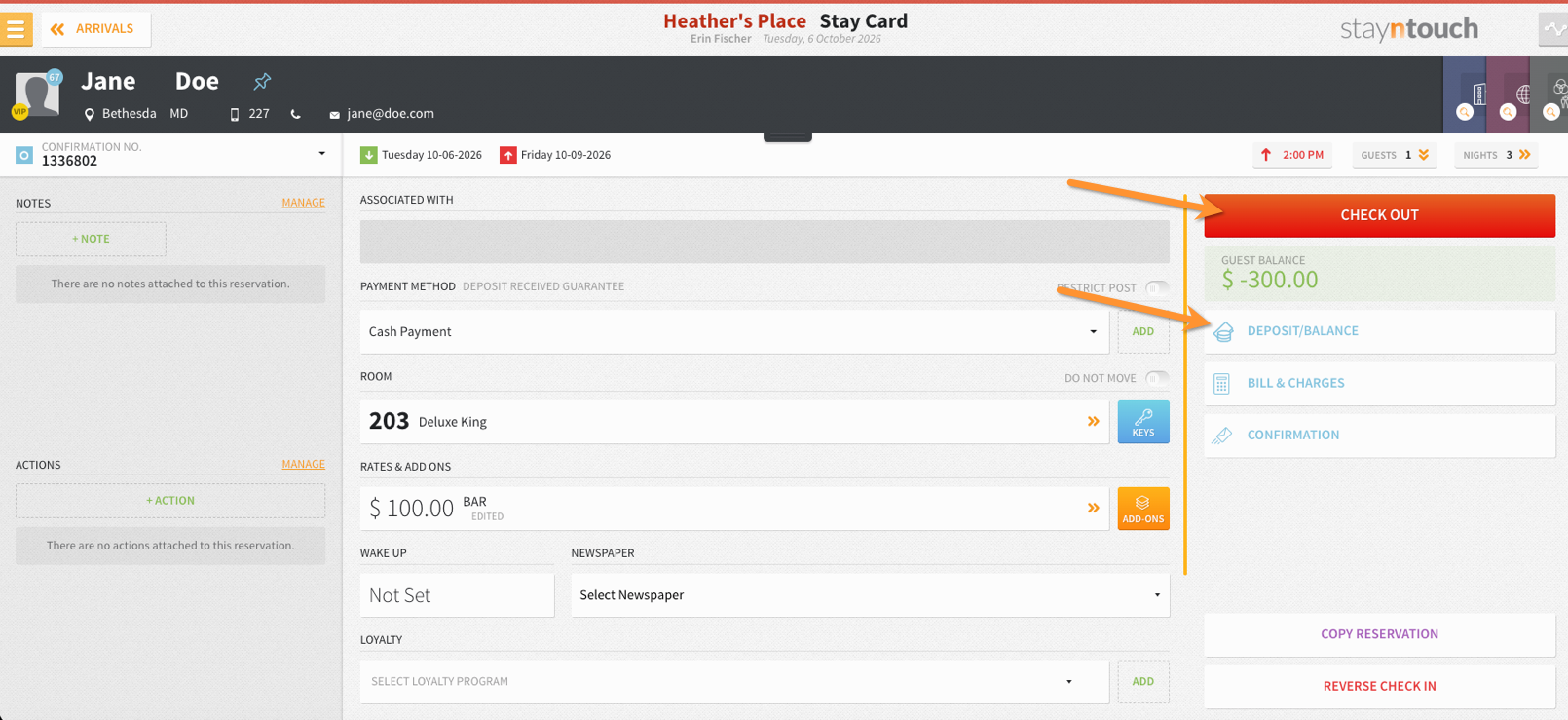
Deposit/Balance Tile Stays Through Departure
The Deposit/Balance tile stays on the stay card after check in, showing the Guest to Pay and Outstanding amounts throughout the stay.
Automatic Posting for Last Night Add-Ons
Add-ons set to Post on Last Night and added from the stay card post to the folio automatically on the final night, so nothing is missed at check-out.
Registration Card
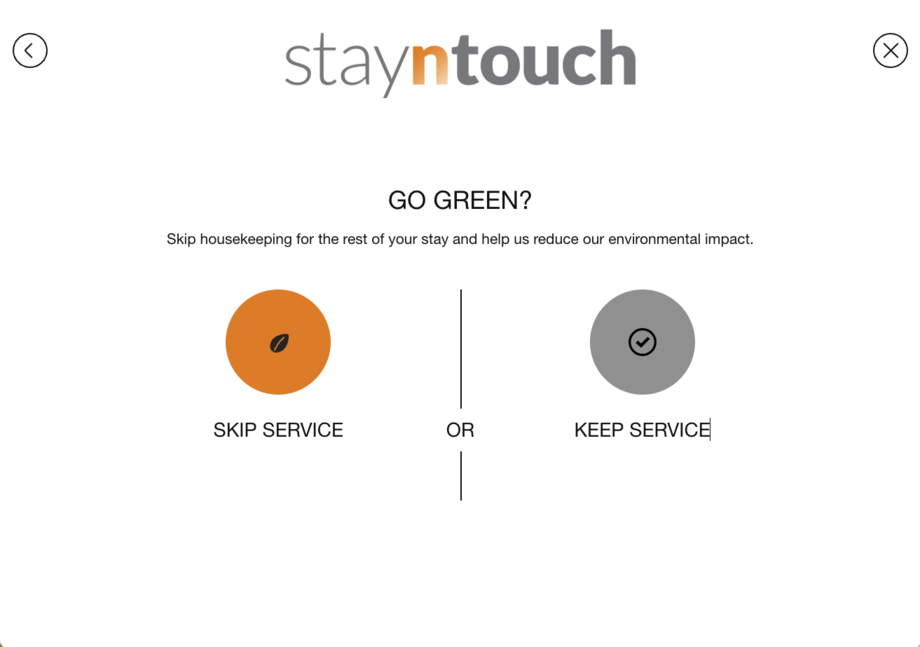
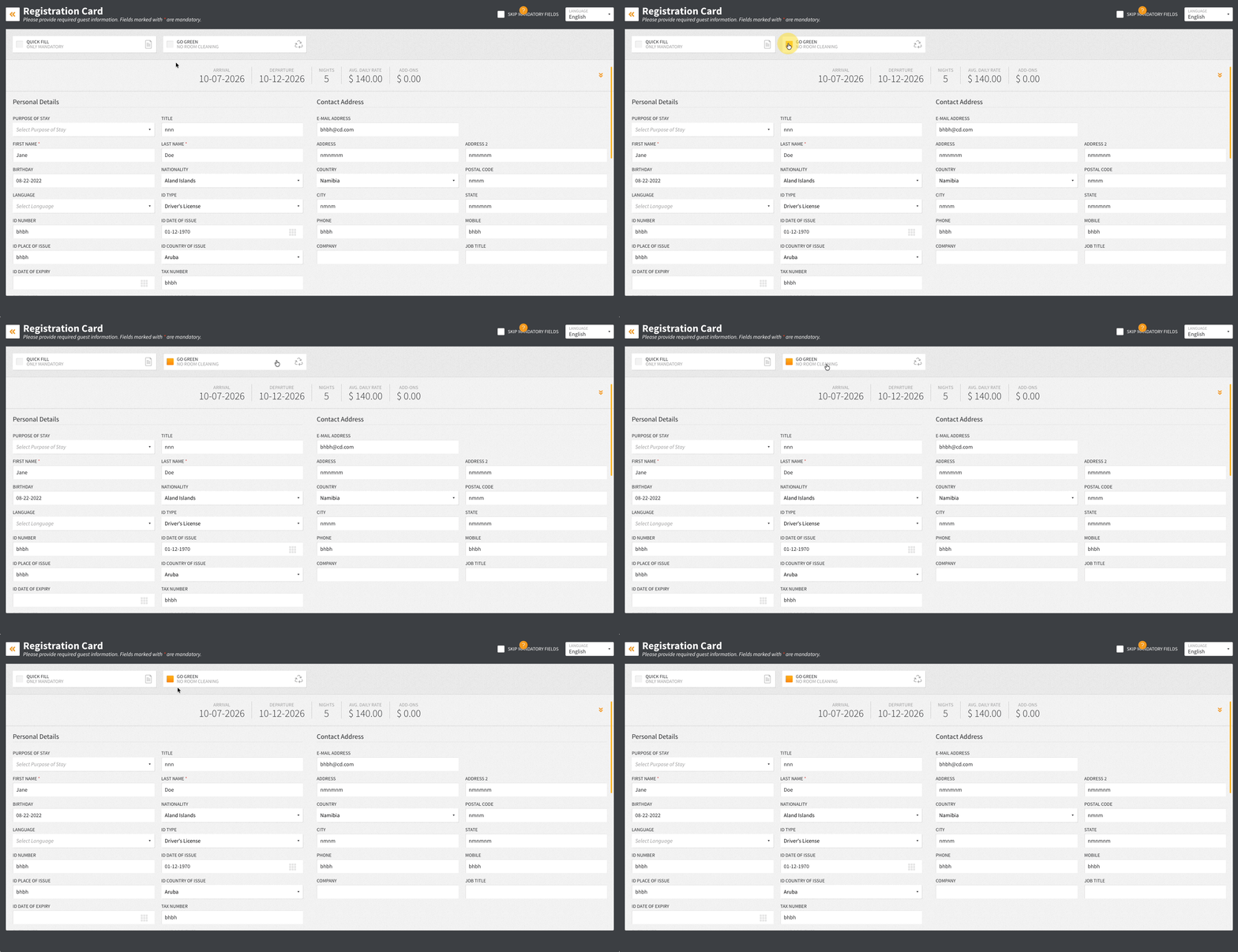
Go Green on the Registration Card (PMS & Kiosk)
Guests can opt out of room cleaning during their stay. Once Go Green is enabled in Settings > Rooms > Housekeeping, staff can offer it on the PMS registration card, and guests can choose it themselves at the Kiosk and mobile check in, for stays of 2 to 6 nights. Selecting Go Green turns off the Room Service toggle on the stay card, and each opt in is recorded in the Activity Log.
Groups & Allotments
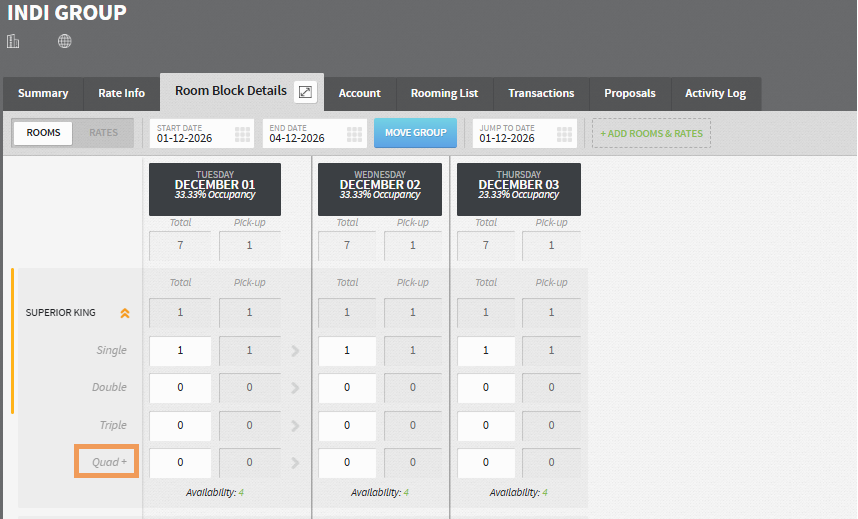
Group Bookings Support 5+ Guests
Group bookings, rooming lists, and OTA group reservations support occupancy up to your hotel’s maximum adults setting.
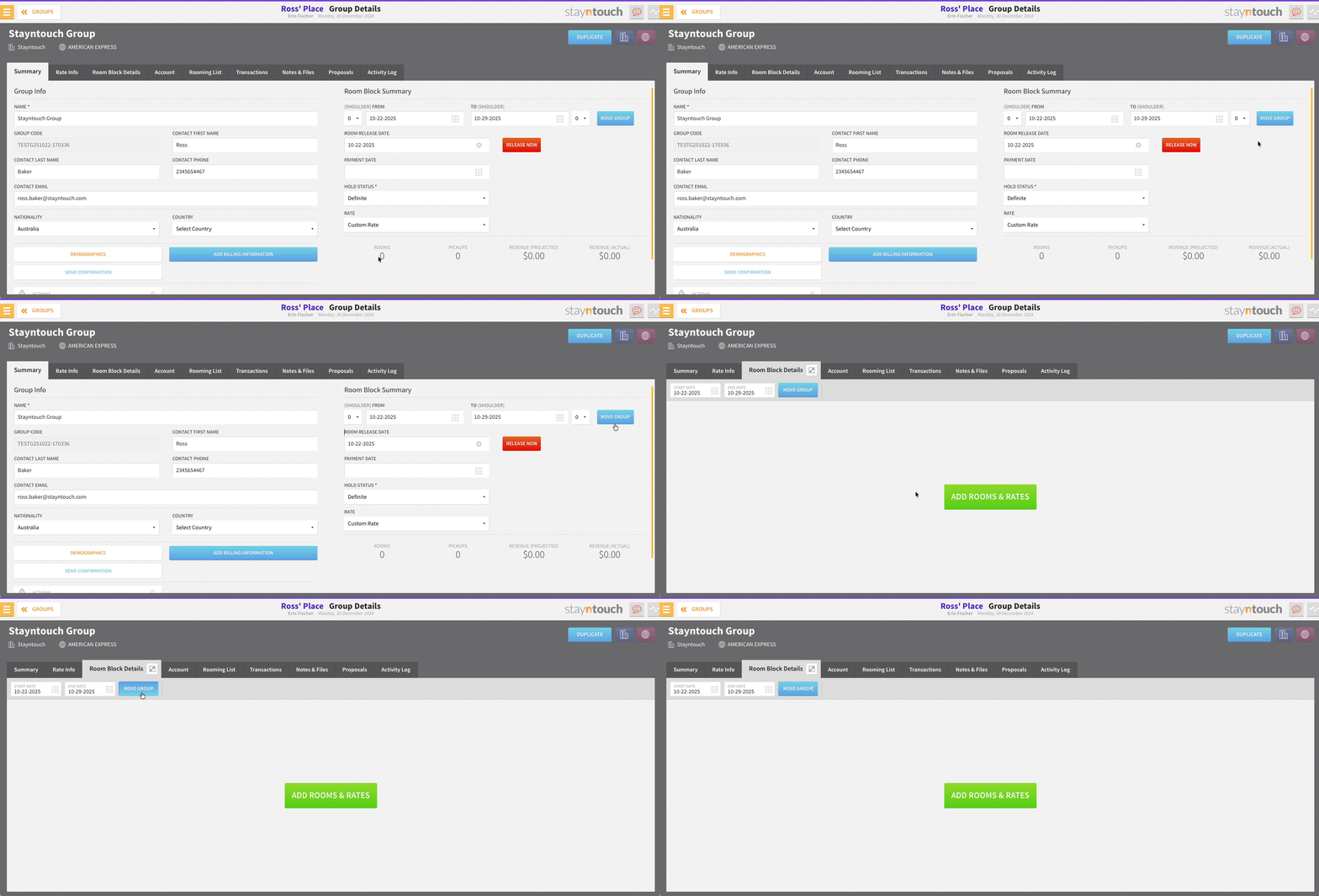
Move Groups Anytime
The Move button works on any group, even when no rooms are blocked. It’s available from both the Summary and Room Block Details tabs, so you no longer need a placeholder block to change a group’s dates.
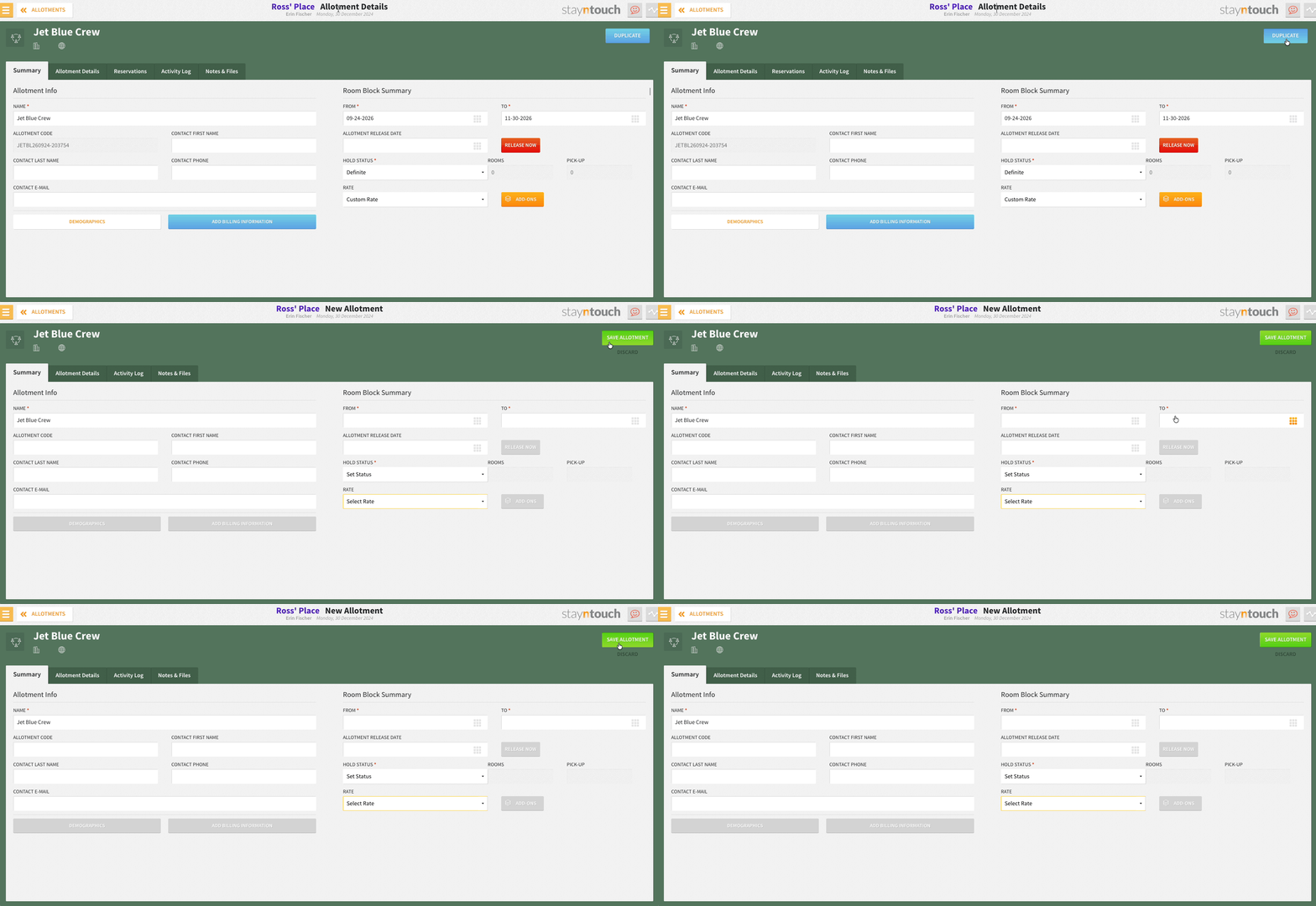
Duplicate Allotments in One Click
Every saved allotment, whether past, current, or future, has a Duplicate button. One click opens a new allotment with these details already filled in:
- Allotment name
- Contact first name, last name, phone, and email
- Nationality and demographics
- Company and travel agent
Dates and rates aren’t copied, so each new allotment reflects the stay dates you choose. If the original used a custom rate, the Rate field is set to Custom; otherwise, it shows Select Rate so you can pick one. The allotment code starts blank, and every field can be edited before saving.
Groups & Allotments: Date Range Limits For New Groups
Groups can span up to one year and allotments up to 13 months.
Reports/Exports
Promotions Production Report: See What Each Promo Earns
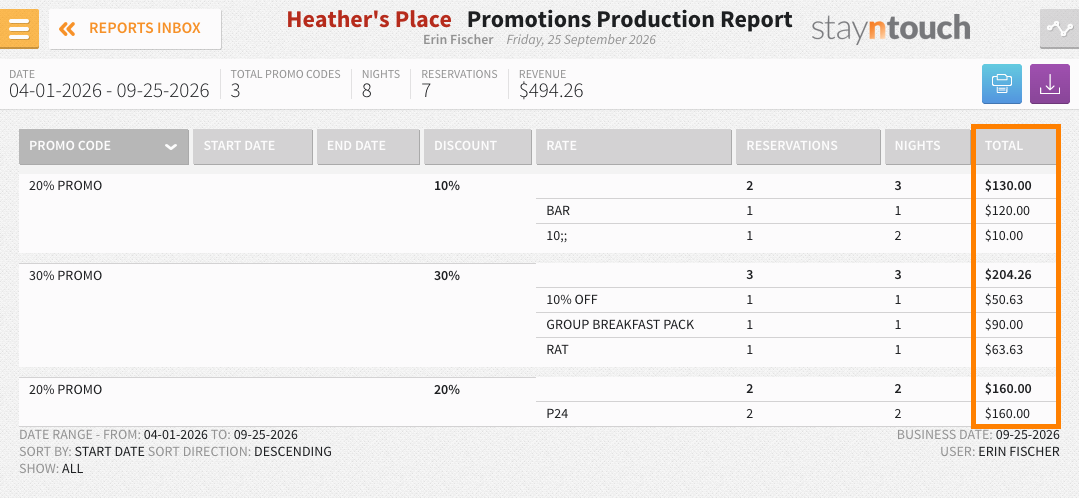
The Promotions Production Report (Reports > New Report) has a new Total column at the end, showing total room revenue, excluding tax, from every reservation that used the promo code, broken down by rate code. Revenue managers can judge a promotion by the money it brings in, not just by how often it’s used.
Reservations By User Report: Faster, More Reliable Runs
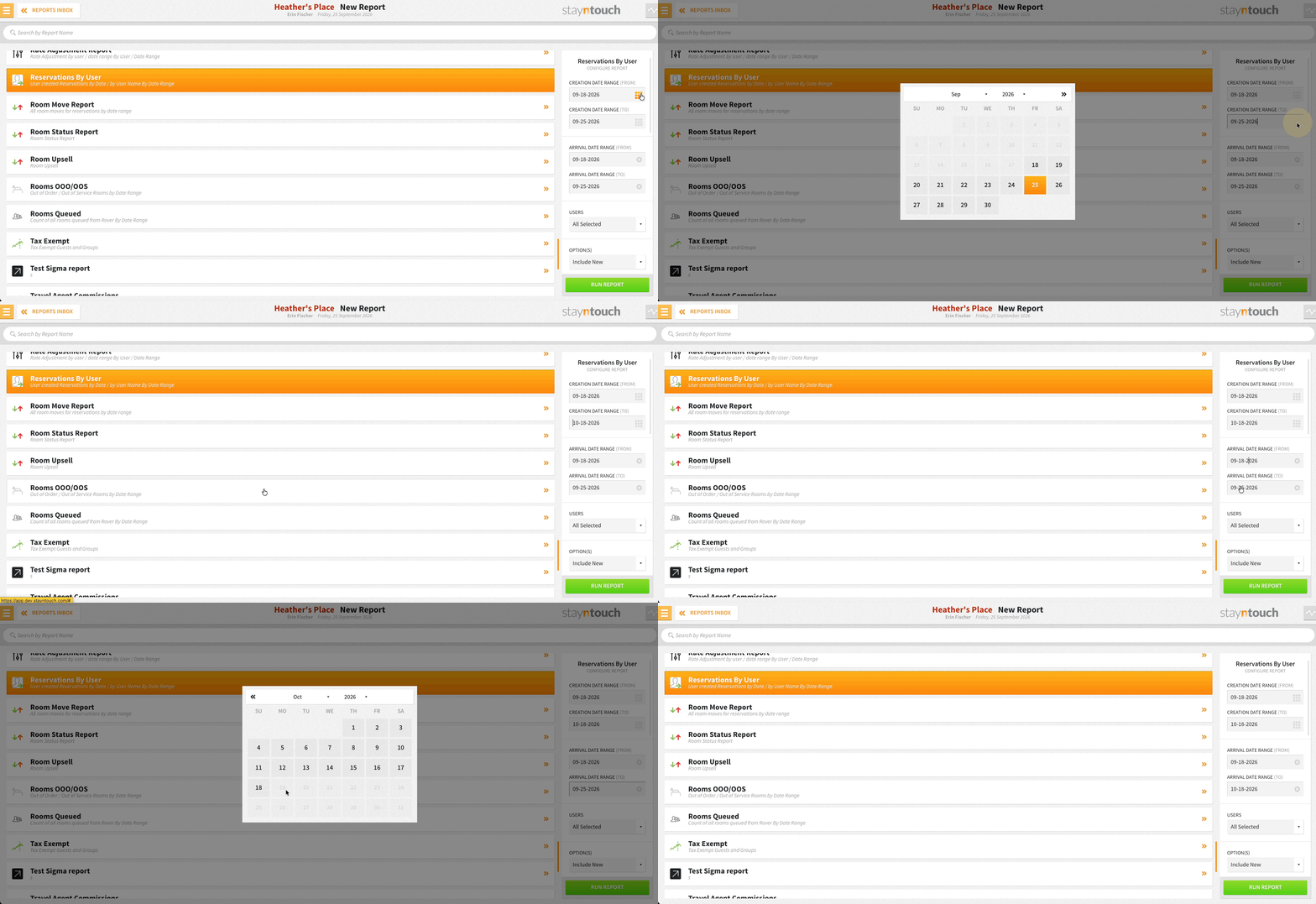
The Reservations By User Report (Reports > New Report) caps arrival and creation date ranges at 31 days, with at least one range required. The report generates faster with fewer timeouts, and scheduled reports aren’t affected.
Complimentary Room Report: More Detail on Every Comp
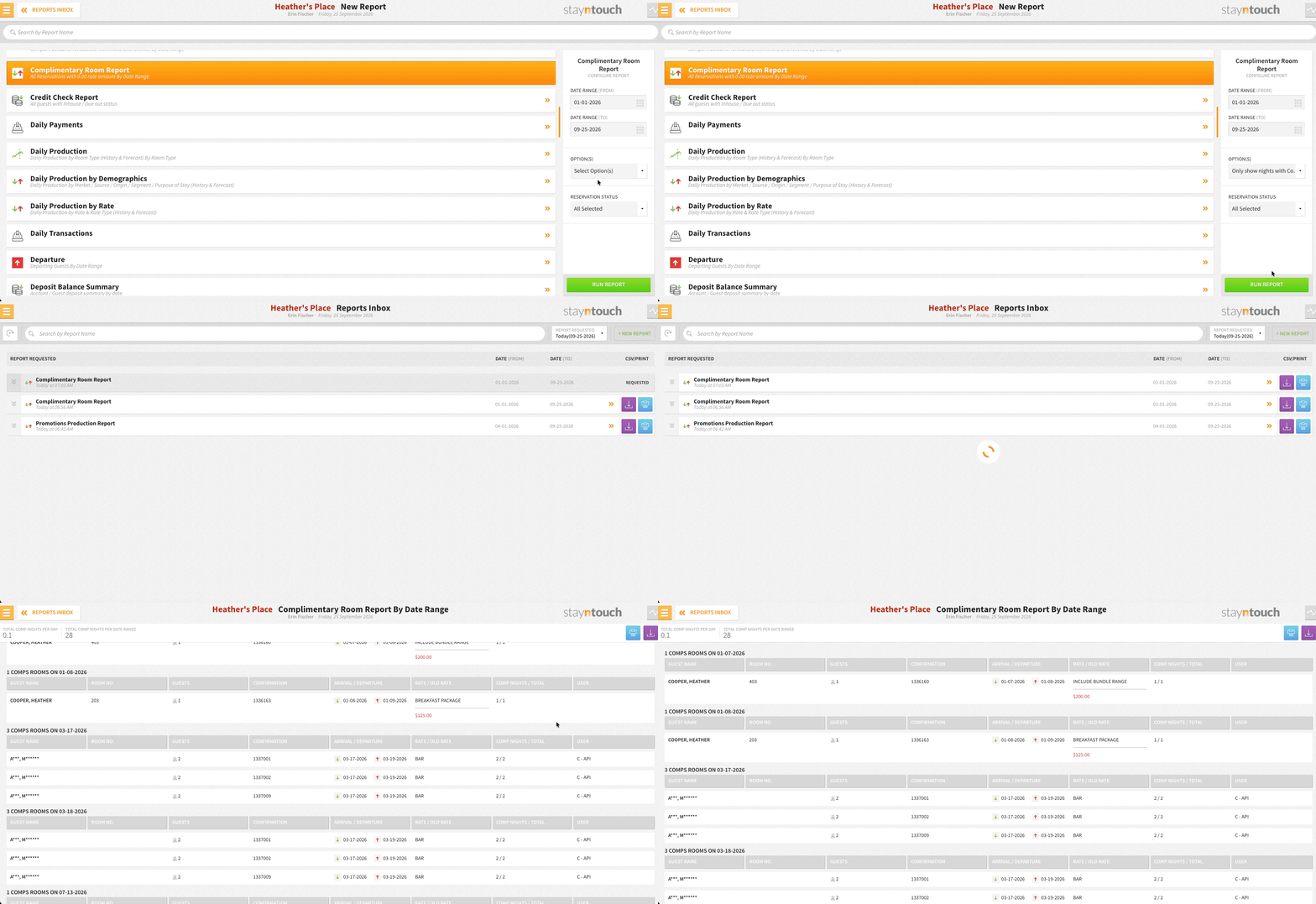
The Complimentary Room Report (Reports > New Report) splits guest counts into adults, children, and infants, shows the original rate in red, and adds a User column showing who set the rate to $0. The Nights column reads Comp Nights/Total (for example, 2/5). Turn on Only show nights with Comp’d rooms to see only nights with a complimentary room. These changes apply to the PMS view, PDF, print, CSV, and the Report Scheduler.
Room Move Report: Schedule It and Track Every Move
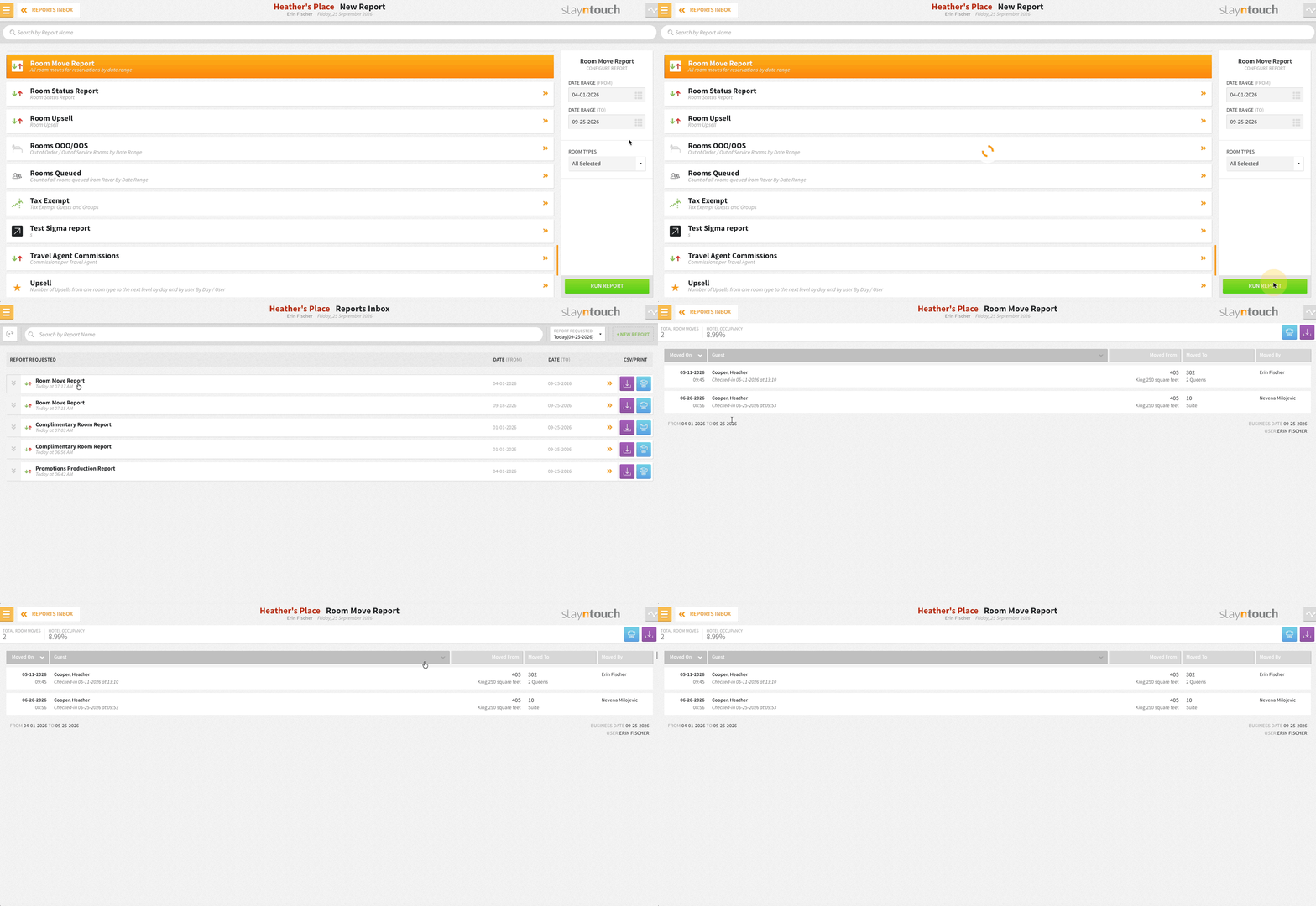
The Room Move Report can be scheduled via Reports > Schedule a Report/Export > Scheduled Reports > + New Report Schedule, in PDF or CSV. Filter by room type and look back over any past period, from yesterday to last January. The header shows total moves and occupancy for the period, with moves grouped by date.
Scheduled Reservations By User Report: Today Option for Creation and Arrival Dates
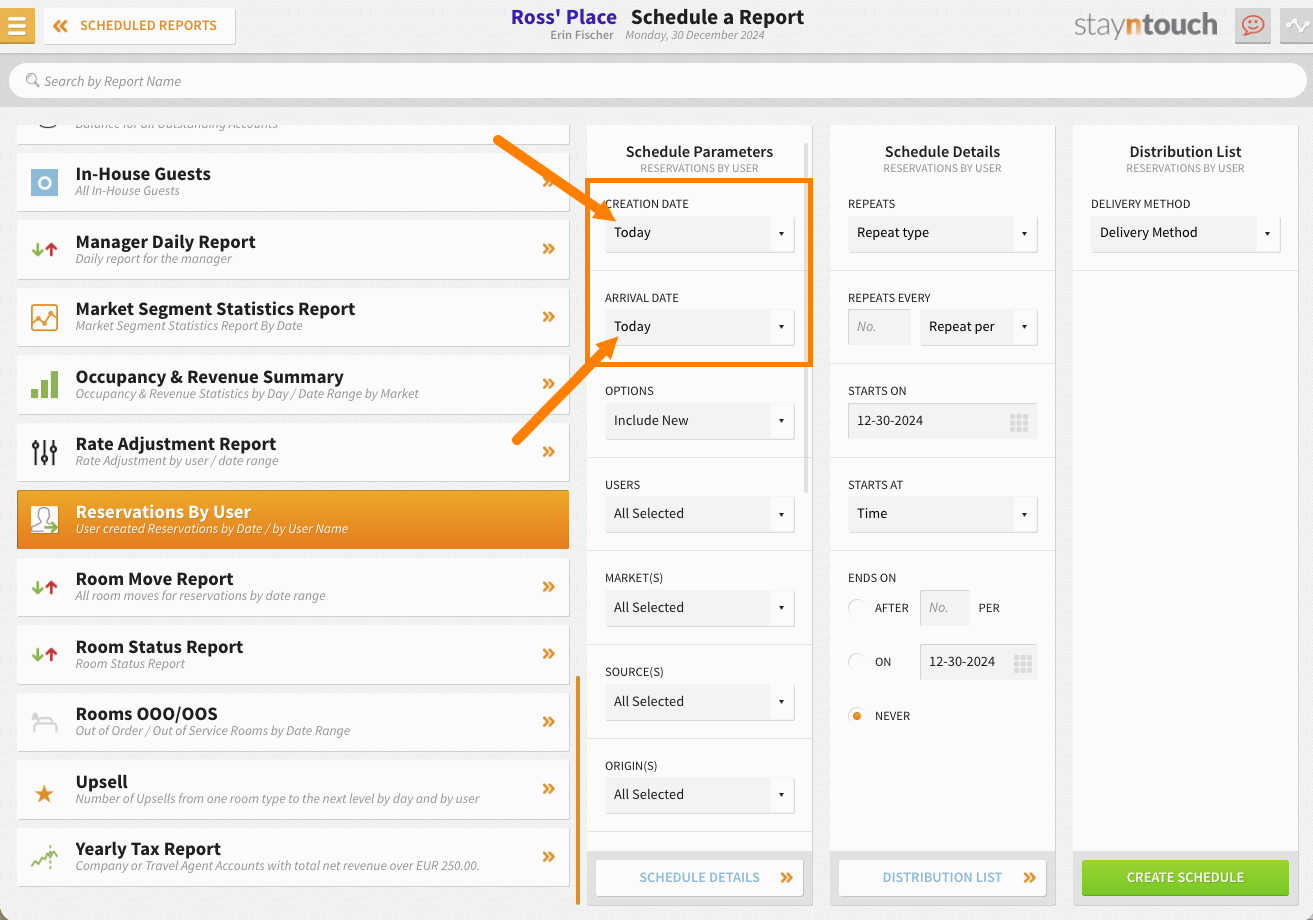
When scheduling the Reservations By User Report (Reports > Schedule a Report/Export > Scheduled Reports > + New Report Schedule), the Creation Date and Arrival Date dropdowns include a Today option. Choose it under Creation Date to see every reservation booked that day, or under Arrival Date to see every arrival for the day. Front desk teams can start each shift with a current list of new bookings and arrivals, without resetting dates or running the report by hand.
Nationality Statistics Export: Month to Date (MTD) Option
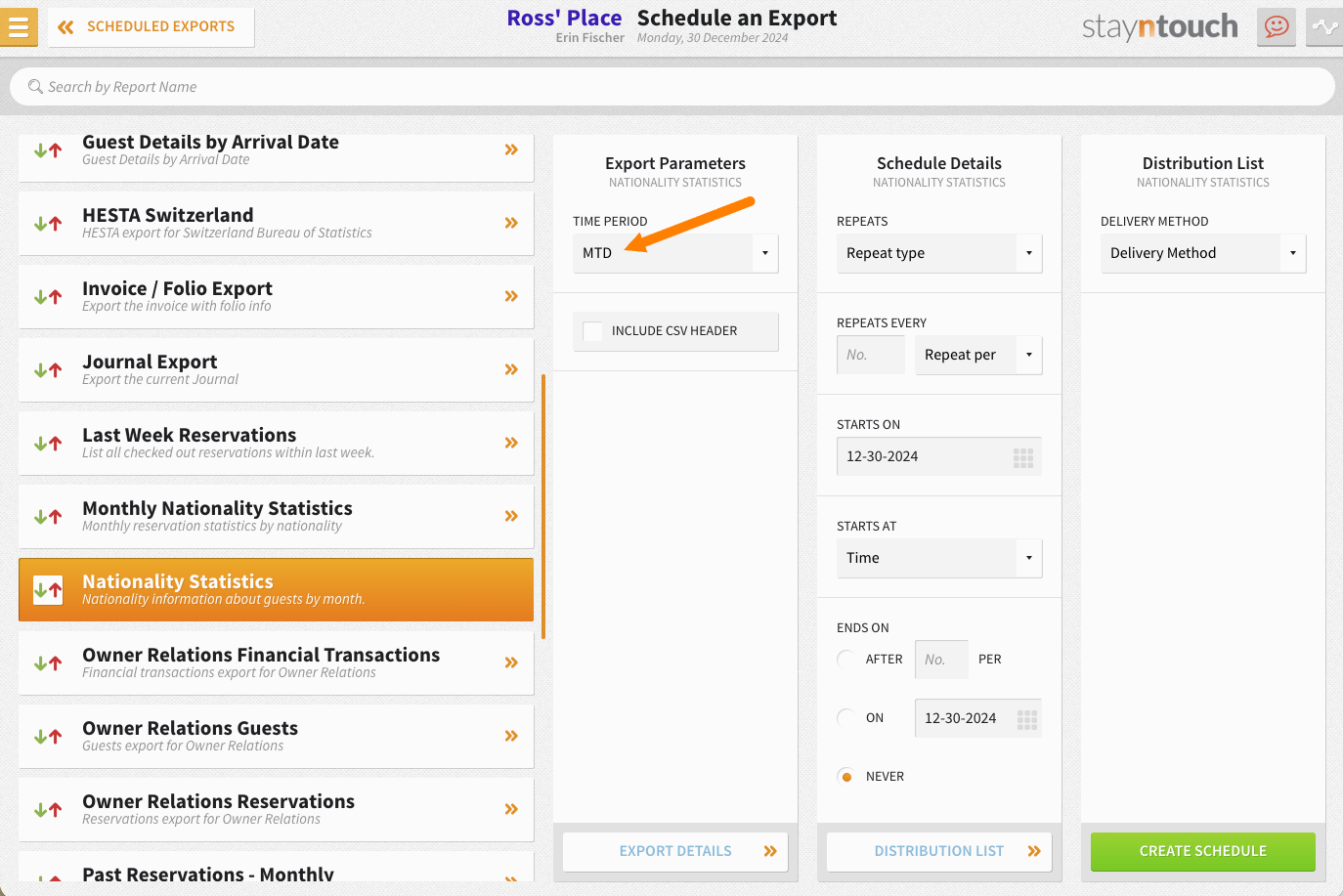
The Nationality Statistics Export (Reports > Schedule a Report/Export > Scheduled Exports > + New Export Schedule) has a new MTD option under Time Period, pulling data from the first of the month through yesterday. See how your guest mix is trending without waiting for the month end.
Custom Exports: Sorted Alphabetically
Custom Exports (Reports > Schedule a Report/Export > Custom Exports) are listed alphabetically, matching the order of Scheduled Reports and Scheduled Exports. If two exports share a name, the most recently updated one appears first.
(In Pilot) Deposit & Cancellation Windows
You can set stricter deposit or cancellation policies for your busiest dates, and they apply automatically to every reservation booked or staying in that period. No manual overrides needed. This functionality is currently in pilot, so please contact Customer Support if you are interested in piloting it.
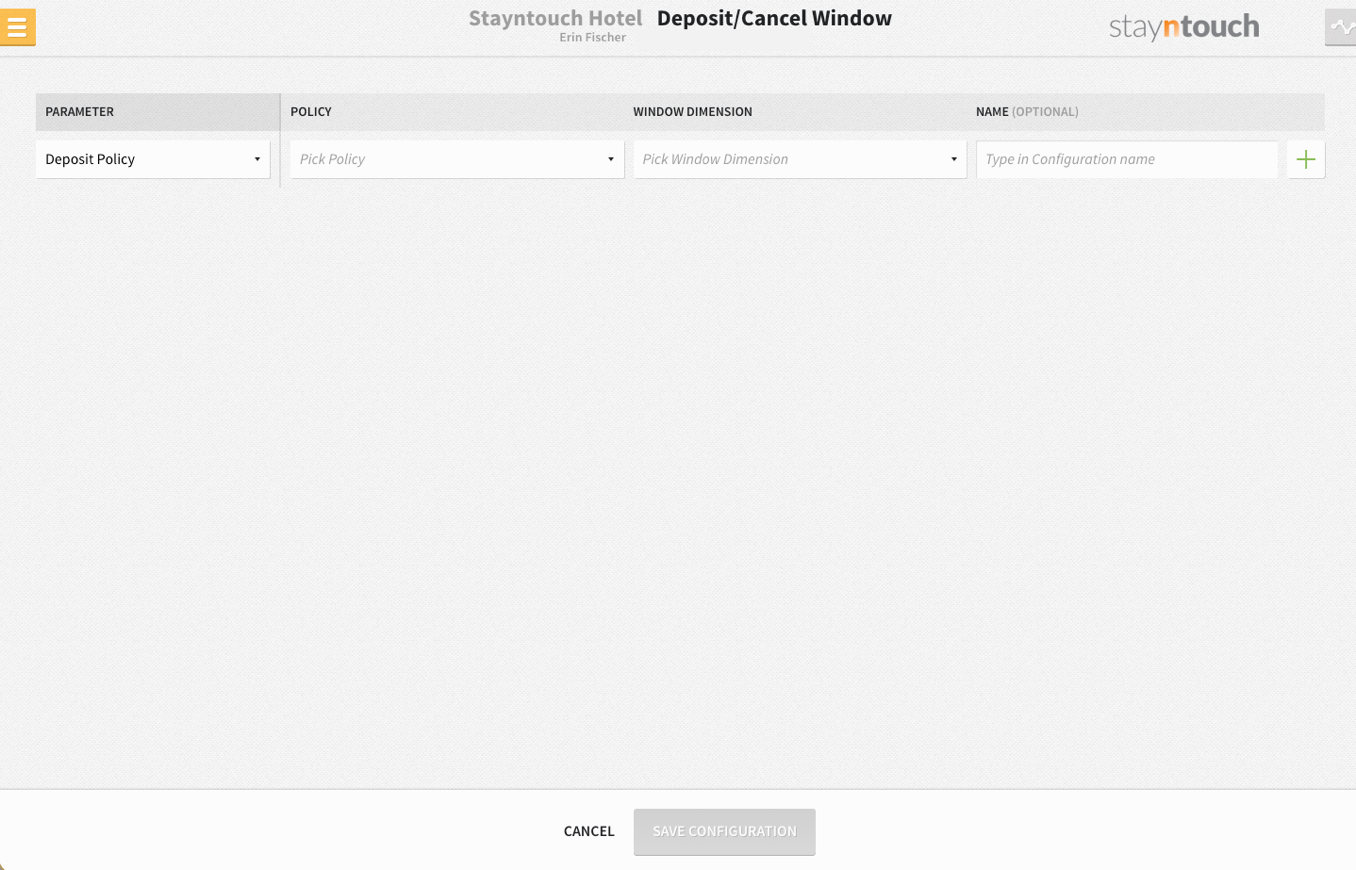
You’ll find it in Revenue Management > Deposit/Cancellation Window, with a Configure tab to set up your rules and an Apply tab to assign them to dates and rates.
When creating a new rule on the Configure tab, fill in four fields:
- Parameter: Deposit policy or cancellation policy
- Policy: The policy action to apply
- Window: Booking Date or Stay/Arrival Date
- Name: Filled in automatically from the policy, and editable
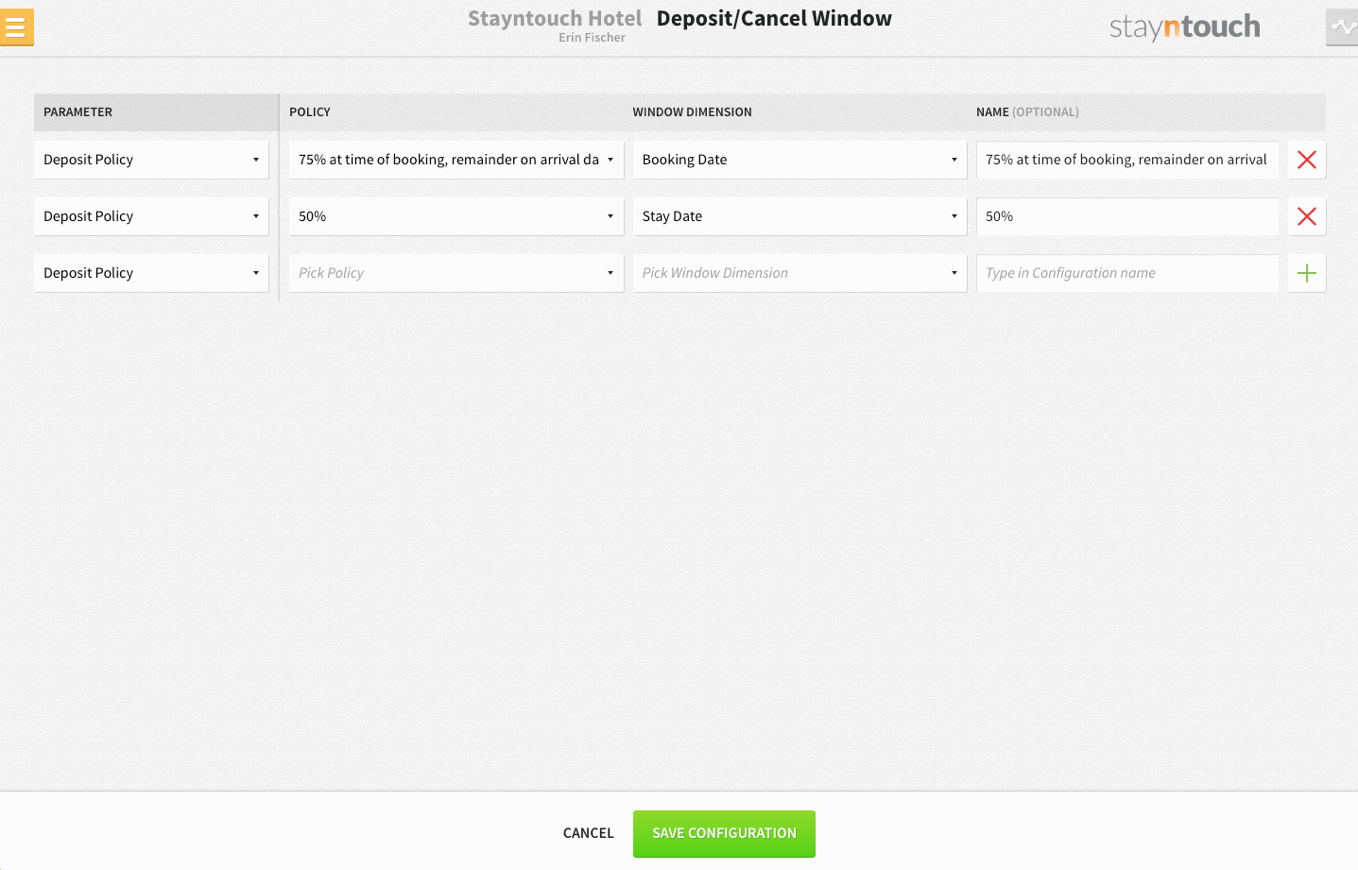
Use the + button to add more rules on the same screen.
Configure (Bulk):
On the Apply tab, pick your date range, choose the policy, and select the rates it should cover. Rates that already have a policy for those dates are hidden, so a rate never ends up with two policies for the same dates.
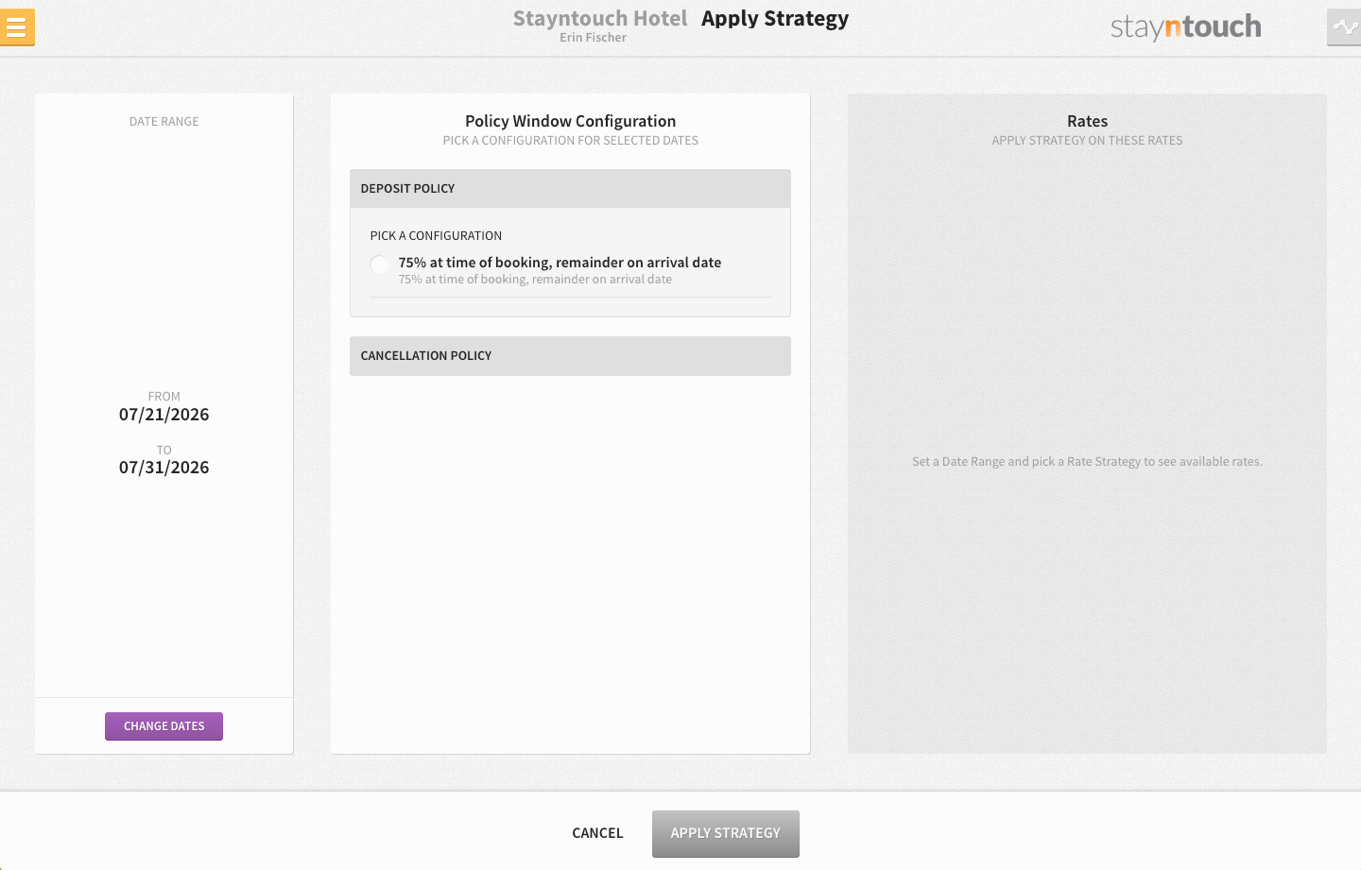
Apply (Pick Rates):
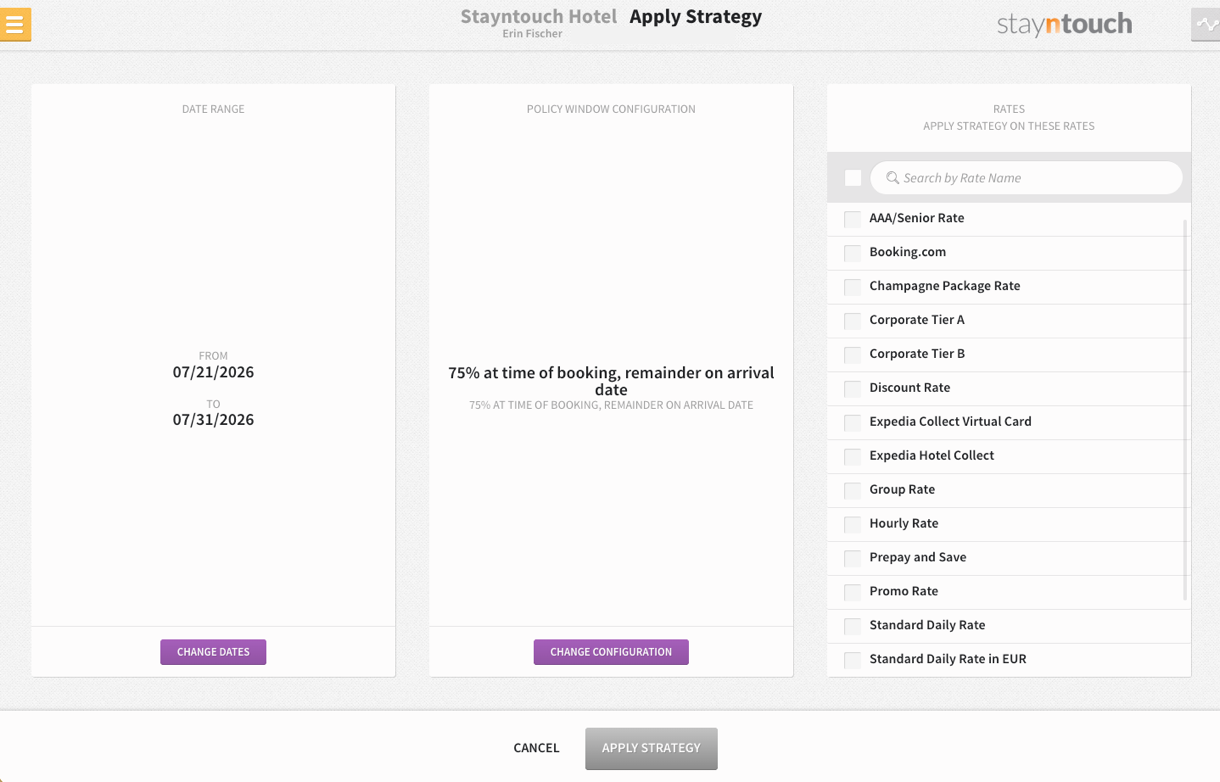
Any reservation that falls inside a window gets that policy automatically, overriding your Apply to All Bookings default. If more than one rule applies, the priority from lowest to highest is Apply to Rate, Apply to All, Booking Date, then Stay Date, so Stay Date always wins.
Multi-Property Functionality
Spot Locked Accounts at a Glance
Multi-Property admin users can see which users are locked out right from Configuration > People. A lock icon appears next to any locked user, so you can quickly see who needs a password reset and get them back into the system faster.

Multi-Property Rate Templates: Editable Pricing at Hotel Level
Multi-Property admin users can select Editable in PMS next to Pricing for a date range in a Multi-Property rate template. Hotels can then adjust those prices locally without template updates overwriting them. Deselect it and save the template to bring the hotel back in line with chain pricing.
Stayntouch IBE
Custom Hotel Branding Colors
Hotels can choose two custom colors, Primary and Secondary, directly in the Sitebuilder, alongside the existing Preset Colors, which remain available. Text contrast, button styling, and background tints adjust automatically based on the colors selected. To set up custom colors, contact your CSM or email onboarding@stayntouch.com with your HEX codes.
Secondary Color Accessibility Validation
Secondary color must meet a WCAG 2.1 contrast ratio of at least 4.5:1 against white (#FFFFFF) before it can be applied, so pricing and button text remain readable regardless of a hotel's branding.
Consistent Secondary Color Styling Across the Booking Flow
Cart actions, payment and booking buttons, the Extras carousel arrows, and Cancel/Close buttons across several popups now read from Secondary color for a consistent look throughout the booking journey.
Find the full details here: Stayntouch IBE Color Customization
To set up custom colors, contact your CSM or email onboarding@stayntouch.com with your HEX codes.
Payments
Elavon: Deposits Without the 0/1 Authorization
Hotels using Elavon can skip the 0/1 ($1/€1/£1 [or equivalent in local currency]) card authorization when a deposit is required. Contact your CSM or onboarding@stayntouch.com to enable it.
Stayntouch Pay: iDEAL Support
A full iDEAL transaction lifecycle is supported. All payments, voids, and refunds route automatically to guest folios and bank accounts with zero external processing required.
Integrations
OTA Group Reservations
Group reservations from OTA and channel integrations are accepted with more than four adults, up to your hotel’s maximum adults setting, and the stay card shows the true guest count.
Expressoft: Fiscal Receipts
Fiscal receipts include the room type and room number. Hotels using Expressoft also get a No Expiry checkbox on the guest card and registration card, so identity cards that never expire don’t block check-in.
SiteMinder
Rate updates reach SiteMinder in the correct order.
New Integration Partners
The following new partners are available globally. Contact your Client Success Manager or Customer Support for more information.
- Grevon: AI website and phone agents that take guests to a confirmed booking
- Q Concierge: AI voice concierge that books and manages reservations by phone
- Beacon: Real-time revenue reporting and rate shopping
- Lutra BI: Revenue management and business intelligence
- Neon Plus: In-room TV with welcome messages and service requests
- Also joining: OneBooking, InnTrend AI, Staklio, The Guestbook, EvenBook.