
 Stayntouch PMS
 [IN PILOT] Stayntouch Guest Messaging User Guide
TABLE OF CONTENTS
Overview of the Guest Messaging Functionality
Stayntouch Guest Messaging streamlines and automates guest communication across multiple channels, including SMS, WhatsApp, Booking.com, Expedia.com, and web chat, helping hotels deliver a faster and more connected guest experience.
With automated guest messaging, the platform can instantly respond to common guest questions at any time, reducing manual workload for hotel teams while improving response times.
The unified inbox centralizes conversations from all connected communication channels into a single view, making it easier for staff to manage guest interactions efficiently.
Built-in translation capabilities allow guest messages to be automatically translated into the property’s language and back into the guest’s preferred language, supporting seamless multilingual communication.
As a proactive messaging tool, Stayntouch Guest Messaging sends scheduled and automated messages throughout the guest journey based on configured templates (for example, including pre-arrival information, check-in instructions, and upsell offers).
Accessing Guest Messaging
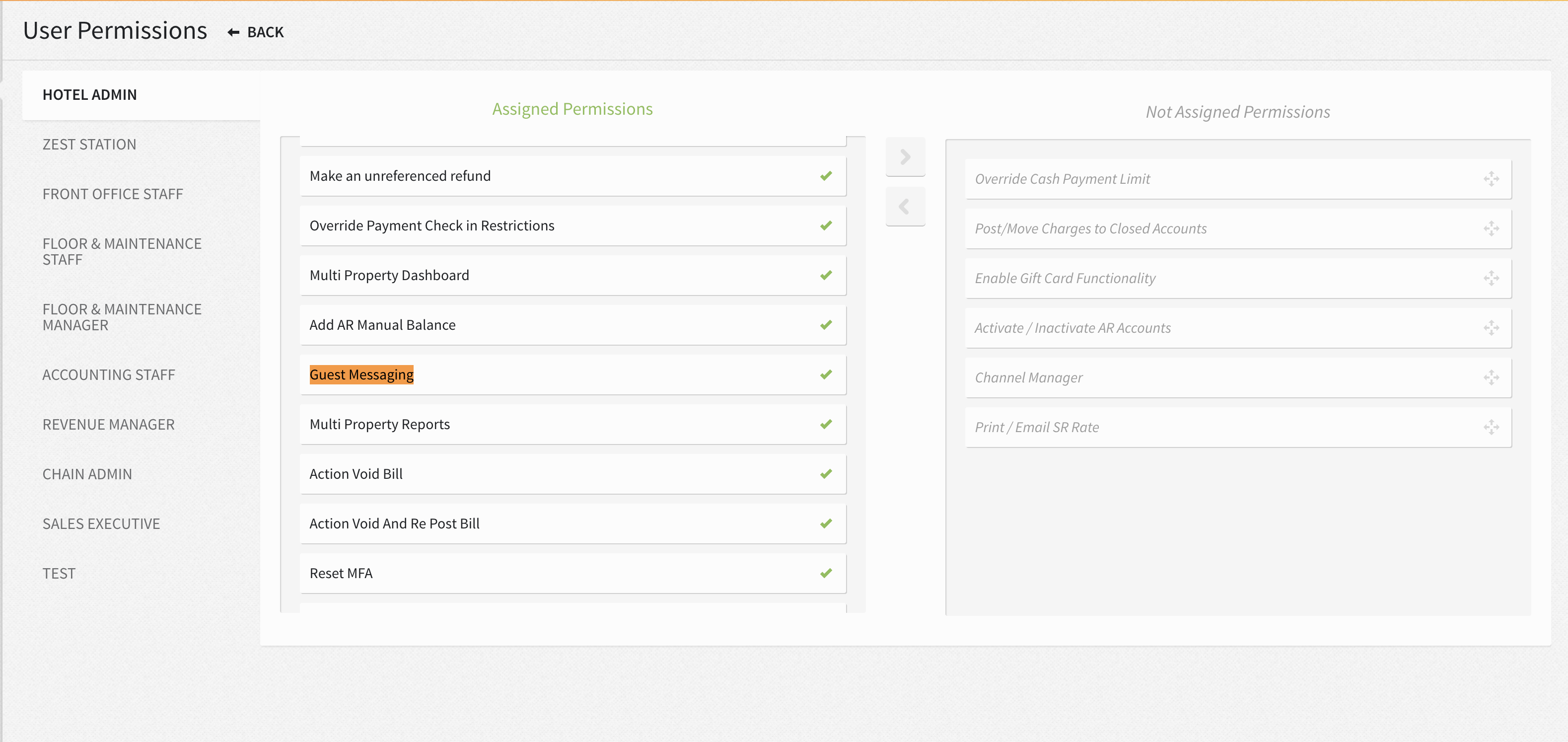
Access to the inbox is restricted by user role. If a user has the the Guest Messaging permission assigned, they will be able to access the inbox. This can be assigned via Settings > Hotel & Staff > Permissions. The permission is automatically assigned for Hotel Admin users.
How to Handle Manual Requests
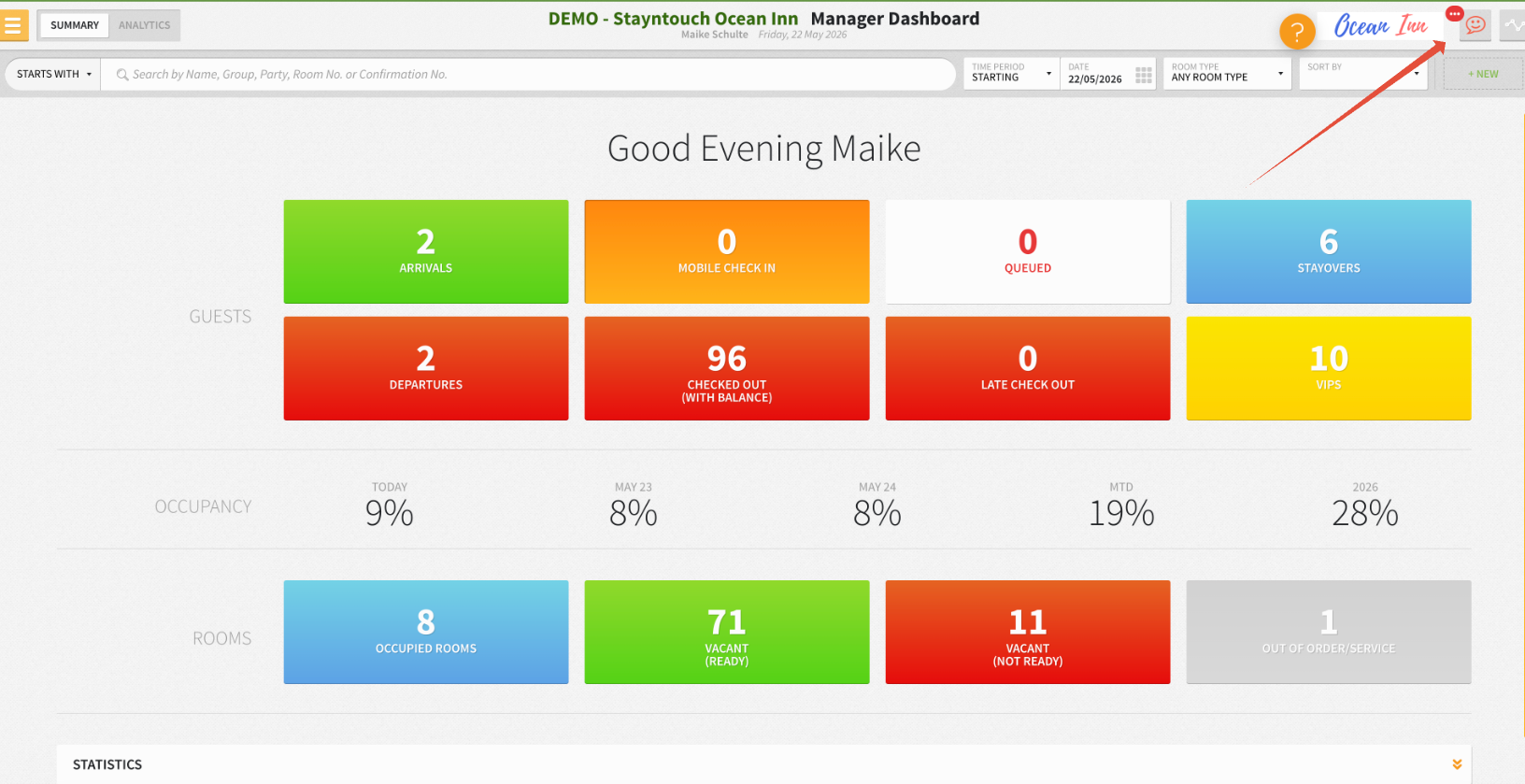
Conversations from all connected channels can be accessed by clicking the smiley button.
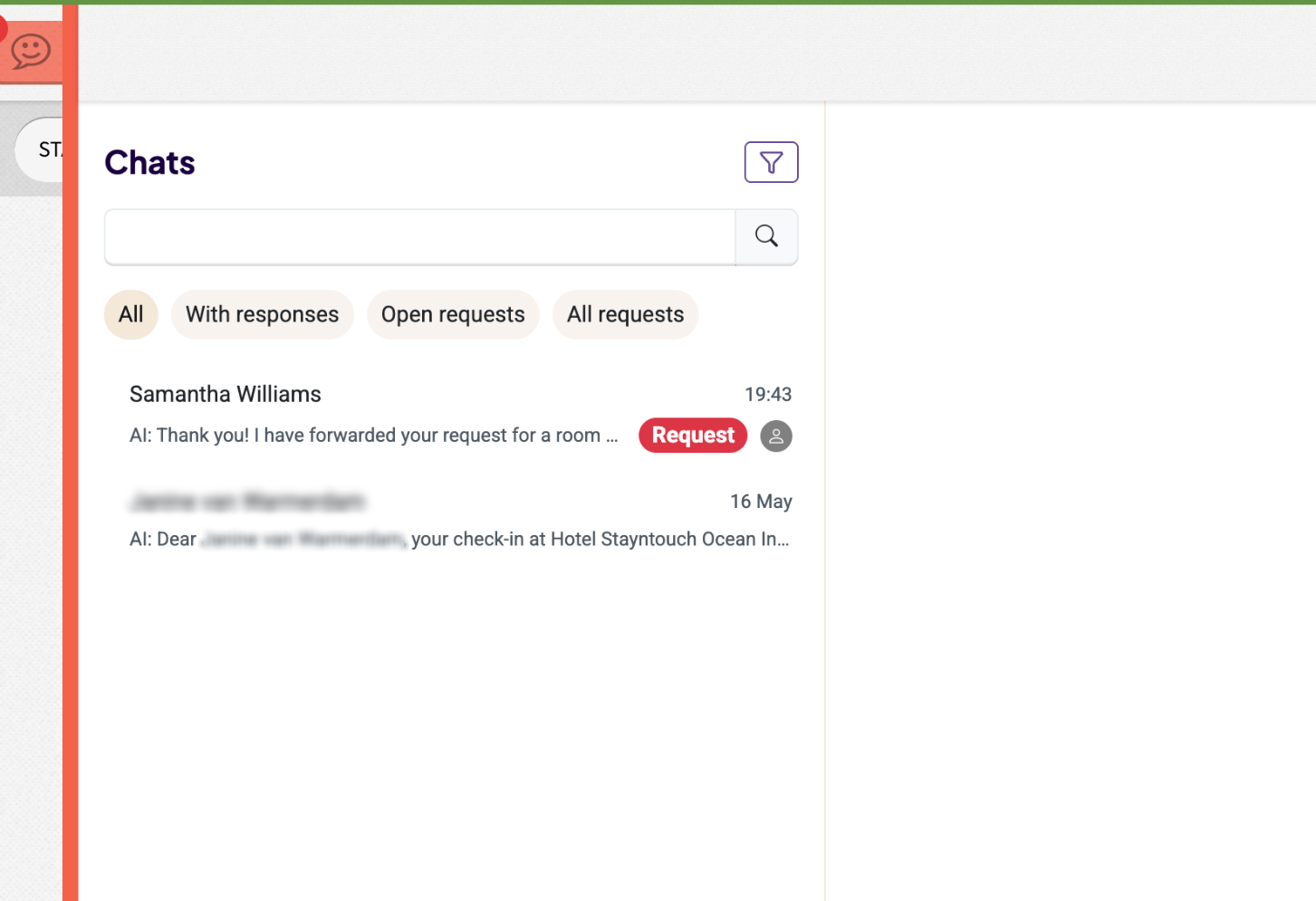
Messages are normally handled automatically by the AI. However, if a guest request requires manual attention, the conversation will display three dots, indicating there is an outstanding request to review.
To handle a request manually:
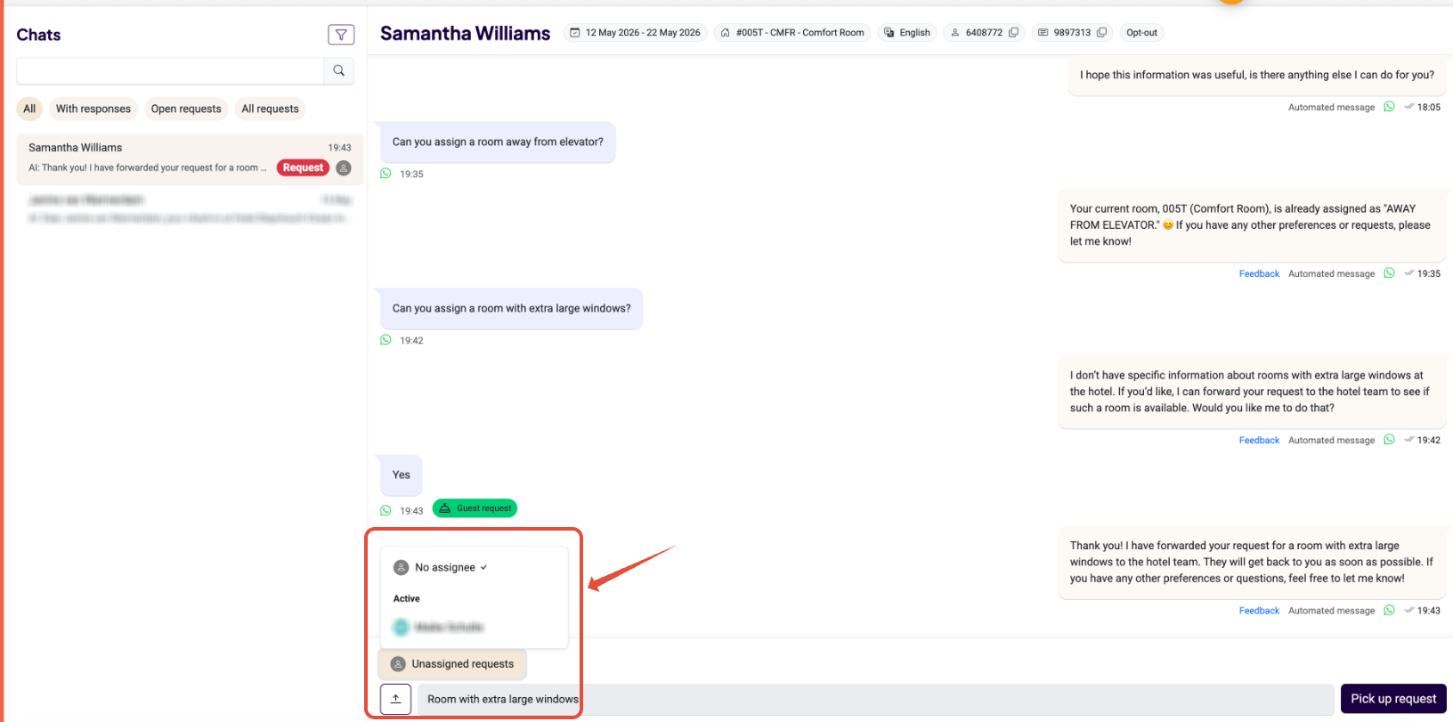
- Click on the conversation marked with the red Request label.
- Assign the request to yourself to take ownership of the conversation.
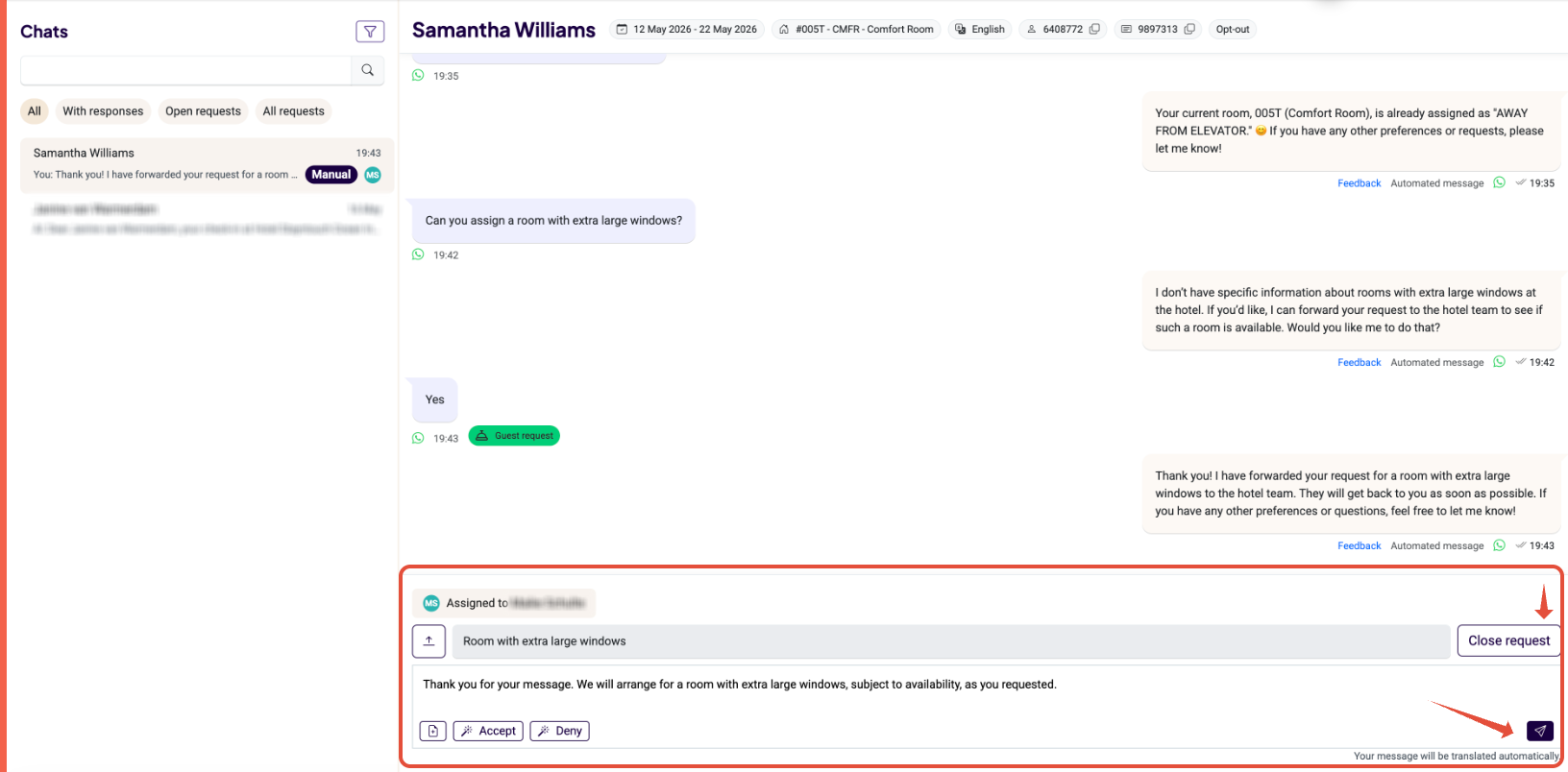
- Choose to accept or deny the request.
- A prewritten approval or decline message will appear automatically and can be edited if needed.
- Send the reply to the guest.
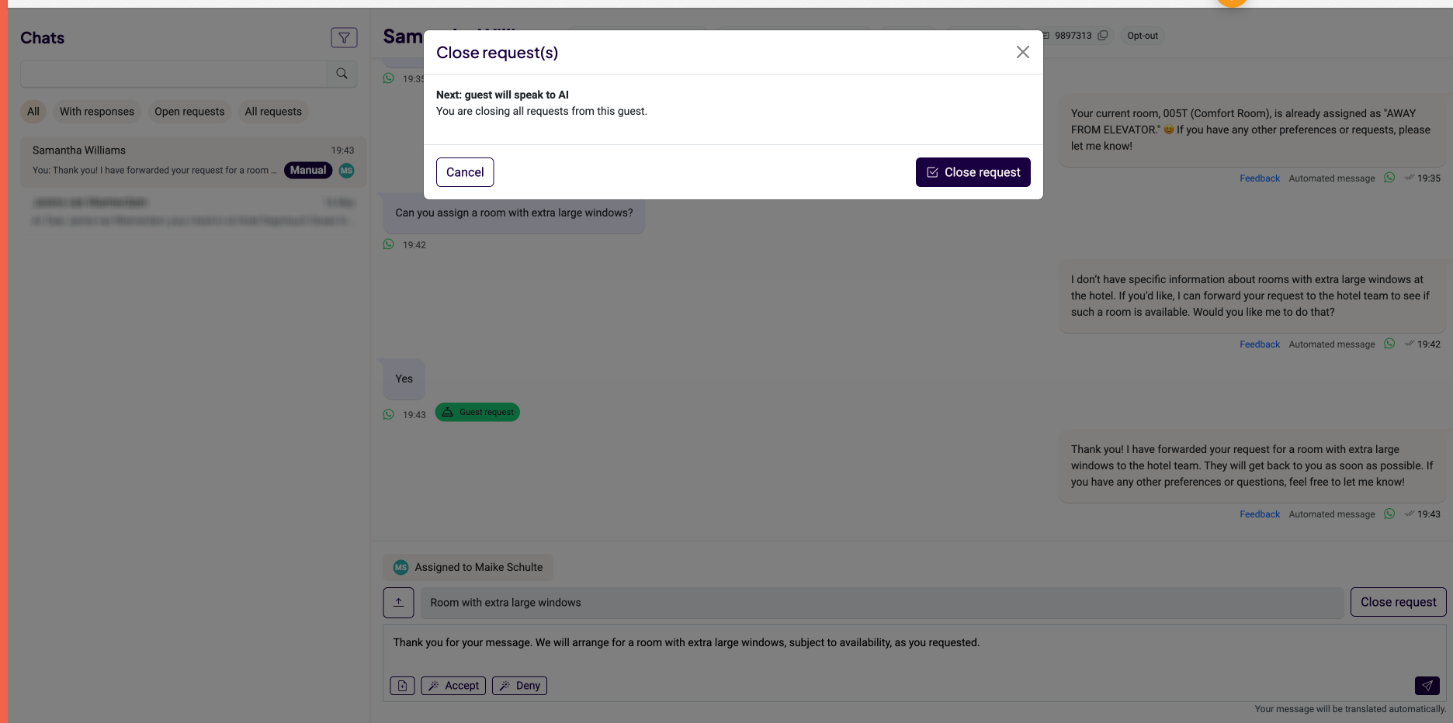
- Once the request has been resolved, close the request so the AI can resume handling the conversation automatically.
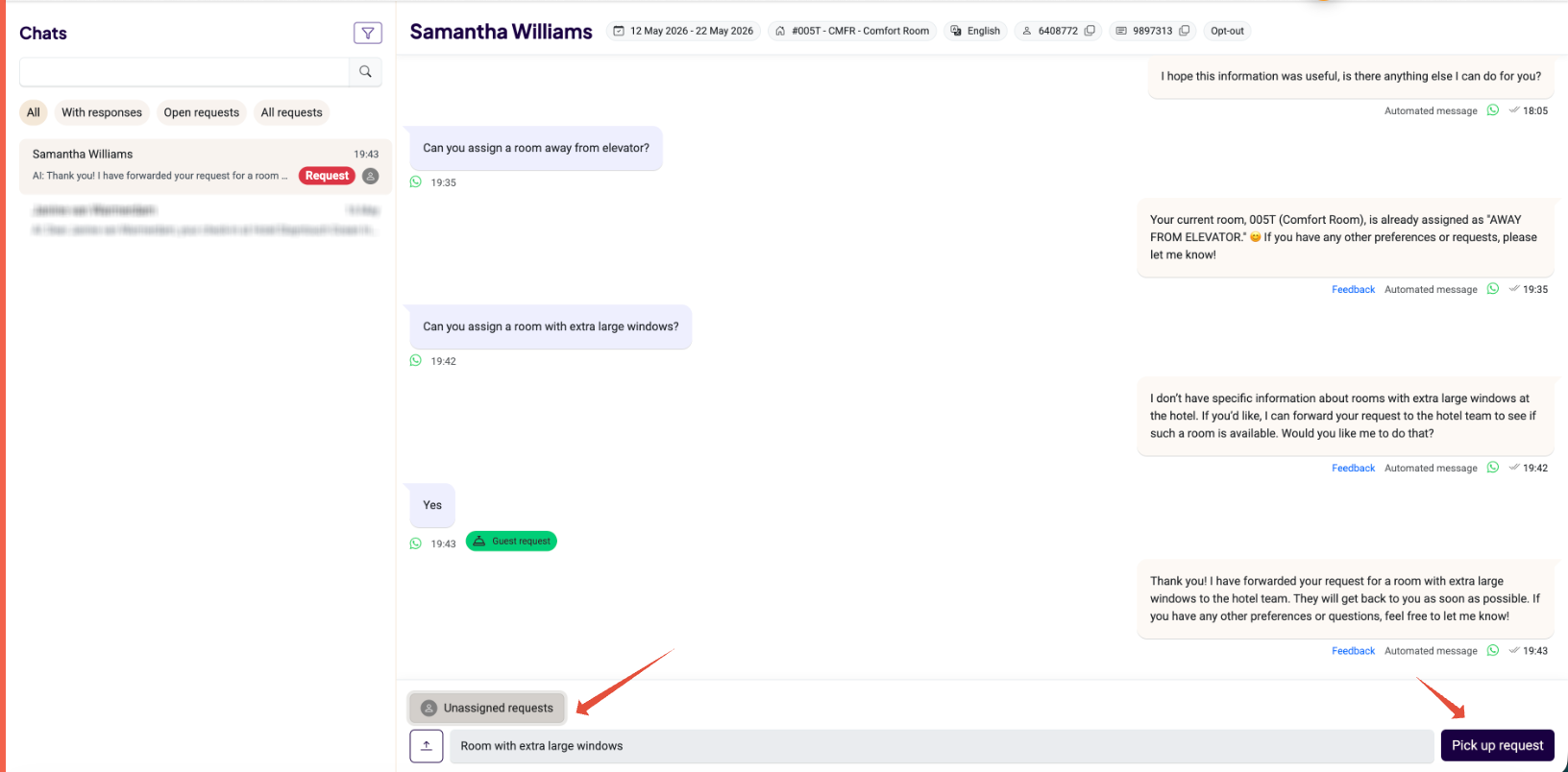

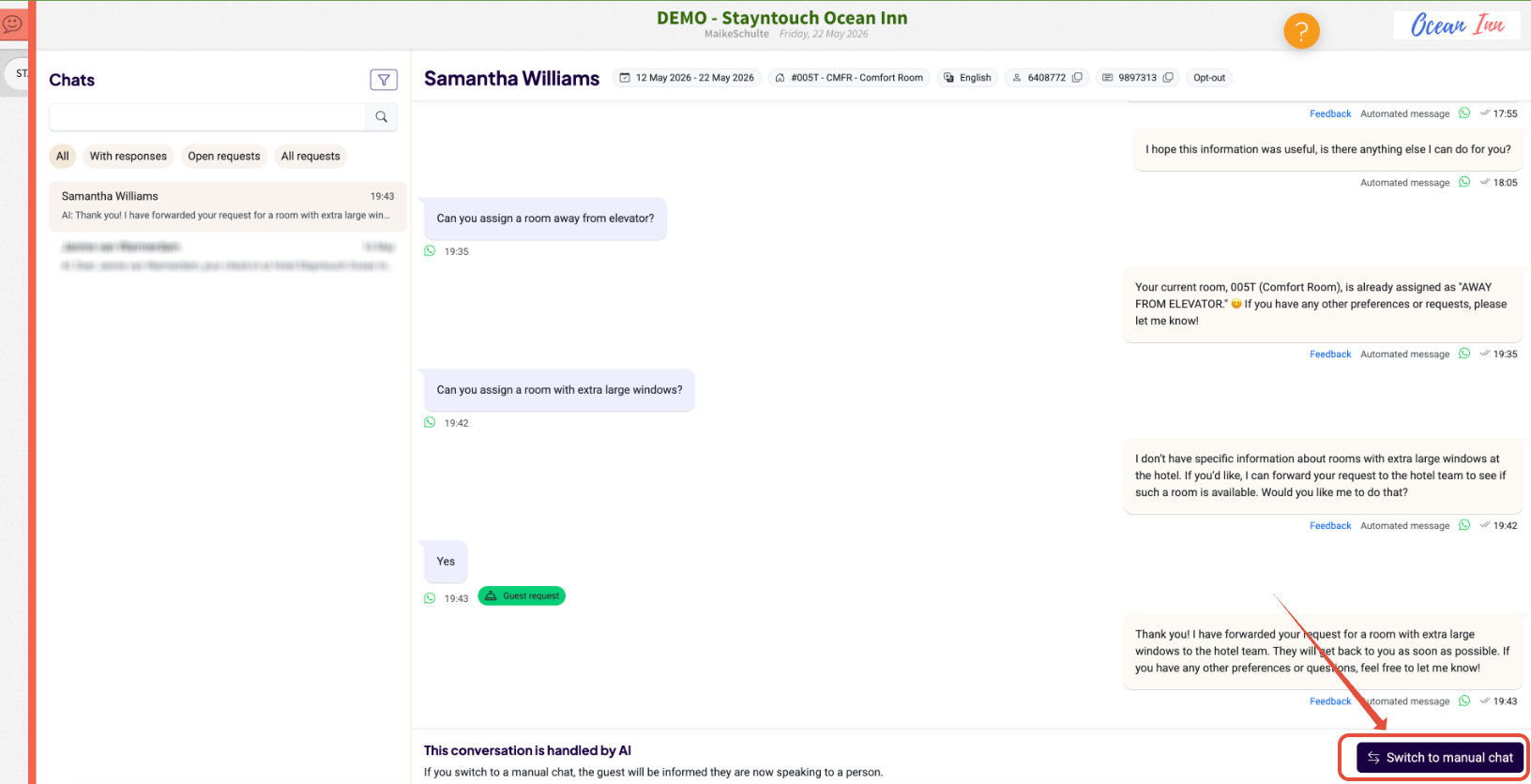
Note: Any ongoing conversation can be switched from AI handling to manual handling at any time if needed.
The inbox can be closed by selecting the inbox icon again on the left side to continue working within Stayntouch PMS.
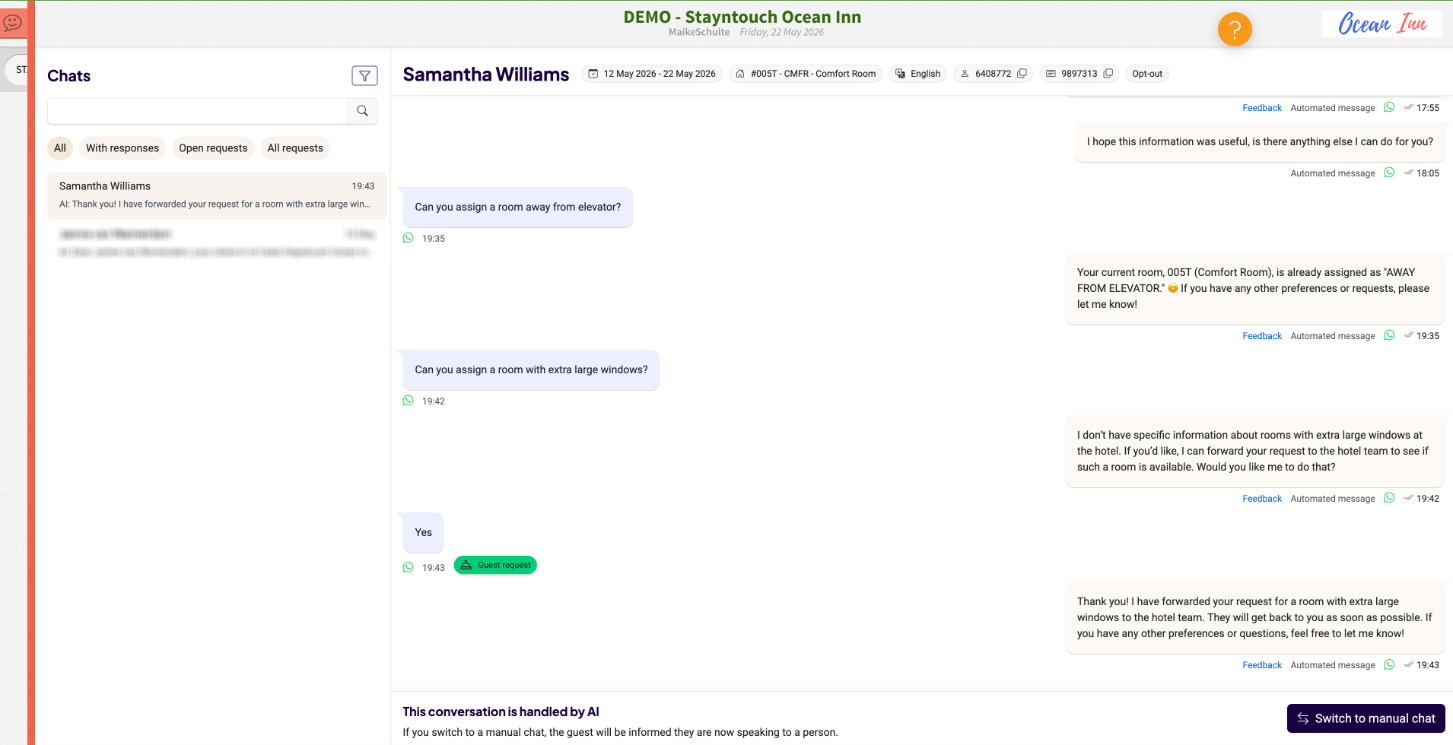
The message will automatically be translated for the guest in their language. It is possible to type your own response or have AI assist in accepting or denying the customer’s request.
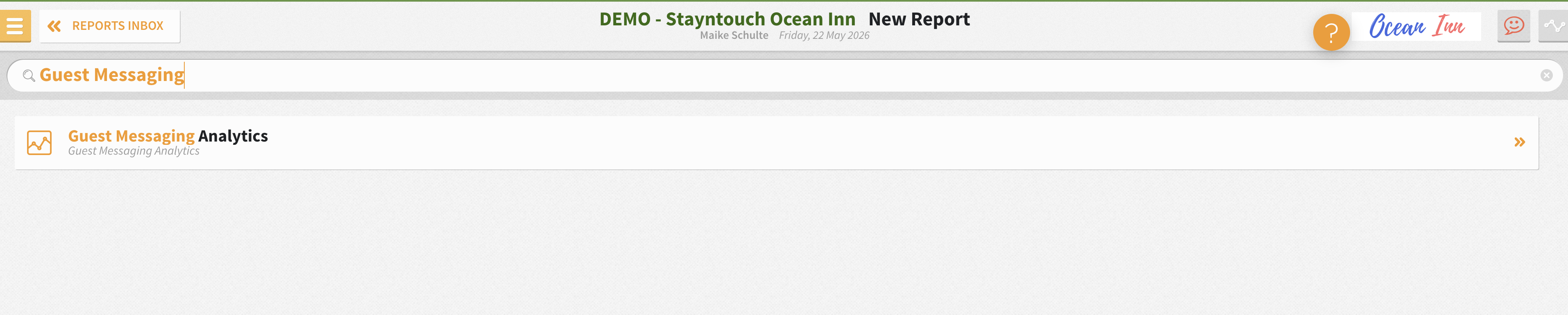
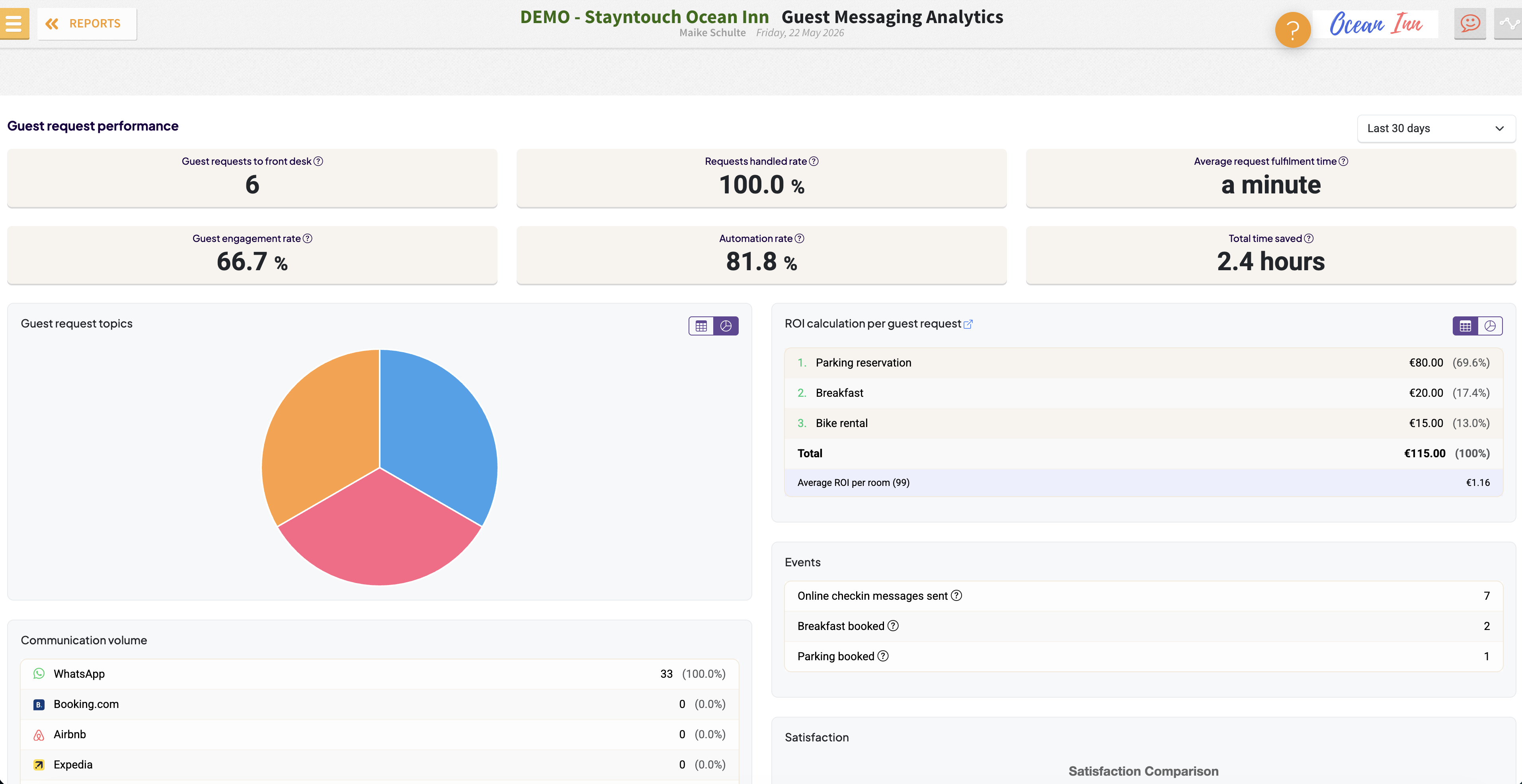
There is also a report in Stayntouch PMS that can be accessed via Reports > New Report > Guest Messaging Analytics, which shows the performance in terms of requests.
If you’re interested in enabling this feature please reach out to sales@stayntouch.com.