
 Stayntouch PMS
[IN PILOT] Stayntouch Guest Messaging Onboarding Via SMS
TABLE OF CONTENTS
- Prerequisites: Getting Your Communication Channels Ready (SMS & WhatsApp)
- Creation of Your Guest Messaging Environment
- Onboarding Sessions
Prerequisites: Getting Your Communication Channels Ready (SMS & WhatsApp)
To ensure everything runs smoothly at go live, we’ll prepare your communication channels alongside your messaging account. This is a straightforward process, and we’ll guide you through it.
SMS Setup
To enable SMS communication, we’ll request a dedicated 10DLC number for your property. This process can take up to 7 business days, as it requires regulatory validation. To avoid delays, we recommend gathering the required information early so we can submit your request as soon as onboarding begins.
Follow the step-by-step SMS setup guide here.
WhatsApp (Optional)
If you’d like to connect with international travelers via WhatsApp, having your Meta Business Account up-to-date will help to integrate your WhatsApp channel into our Guest Messaging tool quickly and seamlessly.
View the WhatsApp setup best practices here.
Getting these elements ready in advance helps ensure a smooth and timely launch—so you can start communicating with your guests without any hiccups.
Creation of Your Guest Messaging Environment
Once your Guest Messaging contract is finalized, we will begin building your dedicated environment. To ensure the platform aligns with your brand identity, please provide the following assets:
- Property Logo
- Favicon
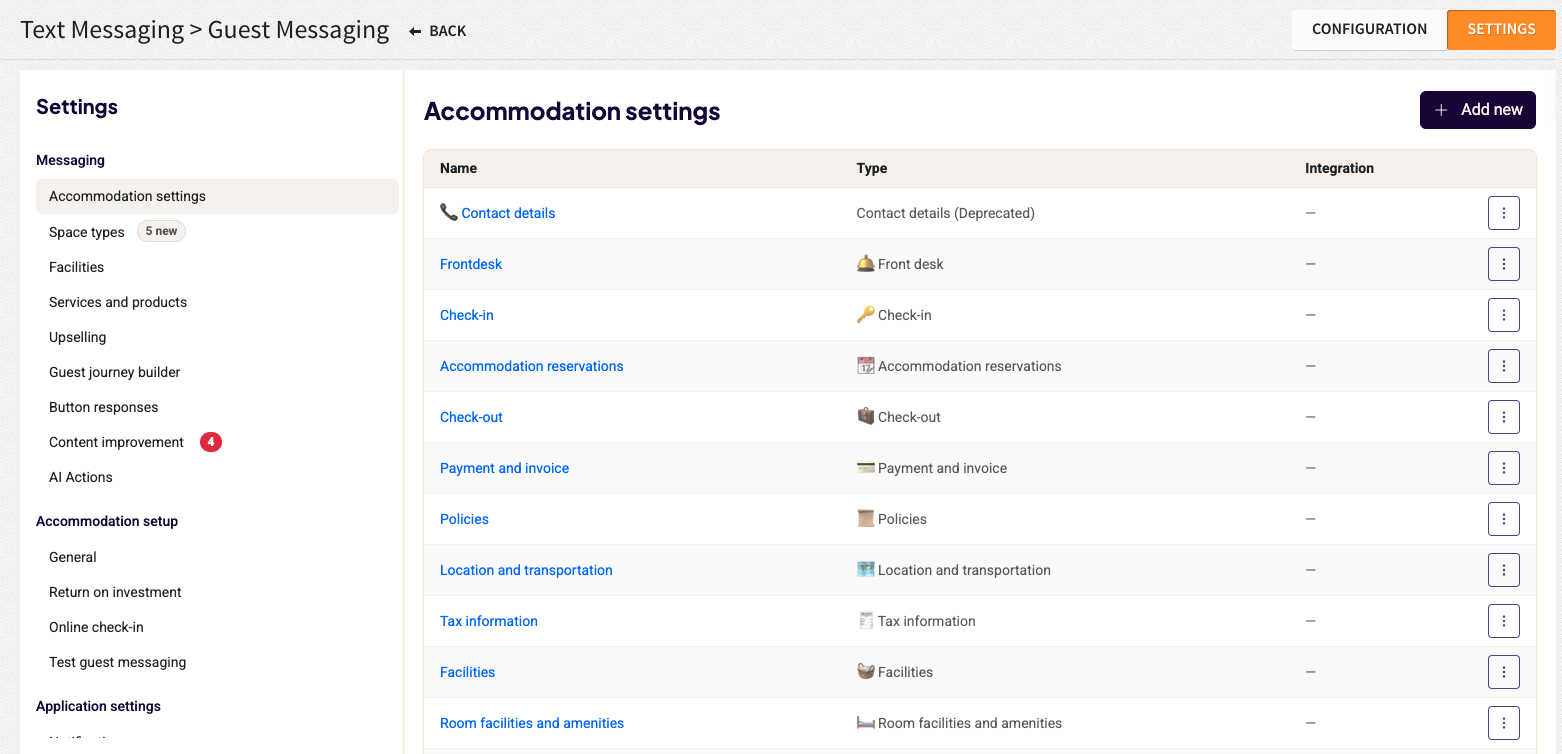
Once this is active, you can access the settings under Settings > Integrations > Guest Communications > Guest Messaging:
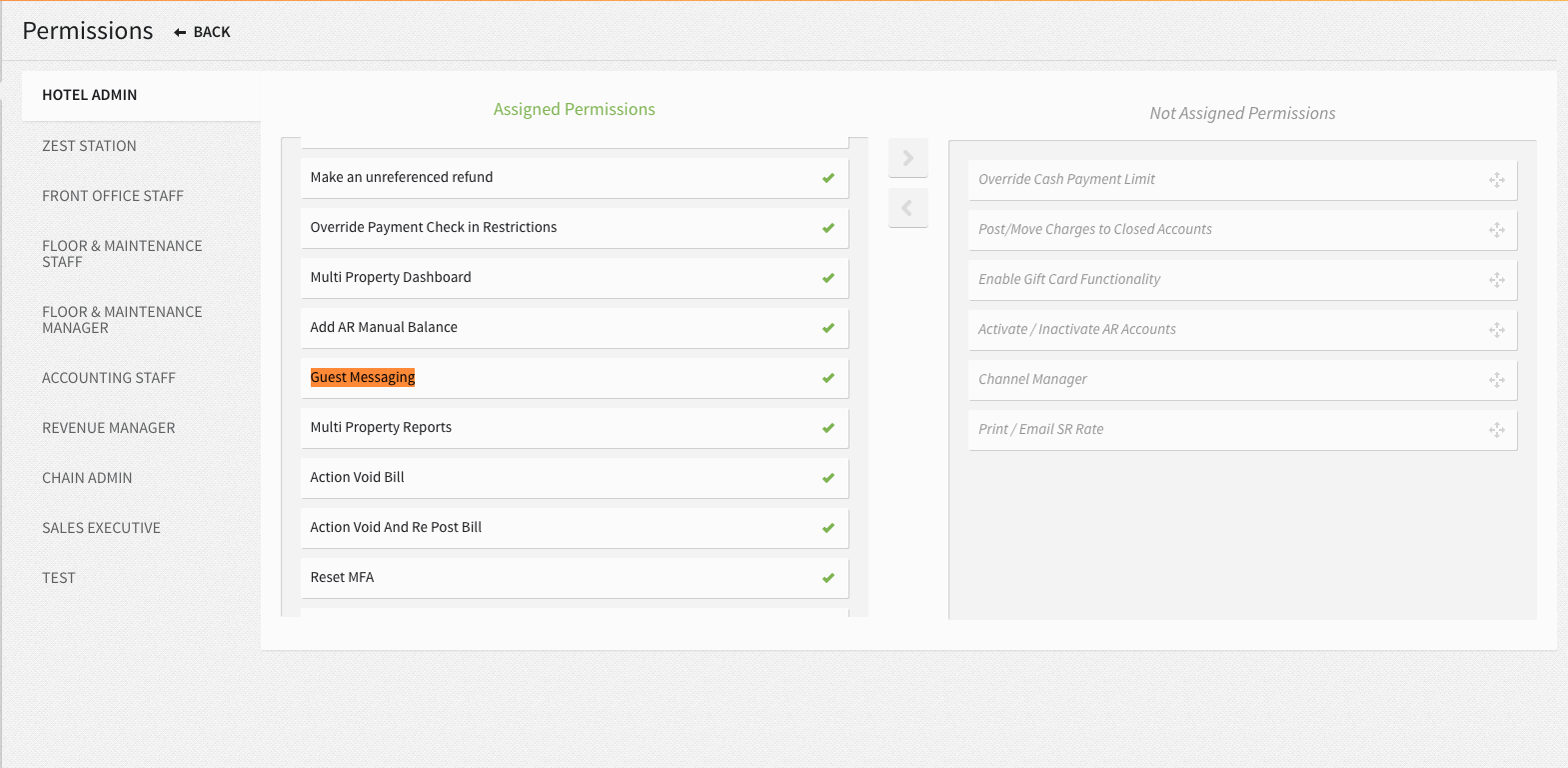
Please ensure the Guest Messaging user permission is assigned to grant users to access guest messaging functionalities.
Onboarding Sessions
Onboarding is done in three sessions. Before onboarding starts, Runnr can perform a Knowledge Import and scan existing information from online sources such as the website to prefill data.
First Session
During the first session, we’ll review all necessary setup steps for the guest messaging tool, including the Answer Library (Messaging). The completion of the content can be divided into 4 sections:
1. FAQs: Related to Accommodation Settings, Facilities, Services & Products
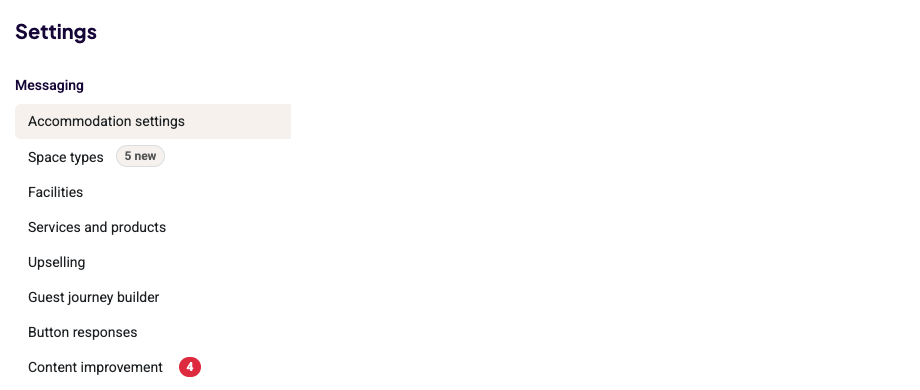
To ensure the AI provides accurate and professional responses, you must complete the sections below. This content serves as the "brain" for the AI.
Best Practices:
- Avoid Personal Pronouns: Do not use "we," "you," "I," or "our."
- Keep It Objective: Write in a dry, factual, and informational style.
- The "Who" Factor: Remember, you are communicating with the AI, not the guest. The AI does not understand who "we" or "us" refers to; it only understands data.
Example: Instead of: "We offer a delicious breakfast in our dining room from 7 AM." > Write: "Breakfast is served in the dining room from 07:00 to 10:00."
Services and Products: This section is synced from your PMS add-ons. You can add additional details to your add-ons and merge them if needed.
Upselling: Guest Messaging can automatically upsell breakfast and parking add-ons on guest reservations. Please note:
- Breakfast is posted per night and per person
- Parking is posted per night
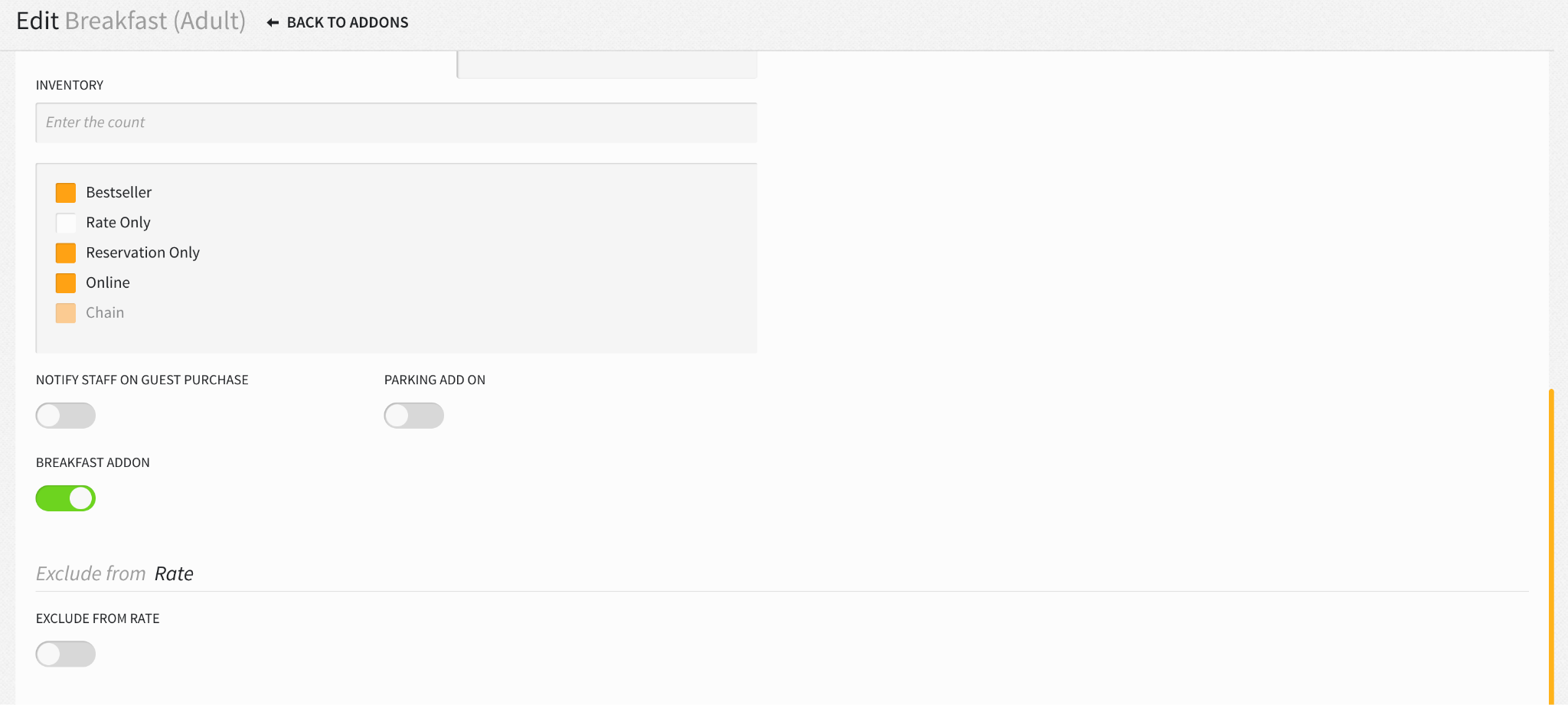
To set this up, first please mark the add-ons to be bookable online:
- In Stayntouch, go to Settings > Rates > Add-Ons.
- Locate the add-ons you want to use for breakfast and/or parking upselling.
- Check the Online checkbox for each relevant add-on.
- Once completed, a refresh will be run on your configuration.
Then, we need to select the specific add-ons used for Guest Messaging:
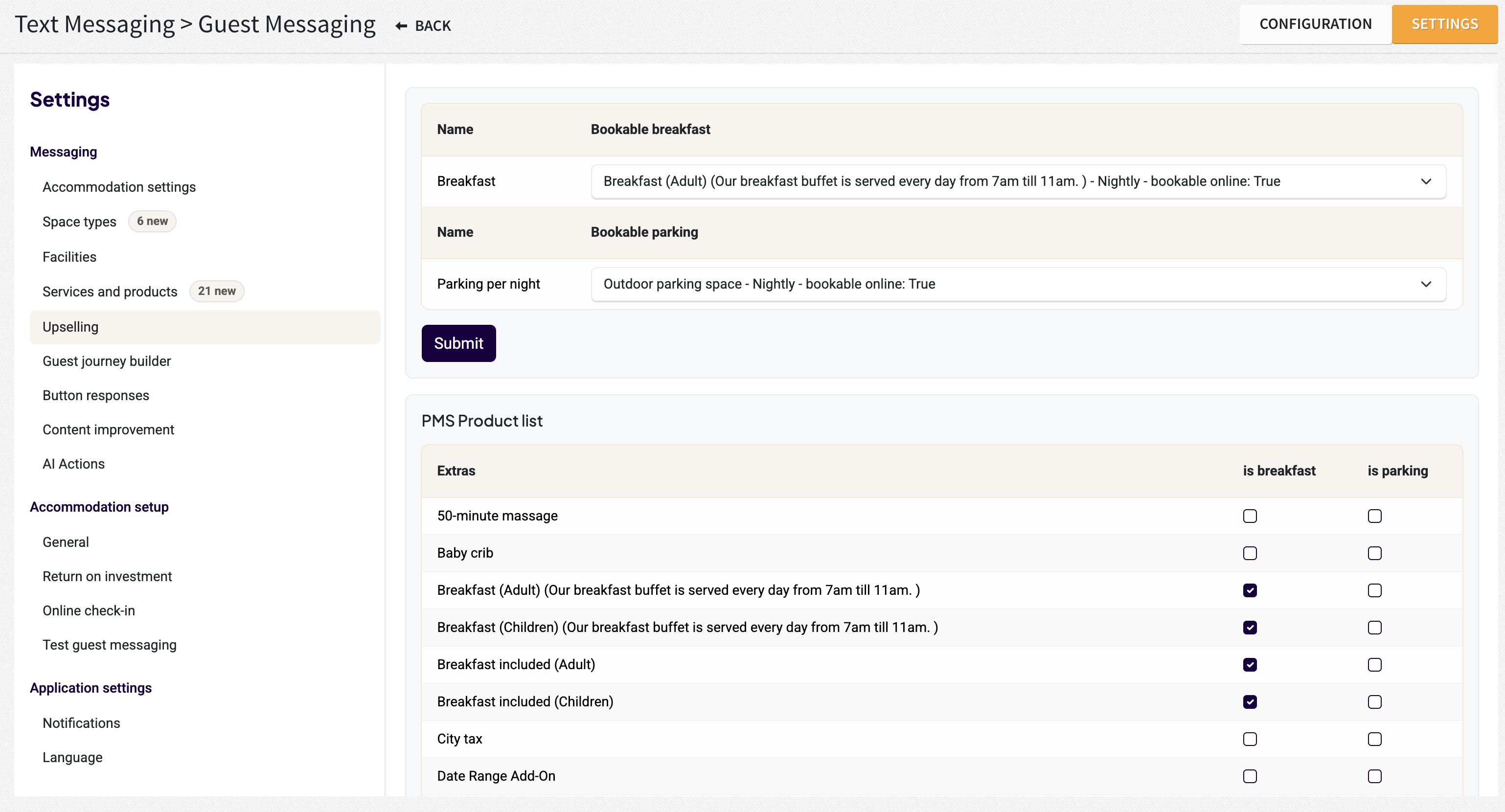
- Go to Settings > Integrations > Guest Communications > Guest Messaging > Upselling > PMS Product List (lower section):
- You will see a list of all add-ons from the PMS.
- Select the add-ons that correspond to breakfast and parking.
- This allows the AI to identify whether a guest already has breakfast or parking included.
- Online Add-Ons (upper section):
- You will now see which breakfast/parking add-ons are available for online booking (bookable online: true).
- Select the add-on(s) you want to use for upselling via messaging.
- Click Submit to save your selection.
2. Space Type Configuration
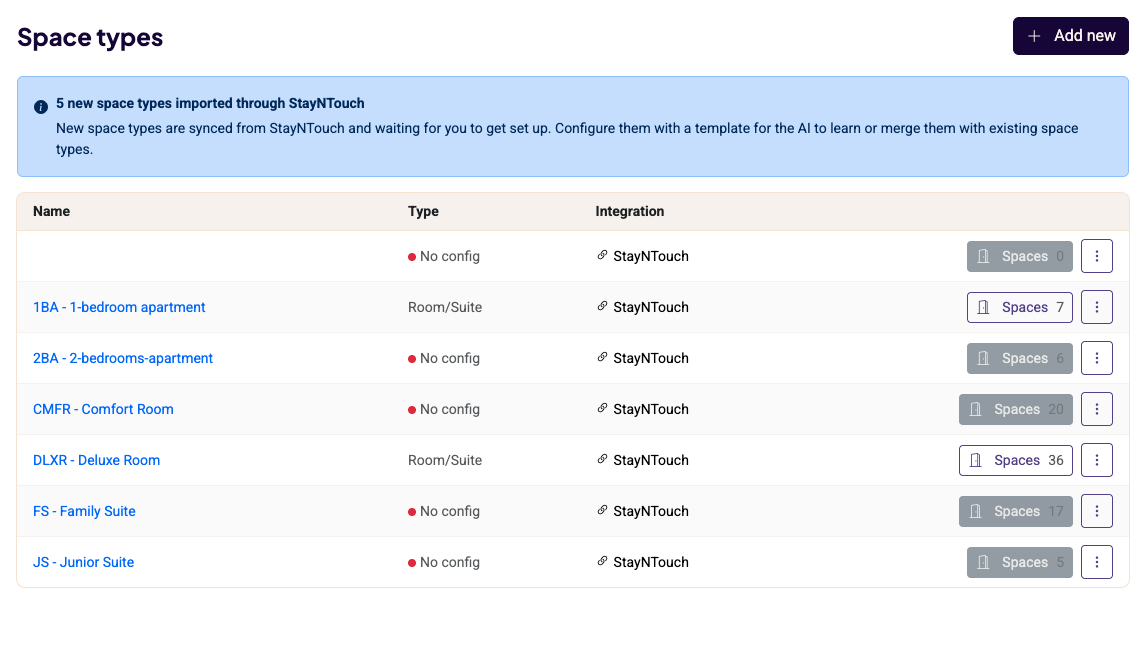
The Space Type section can be automatically synchronized with your Stayntouch settings. Even after synchronization, you retain full control to manually add or edit details to provide the AI with deeper context regarding your room types and amenities.
3. Button Responses (Relevant for properties redirecting to WhatsApp)
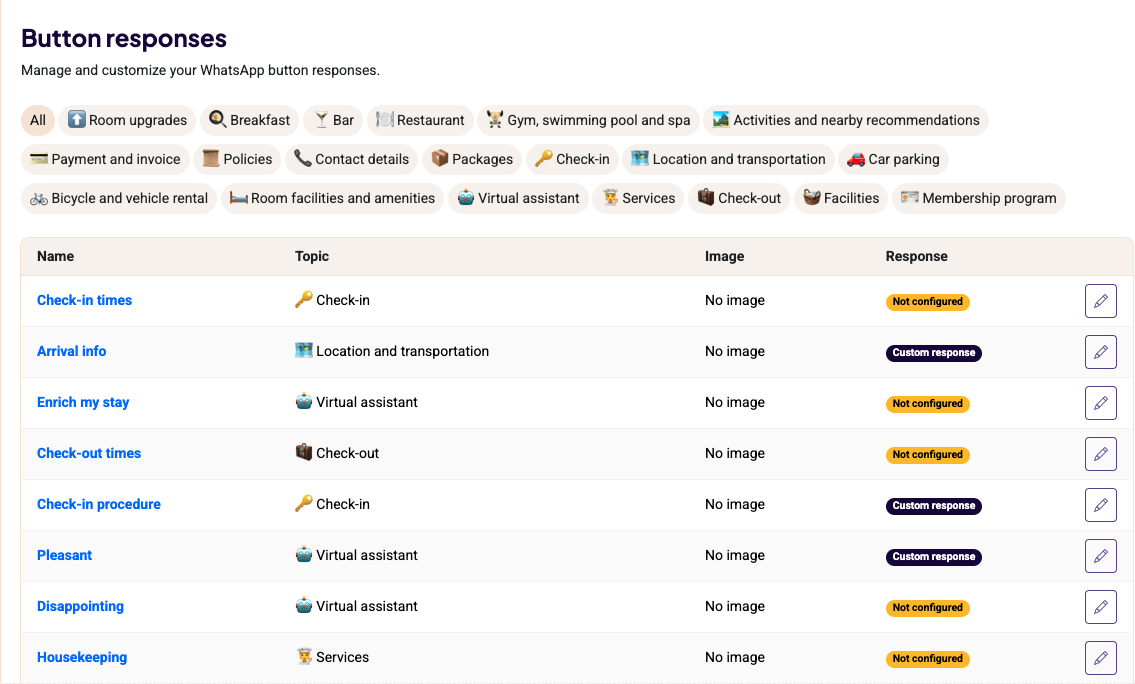
These are static buttons that give you full control over your guest interactions—the AI will not overwrite the content you set here.
For every button, you have the flexibility to:
- Choose the Response Type: Decide whether the reply should be AI-generated or a fully customized message.
- Add Visuals: Attach images to make your responses more engaging.
- Guide the Conversation: Select up to three follow-up buttons to appear after the initial reply.
You will notice that some buttons are pre-filled based on your property settings. However, we highly recommend clicking "Set a custom response" to personalize them.
Best Practice: When writing custom responses, use a personal tone with "we" and "you." Since these messages appear exactly as written, a warm, direct tone helps build a better connection with your guests.
Accommodation Setup
The next part to complete is the Accommodation Setup, which is divided into four sections:
1. General:
The general section should already be prefilled with your logo and your favicon.
For stronger brand consistency, a custom domain can be added for shortlinks here.
2. Return on Investment (ROI):
We provide ROI projections to help you quantify the value the Guest Messaging delivers.
On this page, you can set the estimated average value for each type of request you receive. The results of the Return on Investment (ROI) calculation are available in the Guest Messaging Report within the Stayntouch reports (Reports > New Report).
Enter the values for the listed products based on their booking value. These values may vary, as some products are booked for the entire stay, while others apply to a single use or a specific day or night.
Example of an estimated ROI calculation: Suppose the price of breakfast is $17.50. Your average length of stay is 2 nights, and the average occupancy is 1.5 guests. To estimate the average value, you would enter:
$ 17.50 × 2 × 1.5 = $ 52.50
In the dashboard, you will then see the total calculated value of all breakfast requests received during the selected period.
This information will not be used as input for the AI.
3. Online Check-In:
Currently the static Guest Mobility direct link is supported. The PMS check-in section will be added in the future.
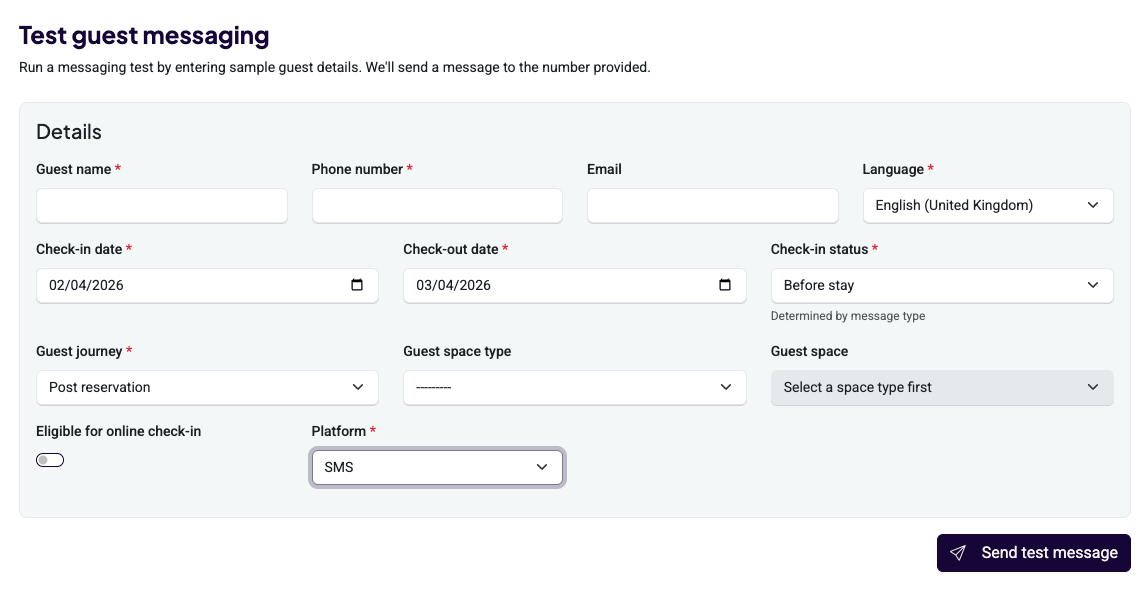
4. Test Guest Messaging:
This section allows users to send themselves a test message to WhatsApp/SMS to test the guest experience before going live.
Application Settings
The last area to complete is the Application Settings, which is divided into two sections.
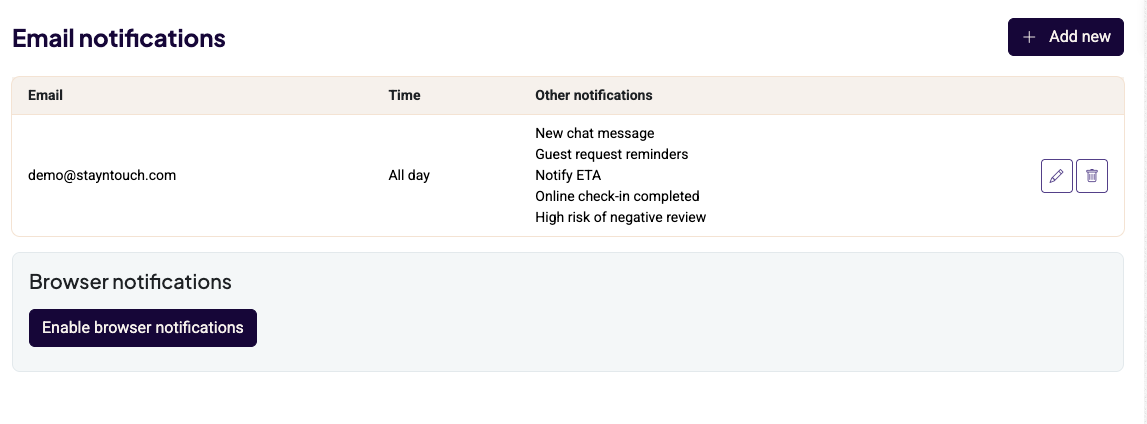
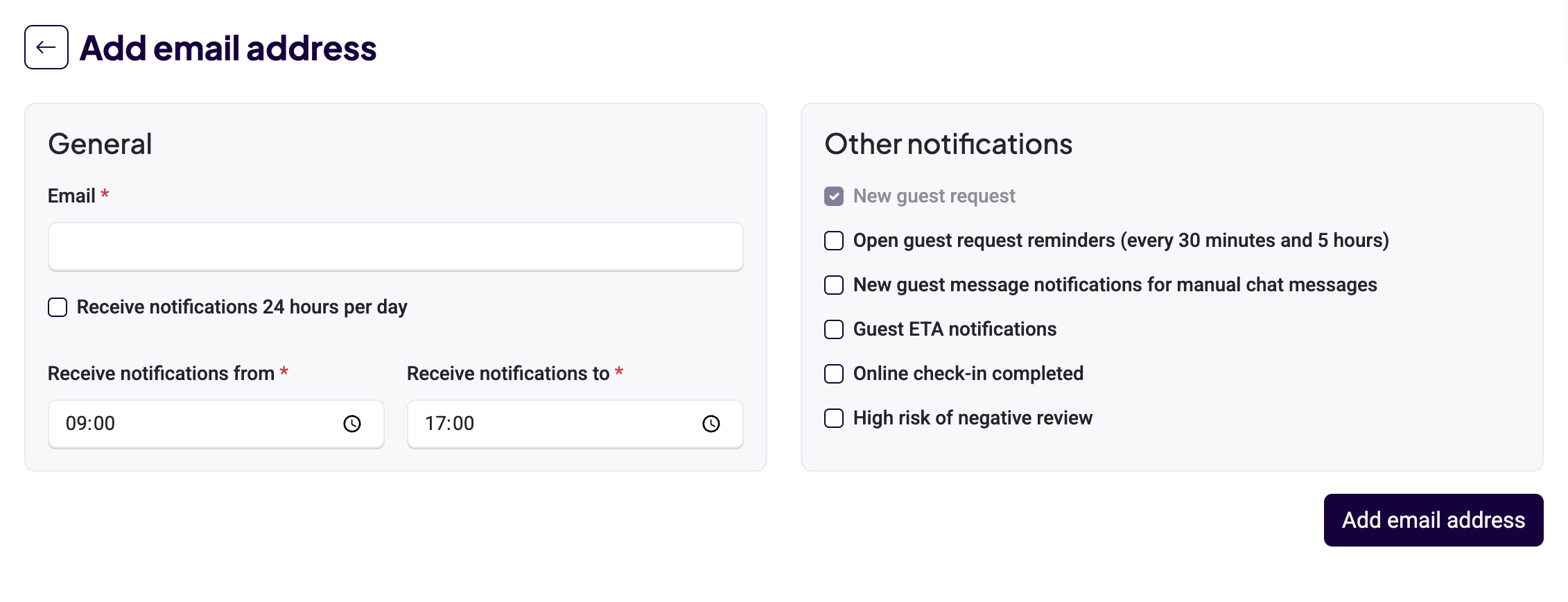
1. Notifications:
You can toggle to activate or deactivate specific notifications here. You can also allow browser notifications. Fill in the email address to which guest request notifications can be sent. You can turn on/off notifications for specific topics. We recommend keeping everything switched on. Please note, each guest request will also be highlighted in the inbox.
2. Languages:
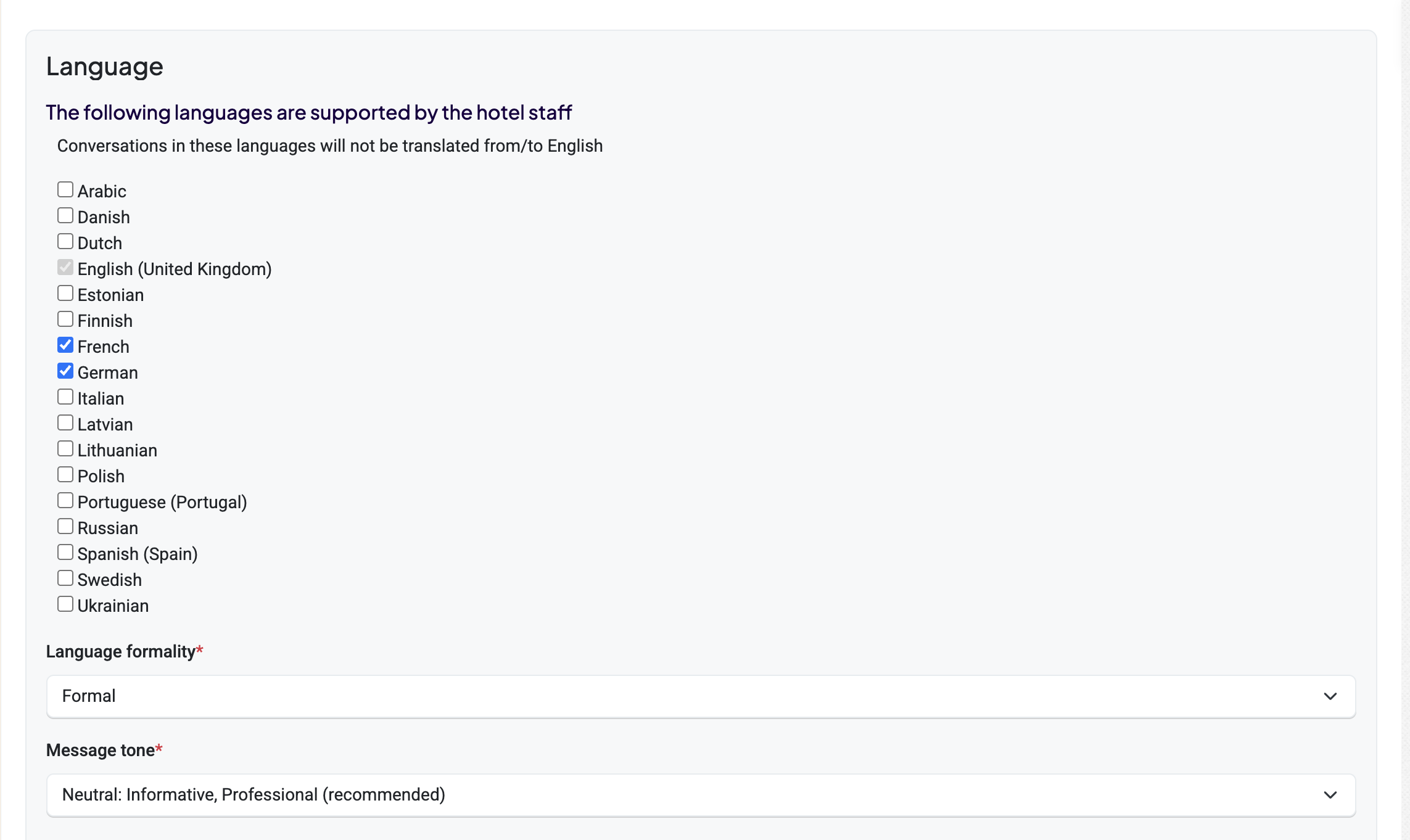
You can choose which languages you do not want to have translated into English. In addition, you can choose the formality and the tone of voice of the AI.
Second Session: Finalizing Your Messaging Channels & Connectivity
Before your property goes live, follow these steps to integrate your preferred messaging platforms and ensure a smooth communication flow with your guests.
1. Messaging Channel Integration
Connect your various OTA inboxes to centralize your guest communication.
Booking.com Inbox: To sync your messages, first activate Runnr.ai within the Booking.com Marketplace. Please note, your Guest Messaging account must be fully active for this integration to function.
Airbnb Messenger: Follow the authorization link provided in your Settings menu to securely connect your Airbnb account.
Expedia Inbox: Once connected, the AI will automatically respond to incoming messages via Expedia. To connect to Expedia, please complete the following steps:
- Sign into Expedia Partner Central.
- Open Connectivity Settings, located under Rooms and Rates in the side menu.
- Select Add a provider, and then search for Runnr.ai B.V.
- Grant authorization to Runnr.ai and ensure that Messaging services are activated.
- Have your administrator enter the Expedia Property ID and property name in Stayntouch under the Guest Messaging Channels by choosing Add Expedia Messenger connection.
Webchat: The webchat functionality offers two options:
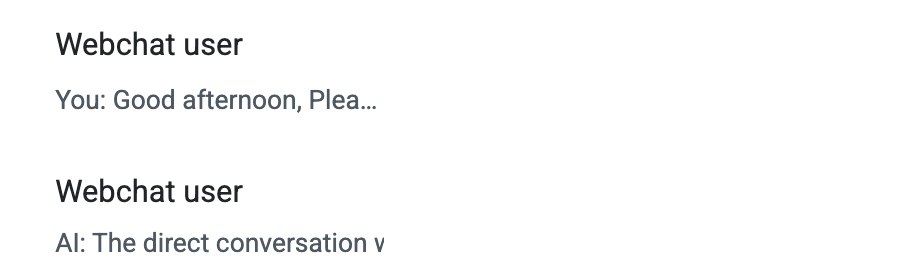
- For properties without an associated WhatsApp account, a web chat can be added to the website to enable anonymous conversations. The AI can respond to all inquiries except room-specific questions, and conversations will appear under the name “Webchat User.”
- For properties onboarding to WhatsApp or using WhatsApp redirection, they can choose between implementing the anonymous web chat or using the click-to-chat feature (https://faq.whatsapp.com/5913398998672934). The click-to-chat option allows guest details to be captured, so the guest’s name can be displayed in the conversation.
A detailed step-by-step guide can be found in the Guest Messaging Channel Settings. In general, to Manage Webchat Connection (Quick Guide) you’ll need to:
- Whitelist Domains: Share your website domain(s) (e.g., your-domain.com, app.your-domain.com).
- Add Script: Insert the chat widget script before the closing </body> tag.
- Customize (Optional): Adjust title and colors in the script.
- Go Live: The widget activates once your property is set to “live.”
- Test: Check functionality across devices and browsers.
2. WhatsApp & SMS Integration
To link your WhatsApp or SMS account, the property must have a verified Meta Business Account (Facebook Business).
First-Time Users: Ensure all information in your Meta Business Suite is complete and up to date. A verified account significantly expedites the WhatsApp onboarding process.
Existing Users (Migration): If you are currently using another guest messaging tool with WhatsApp, please notify us. Both Stayntouch Guest Messaging and the property must coordinate to initiate the migration process.
3. Going Live
Once all configurations are verified, Stayntouch will switch your property to "Live" status.
Important: This is when your outbound messages (automated check-in instructions, welcome notes, etc.) will begin triggering and sending to your guests.
3rd Session: Q&A & Final Review
We will conduct a dedicated Q&A session to discuss potential improvements and address any questions.