
 Stayntouch PMS
 Stayntouch Channel Manager Mapping Process
This article documents the process used to establish connectivity and complete room and rate mapping for Stayntouch Channel Manager, specifically for Expedia and Booking.com channels.
TABLE OF CONTENTS
- 1. Disconnect from Existing Channel Manager
- 2. Add Room Types/Rate Plan to Channel Manager
- 3. Establish Connectivity
- 4. Room Type Mapping (Expedia)
- 4a. Rate Plan Mapping (Expedia)
- 4b. Saving Without Activation
- 4c. Channel Settings & Readiness Check (Expedia)
- 5. Booking.com Setup
- 5a. Room Type Mapping (Booking.com)
- 5b. Rate Plan Mapping (Booking.com)
- 5c. Channel Settings, Readiness, & Activation (Booking.com)
- 6. Manage Restrictions
- 7. Prevent Bookings While Testing Connectivity
- 8. Additional Items
- Resyncing Rates & Restrictions from Stayntouch Channel Manager to OTA
- Managing Bookings
- Manually Adding External Reference Number
- 8. Next Steps & Follow-Ups
1. Disconnect from Existing Channel Manager
Before establishing connectivity with Stayntouch Channel Manager, the property should disconnect from the current channel manager and establish connectivity to Stayntouch Channel Manager. Below are links to instructions for common OTA Partners. This must be done before you can proceed with steps within Channel Manager.
2. Add Room Types/Rate Plan to Channel Manager
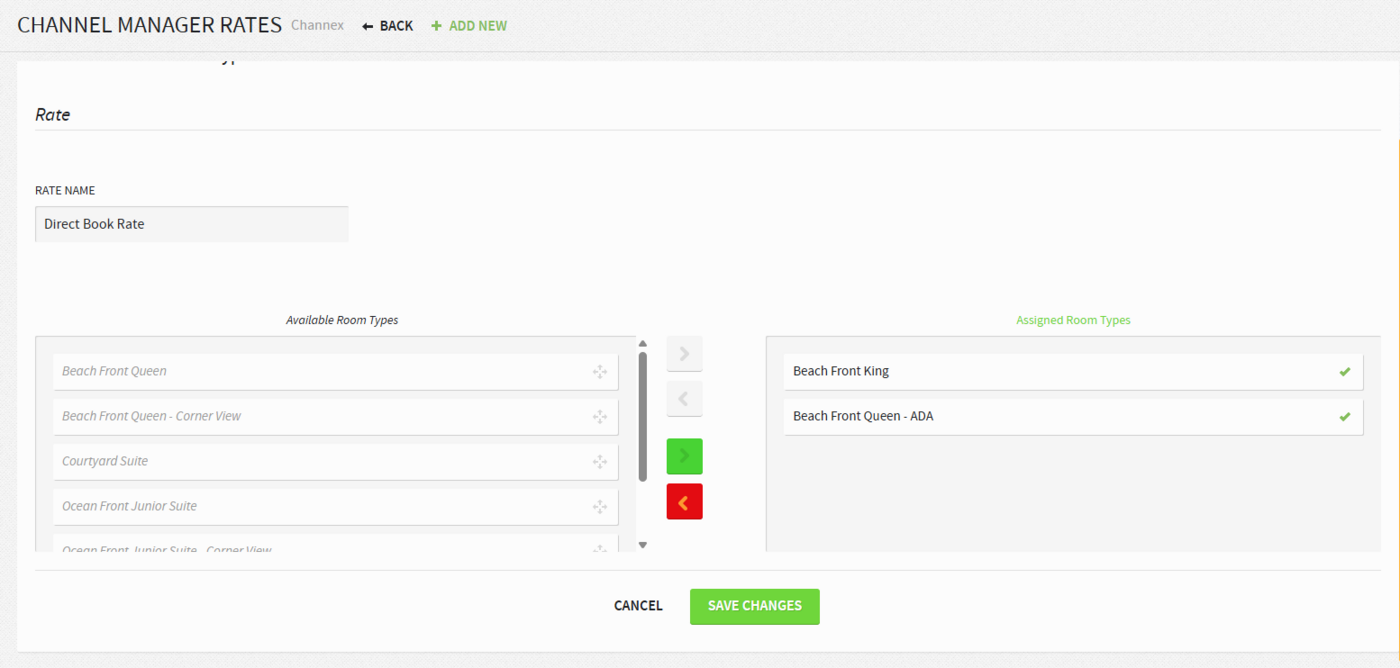
- Navigate to Settings > Rates > Channel Managers > Channex.
- Click + Add New to add a rate plan.
- Search for and choose the desired plan.
- Select the applicable room types.
- Click Save and ensure the mapping is Active.
⚠️ Do not deactivate or delete mappings, as this will break the connection.
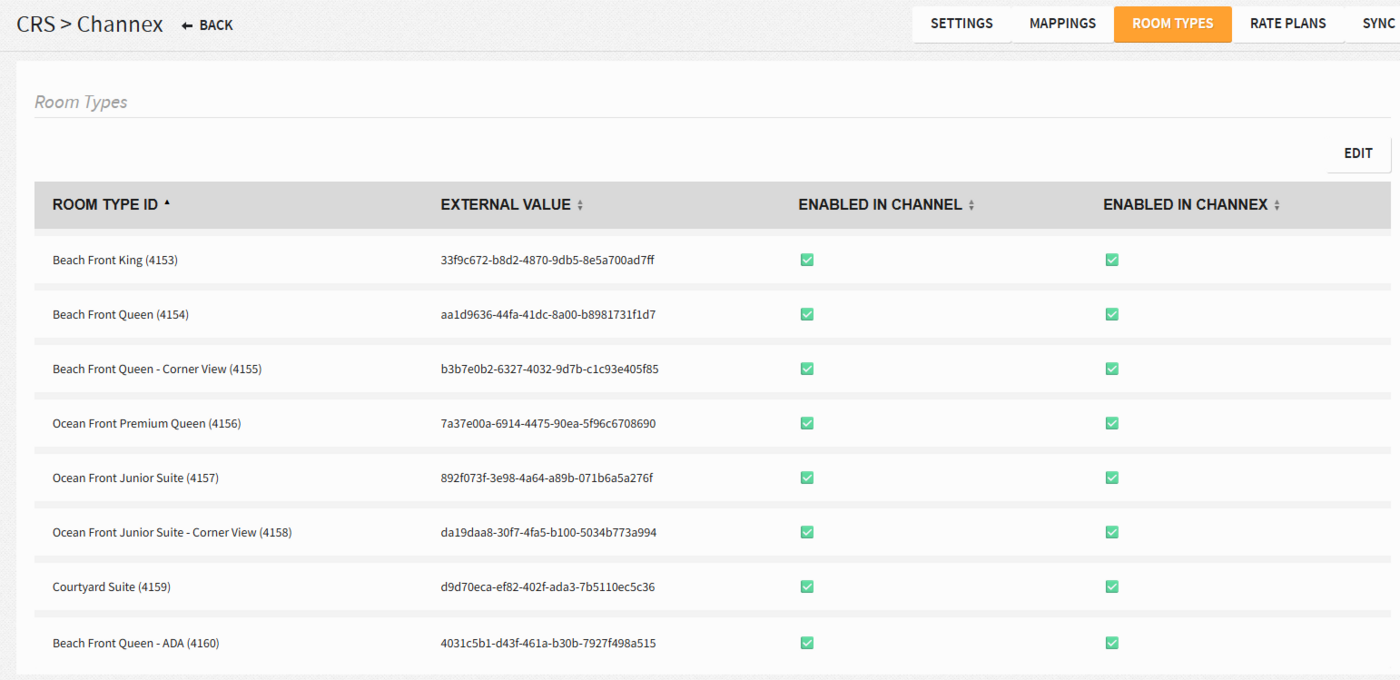
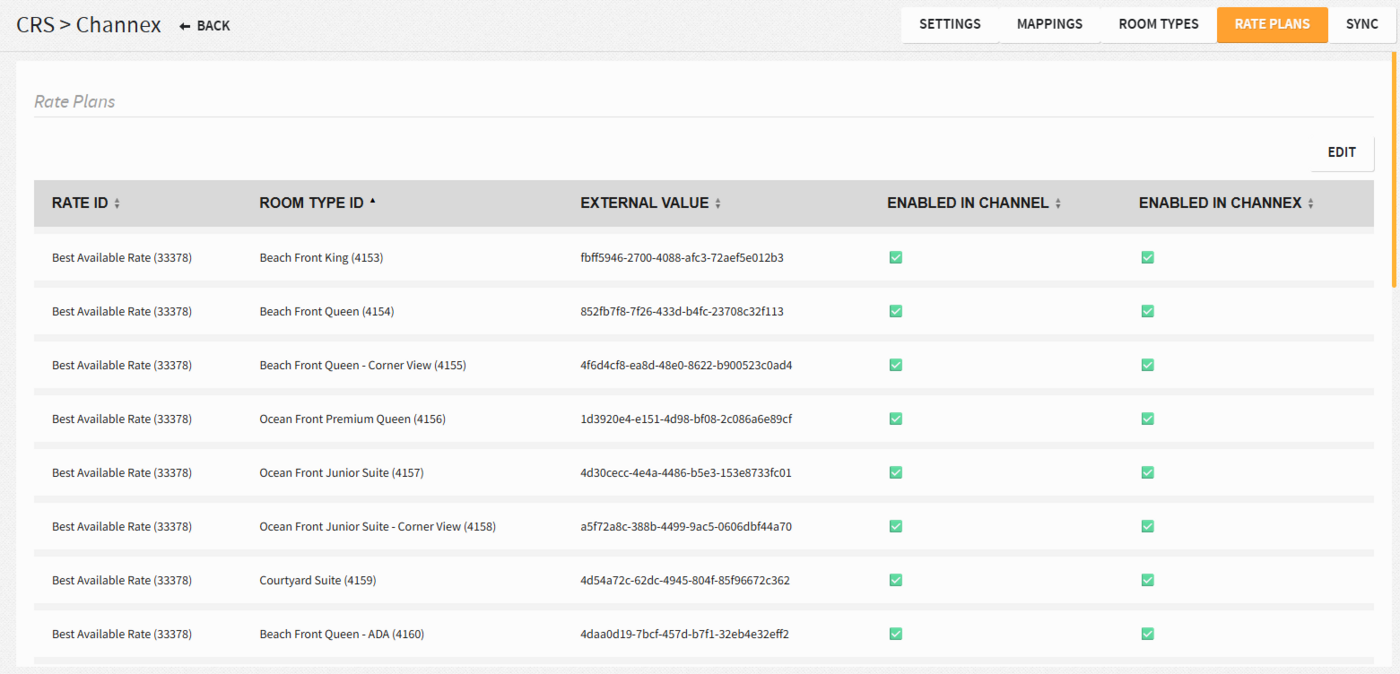
Verify Integration: Go to Settings > Integrations > Central Reservation System > Channex > Room Types and Rate Plans and confirm the rate plan and rooms are listed and enabled.
3. Establish Connectivity
Once the customer has established connectivity between Stayntouch Channel Manager and the channel extranet, connectivity can be confirmed as follows:
- Navigate to Channels in Stayntouch Channel Manager.
- Edit the relevant channel.
- Enter the Hotel ID provided by the customer.
- Click Test Connection.
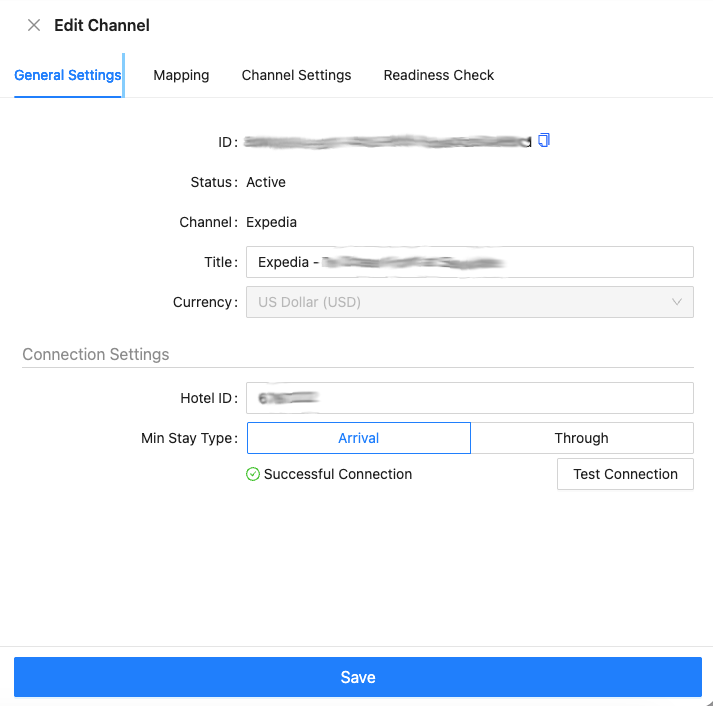
A successful test confirms that connectivity between Stayntouch Channel Manager and the channel extranet has been established.
4. Room Type Mapping (Expedia)
After confirming connectivity, proceed to Mapping.
Room Type Mapping Steps
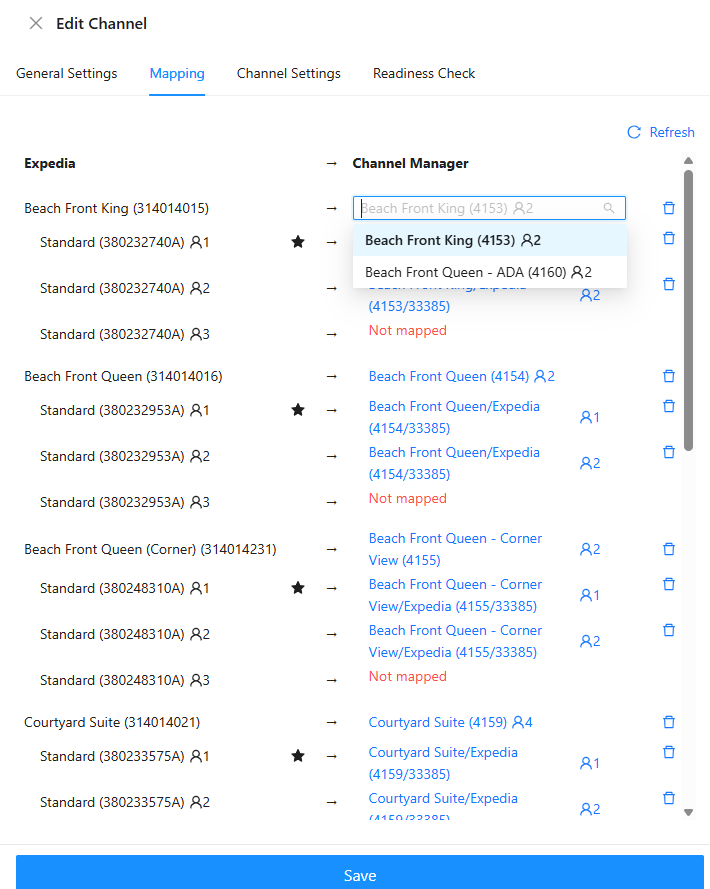
- Begin by mapping Room Types.
- Most room names align closely, making the mapping process straightforward.
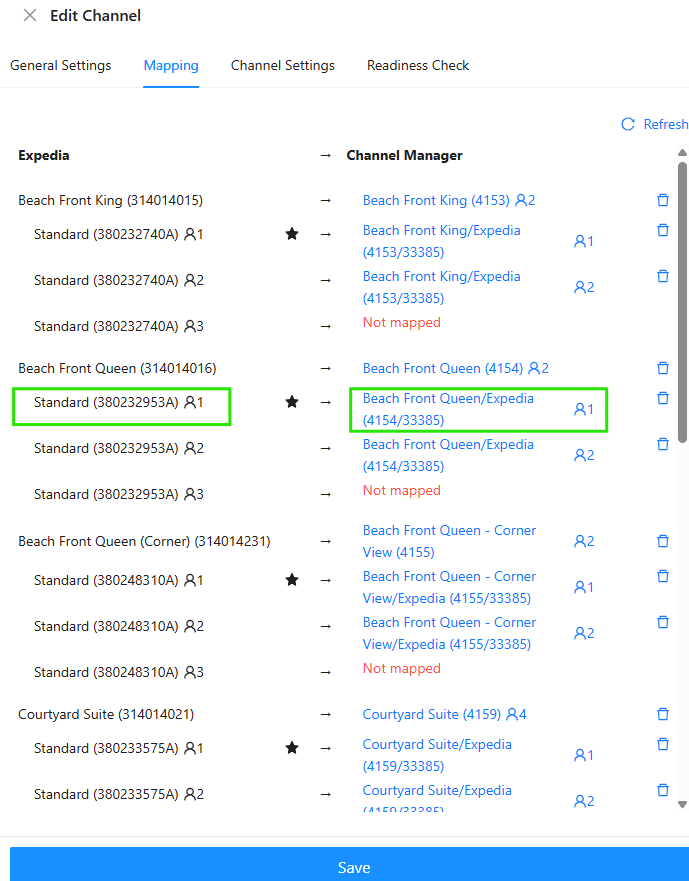
In this example, mapped room types include:
- Beachfront Queen
- Beachfront Queen Corner
- Courtyard
- Junior Suite
- Corner
- Premium Ocean
4a. Rate Plan Mapping (Expedia)
Once room types are mapped, continue to Rate Plan Mapping.
Auto-Mapping
- Stayntouch Channel Manager may suggest auto-mapping based on naming conventions.
- Example:
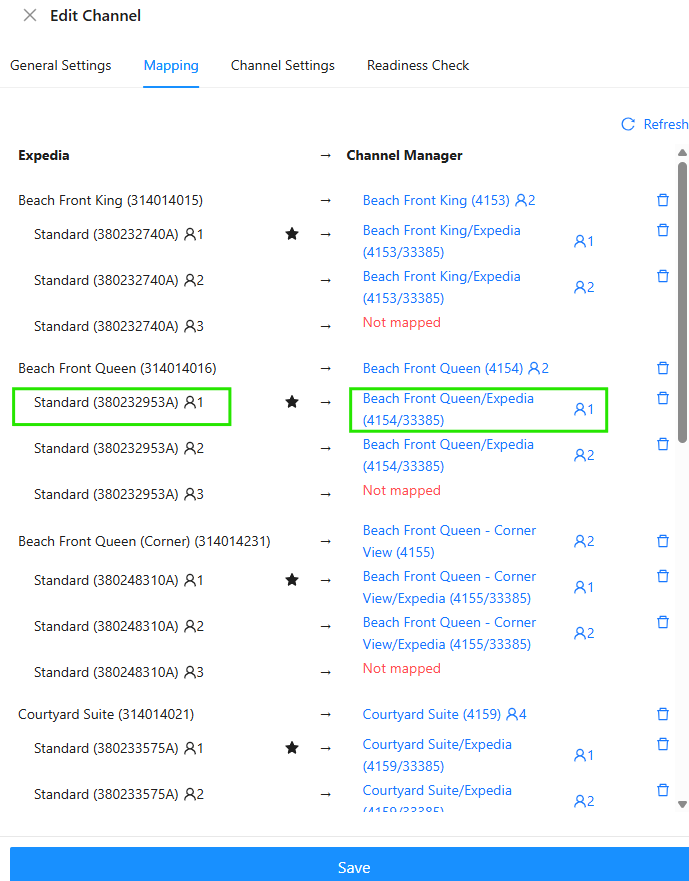
- Beachfront King – Expedia – One Adult auto-mapped to Beachfront King – Expedia – Two Adults.
- Auto-mapped selections can be accepted or declined.
- In this case, the suggested auto-map was correct and accepted.
Manual Mapping
- If an auto-map is rejected, the rate must be mapped manually.
- Some rates support multiple occupancies (1–4 adults).
- Ensure the correct occupancy-based rate is selected:
- One Adult
- Two Adults
- Three Adults
- Four Adults
Observation
- Booking.com rate plans appear in the list while mapping Expedia rates.
- This requires internal clarification (to be followed up with Evan).
4b. Saving Without Activation
- At this stage, mapping should be saved only, not activated.
- The property does not intend to begin selling yet.
- A zero availability (stop sell) has been applied to prevent bookings.
4c. Channel Settings & Readiness Check (Expedia)
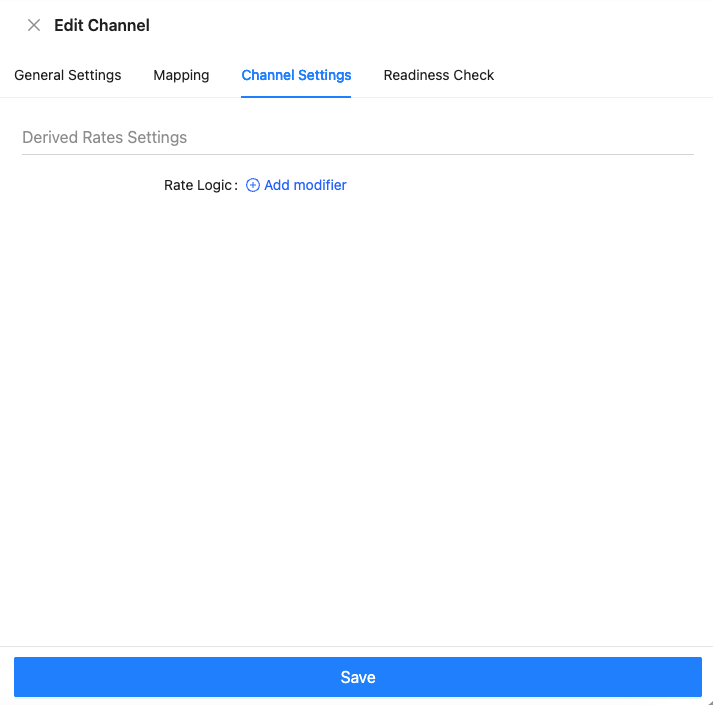
Channel Settings
- Rate modifiers (premium or discount) are available but not applied for this setup.
Readiness Check
- Perform the Readiness Check to confirm all required fields are complete.
- Once confirmed, the channel is technically ready to activate.
5. Booking.com Setup
Connectivity
- Navigate to Booking.com channel.
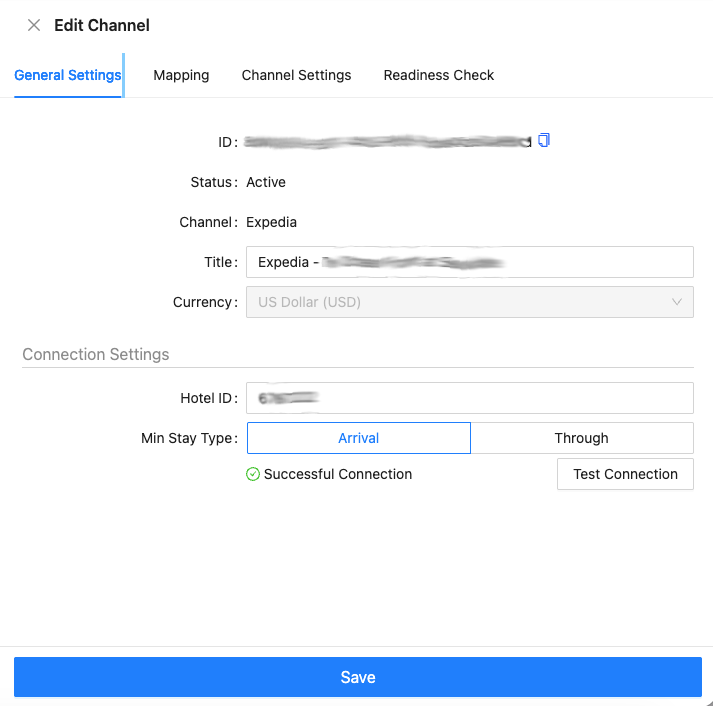
- Enter the Hotel ID: 520451.
- Add the Booking Notification Email provided by the property team.
- Pending confirmation whether this email receives all bookings or only failures.
- Click Test Connection to confirm successful connectivity.
Pricing Model
- Select Per Room pricing.
- Per Room pricing is equivalent to Standard pricing for Booking.com.
5a. Room Type Mapping (Booking.com)
Mapped room types include:
- Beachfront King
- Beachfront Queen
- Corner
- Courtyard
- Junior Suite
- Junior Corner
- Premium Front Queen
5b. Rate Plan Mapping (Booking.com)
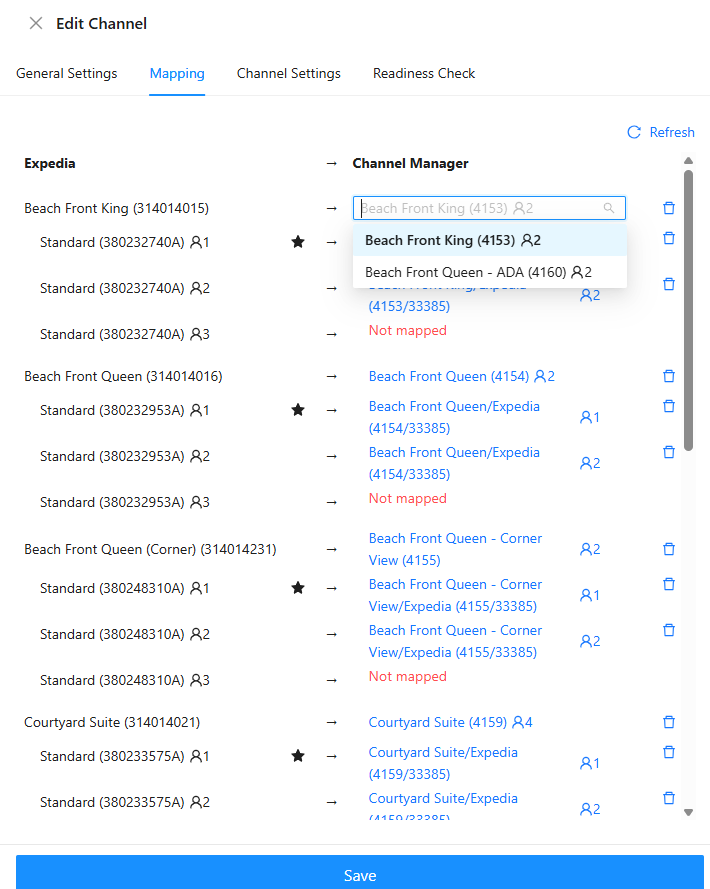
- Rates are structured primarily for double occupancy.
- All visible rates are mapped accordingly.
- Confirm that no required rate plans are left unmapped.
5c. Channel Settings, Readiness, & Activation (Booking.com)
- No rate modifiers applied.
- Ensure channel mapping is not empty.
- Verify Pricing Type is selected. Standard is by room type, and OBP is occupancy by person.
- Channel Settings are typically not used.
- Run the Readiness Check.
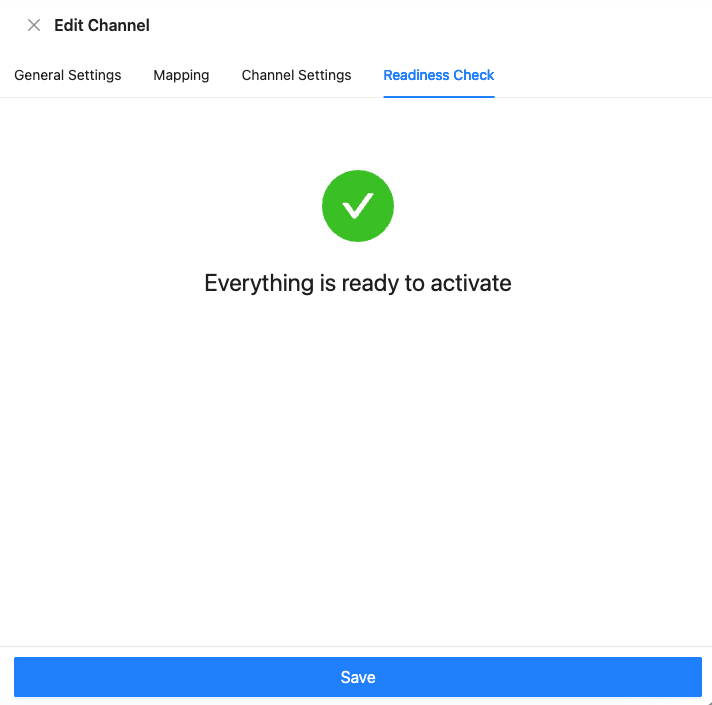
Once all checks pass:
- Click Save and Activate.
6. Manage Restrictions
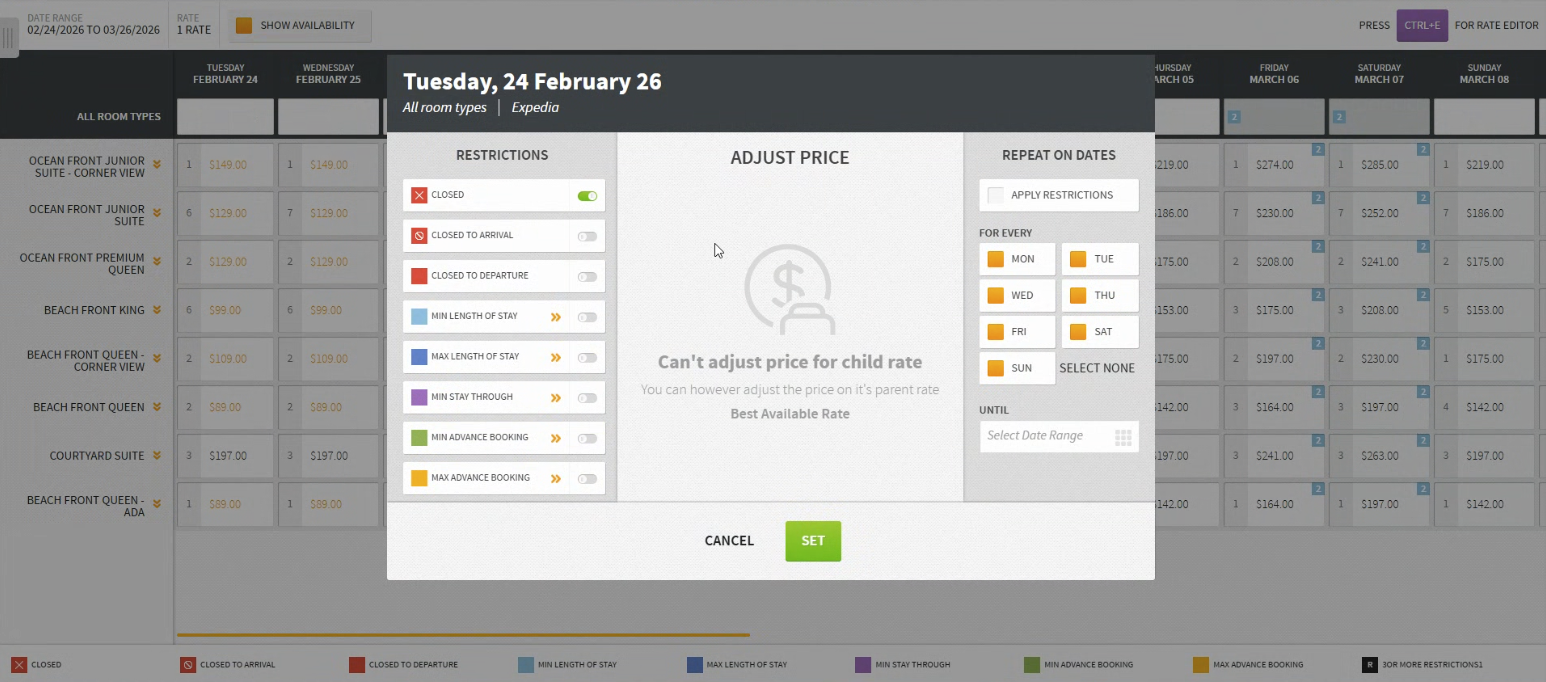
To manage restrictions, navigate to Revenue Management > Rate Manager, choose a date range, and select each rate plan individually (e.g., Expedia, Booking.com, etc.). You’ll then need to apply the restrictions on each room type individually, as restrictions are supported at the room type/rate plan combination level.
7. Prevent Bookings While Testing Connectivity
To prevent bookings while connectivity is being tested:
- Navigate to Availability.
- For each room type:
- Click on the available number of rooms under the desired start date and room type.
- Select the desired start and end date range.
- Set availability to 0.
- Save changes for each room type.
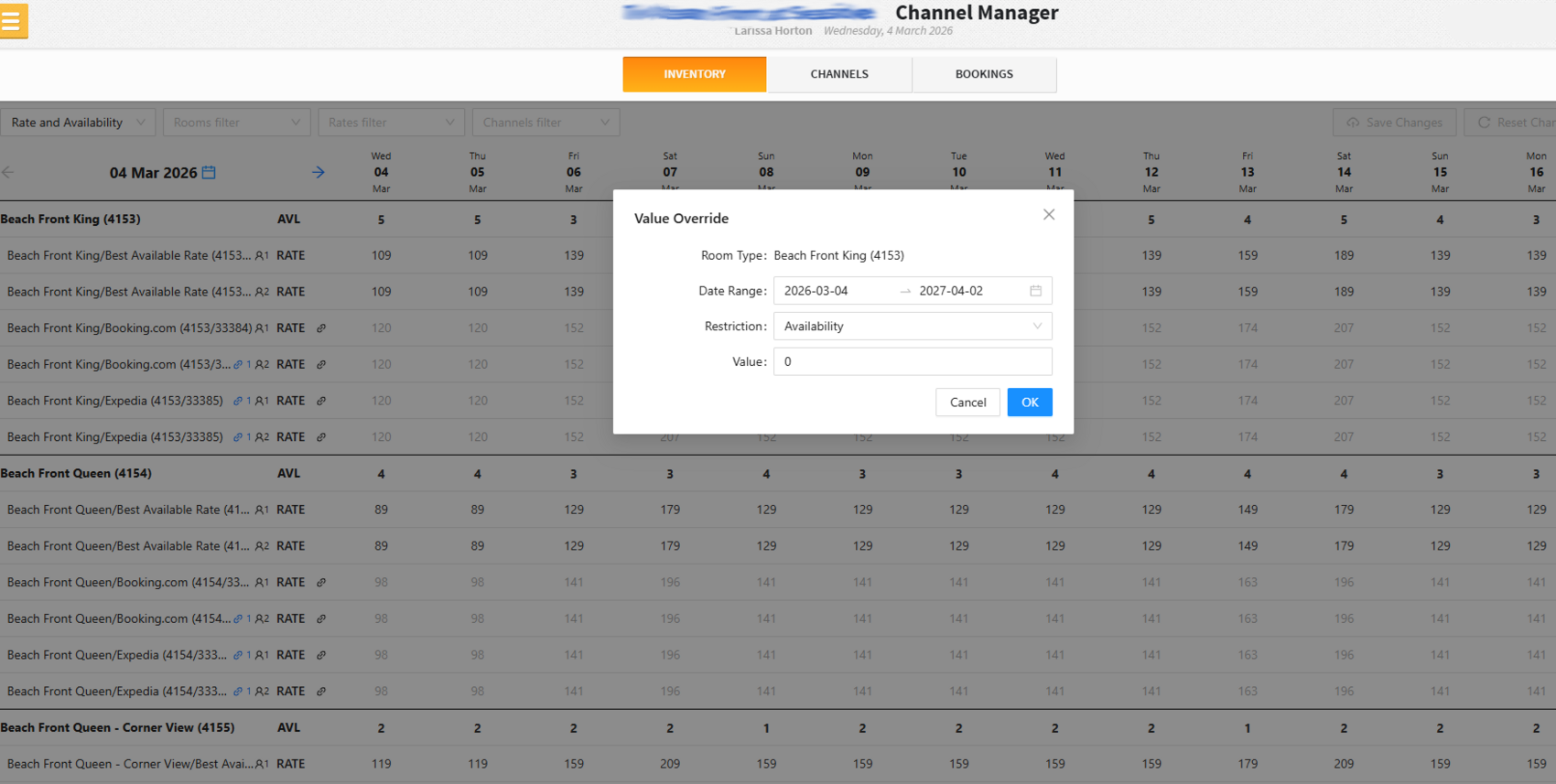
Note: Some zero availability values may already be present due to PMS updates. Always verify before saving.
8. Additional Items
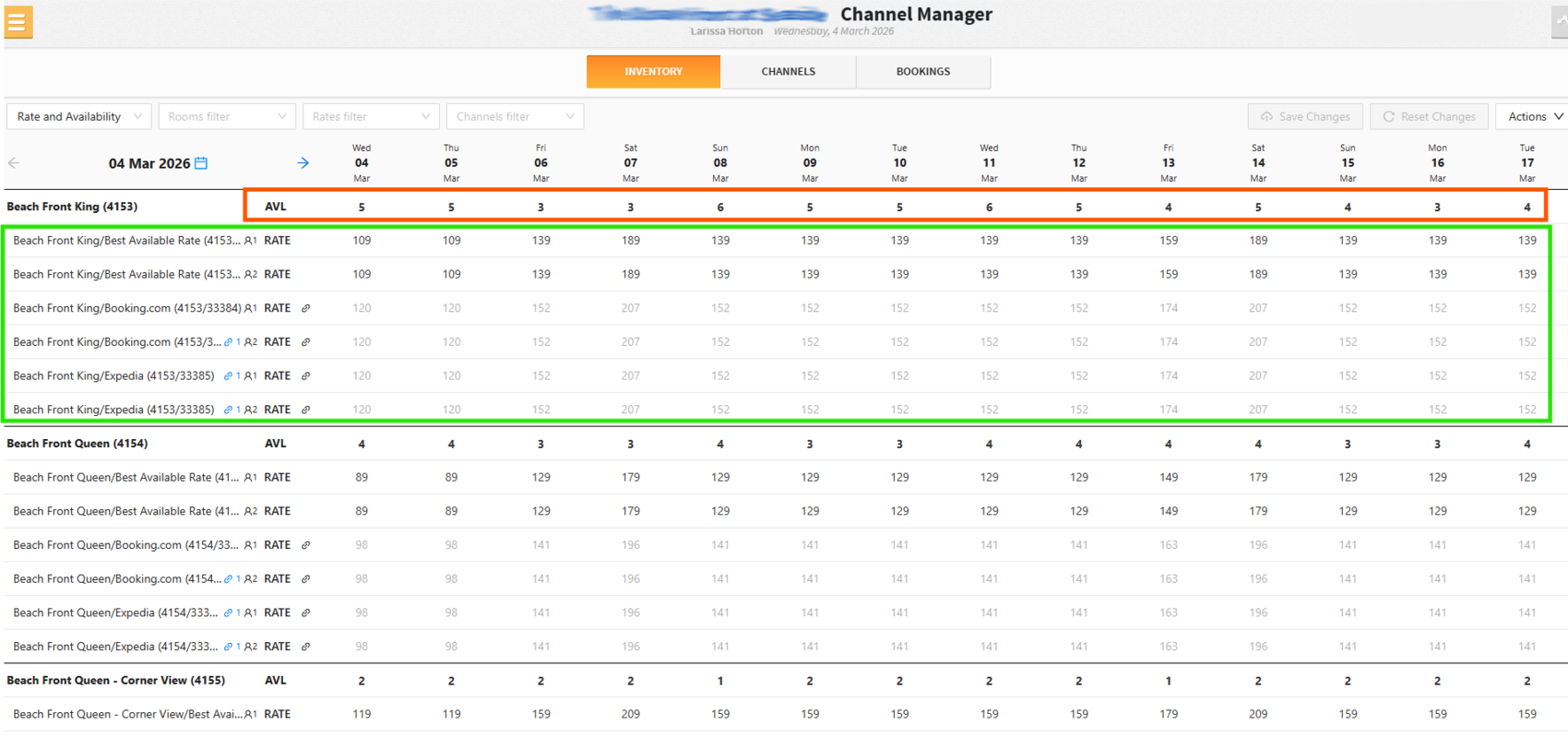
Verifying Inventory & Rates
- Inventory Grid: Click Inventory to view rates for each channel.
- Rate Display: Shows OTA rates for specific room types on selected dates.
- Availability Icon: Indicates closed rooms or zero availability.
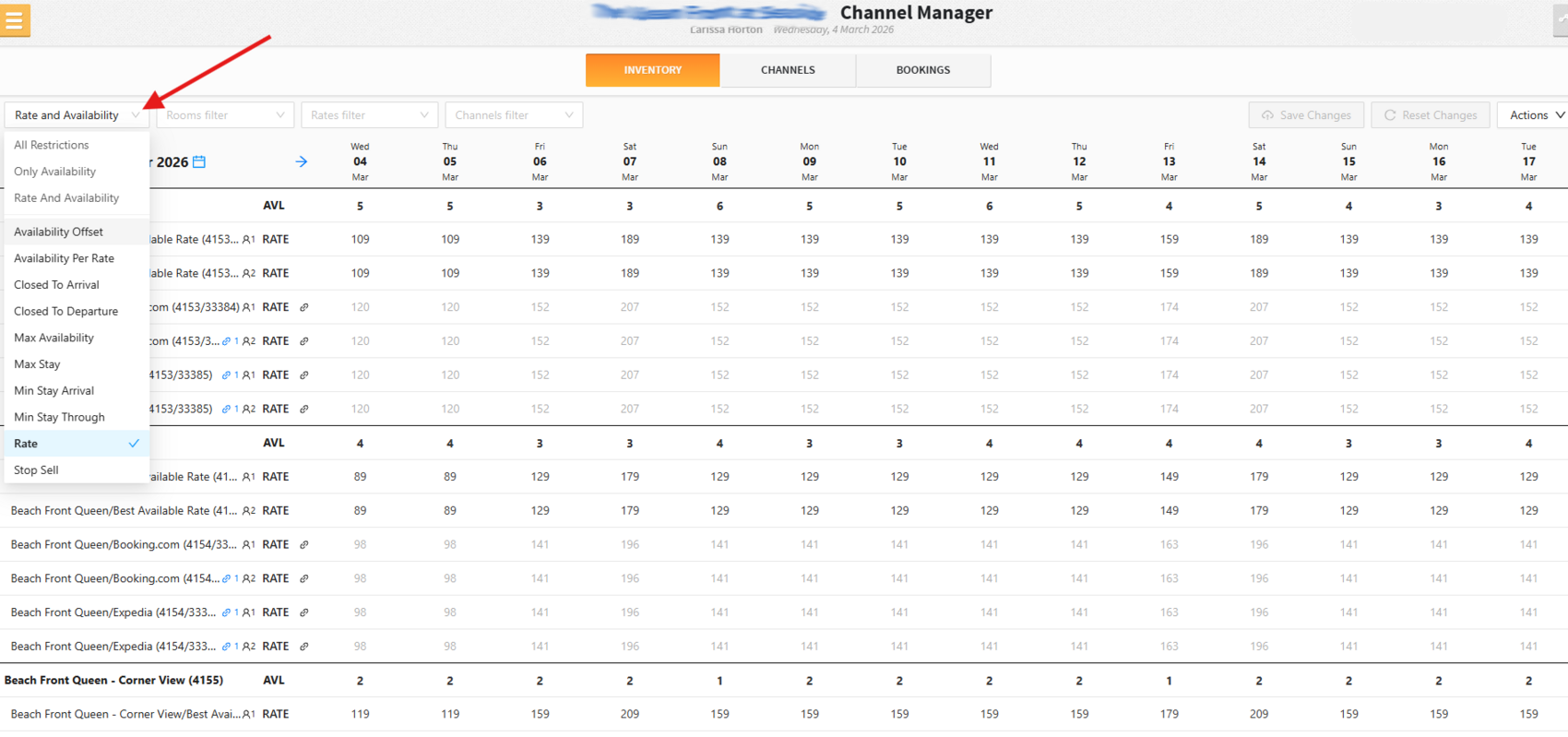
- Restrictions: Use the dropdown to view rules (e.g., minimum stay, arrival/through dates).
Syncing Between PMS & Channel Manager
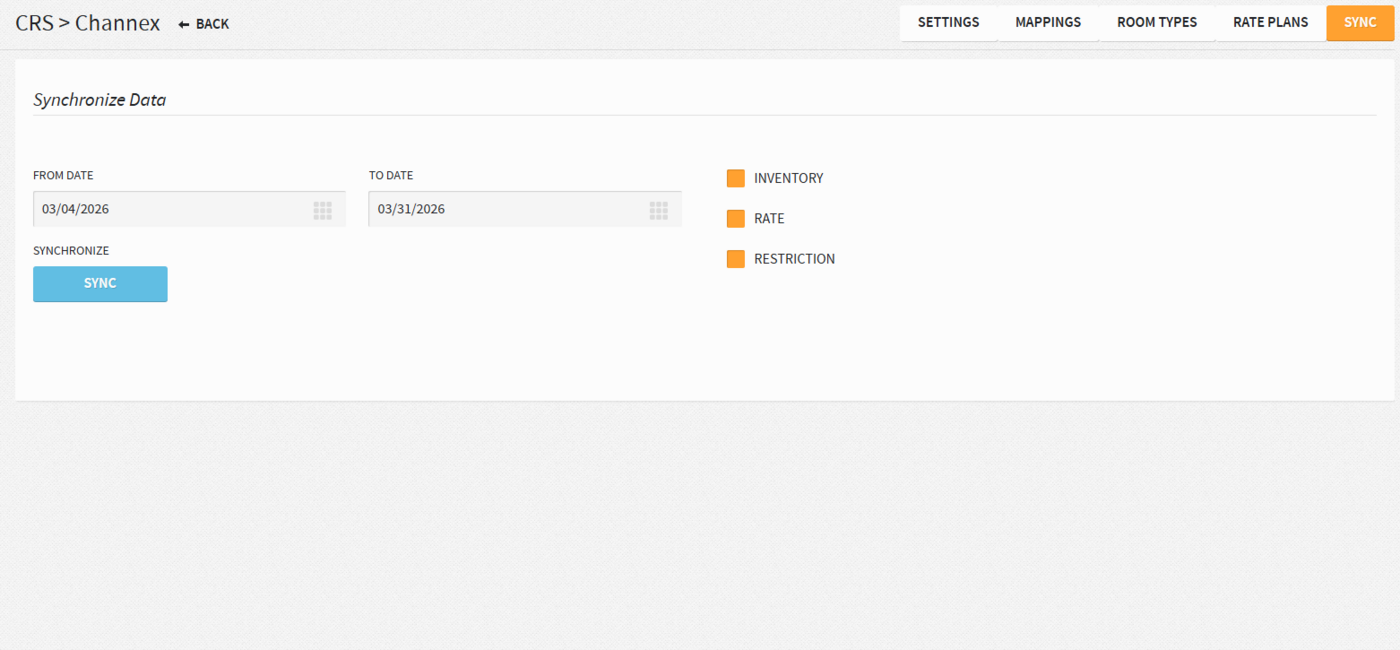
- Navigate to Settings > Integrations > Central Reservation System > Channex.
- Initiate Sync: Click the Sync button on the right.
- Select Date Range: Choose the relevant dates.
- Select Item: Pick inventory, rates, or restrictions.
- Confirm Sync: Click Sync and verify success; cross-check with Rate Manager or Availability menu.
Resyncing Rates & Restrictions from Stayntouch Channel Manager to OTA
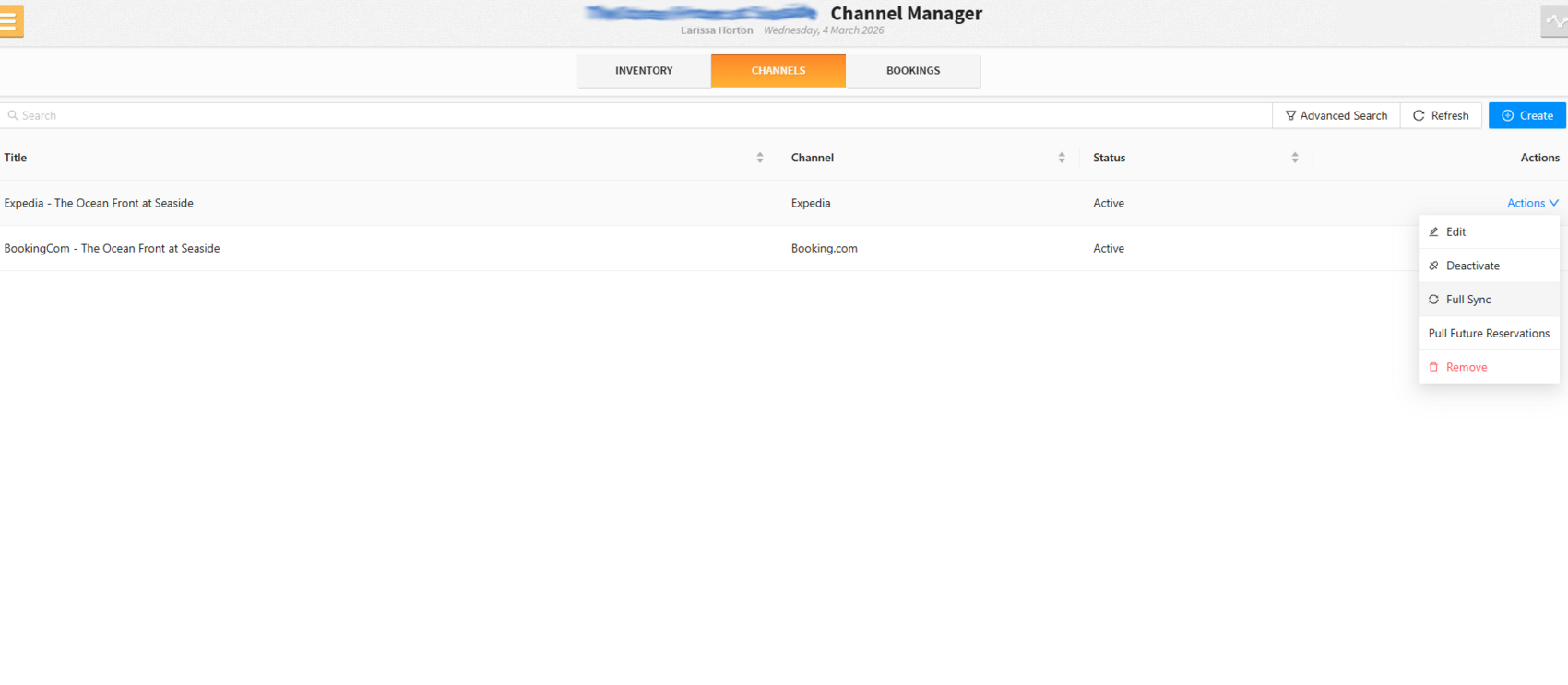
- Full Sync: Go to Settings > Revenue Management > Channel Manager > Channels > Action and perform a full sync for each channel.
- All Channels: Repeat the full sync for every mapped channel.
Managing Bookings
- Navigate to Revenue Management > Channel Manager > Bookings.
- Identify Failed Reservations: Red x in Acknowledge indicates integration failure.
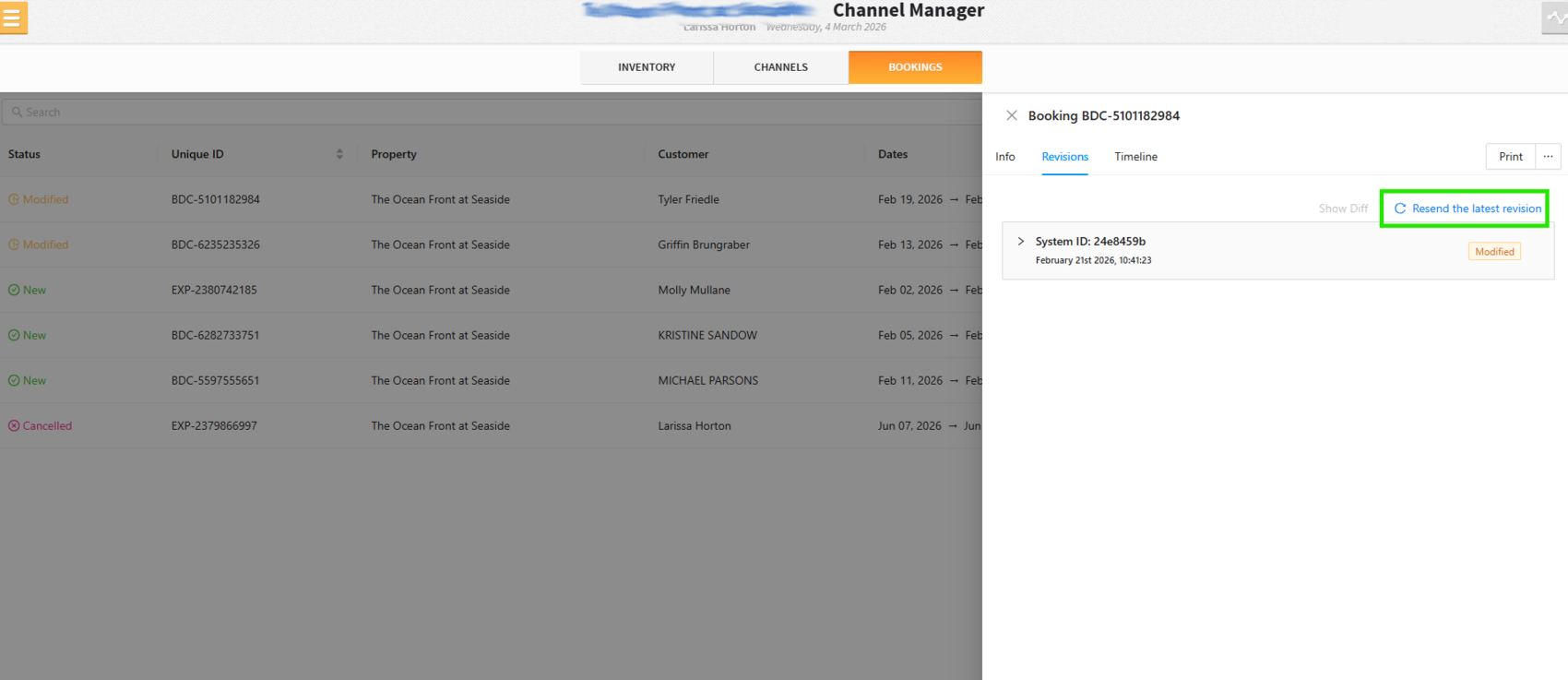
- Resend Failed Reservations:
- Click View on the failed reservation.
- Go to Revisions > Resend Latest Version.
- Green checkmark confirms success.
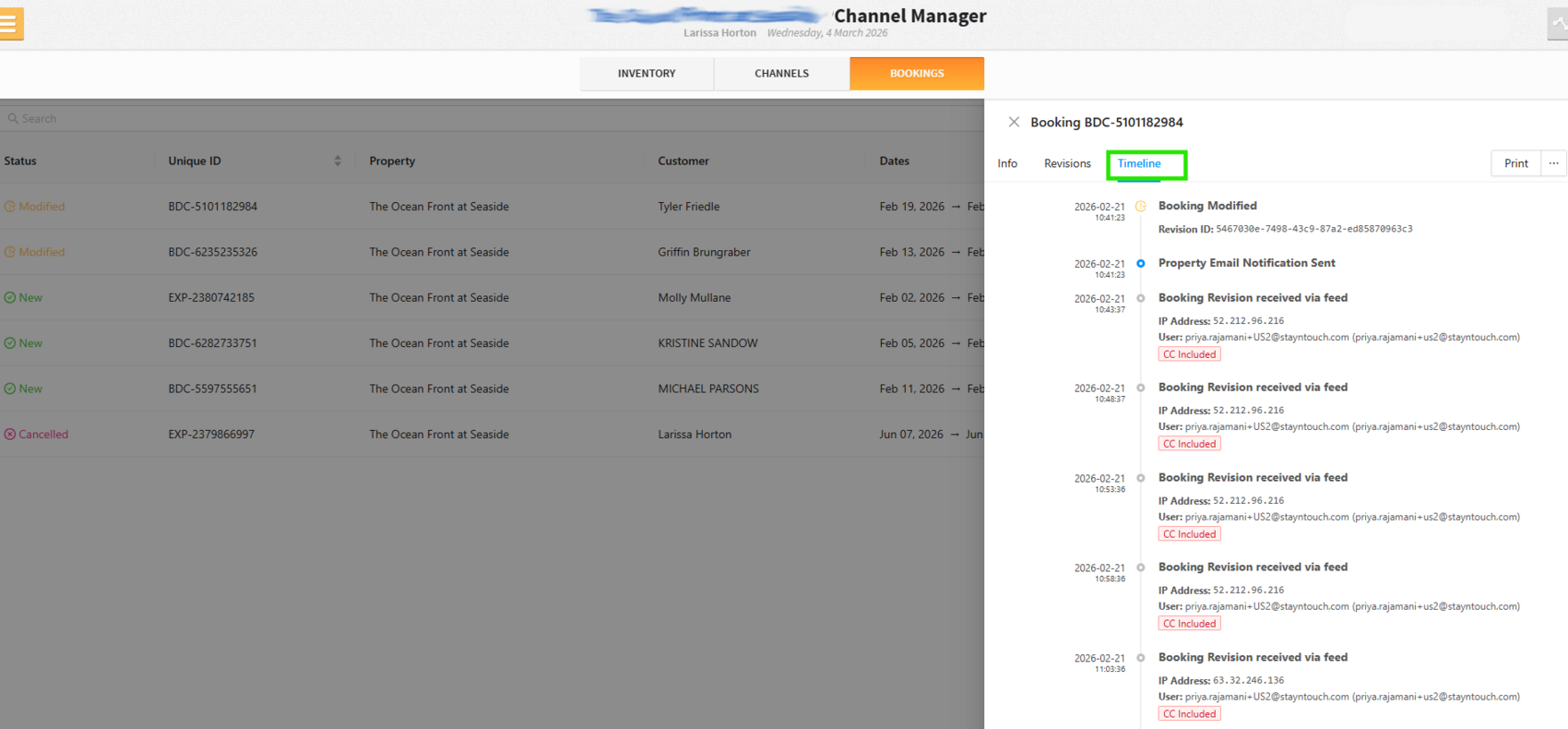
- Retrieve Logs: Click View > Timeline to see reservation activity (creation, notifications, PMS updates, acknowledgment).
Manually Adding External Reference Number
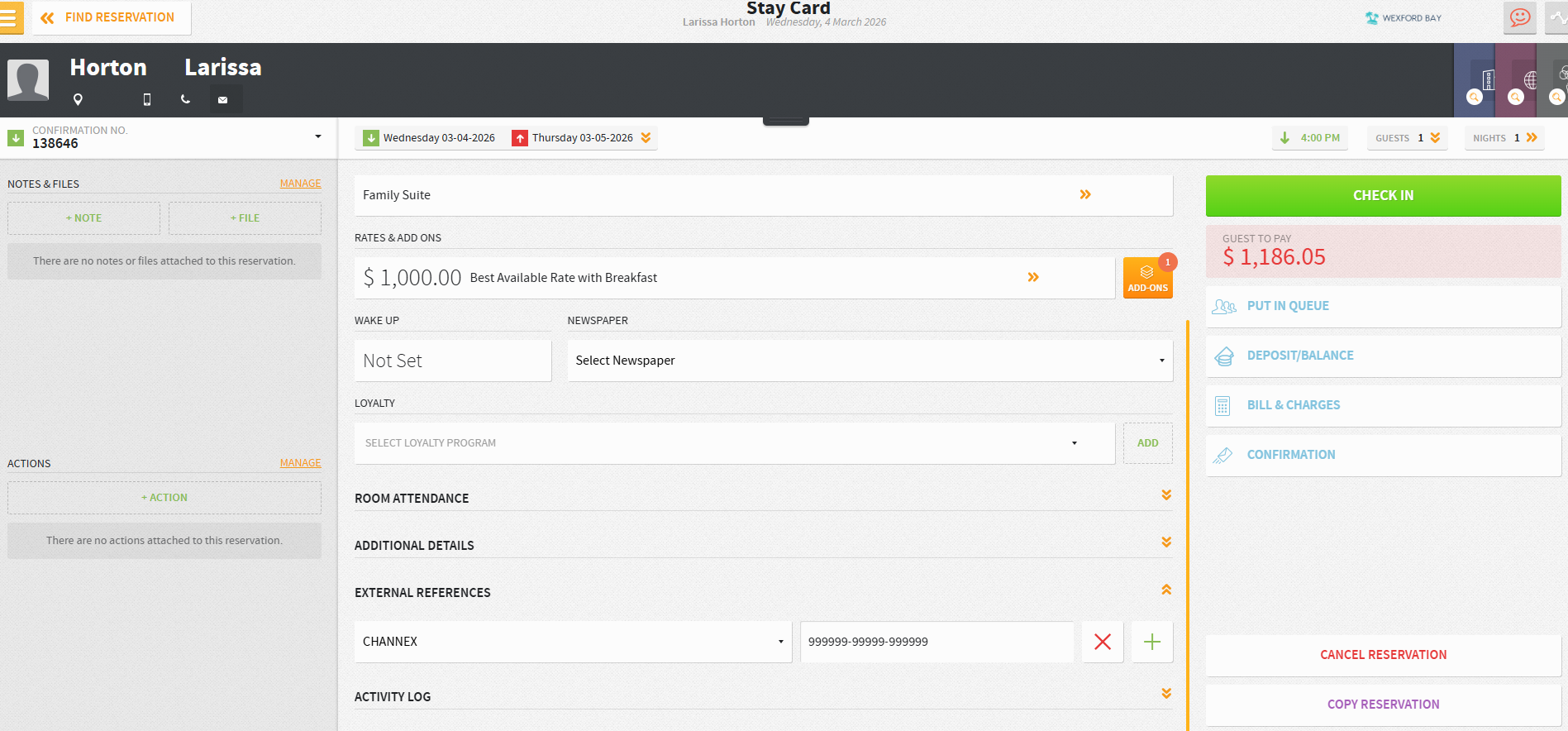
- Search Reservation: Locate the reservation and open the stay card.
- Click Dropdown for External References:
- Click + or enter in the External Reference field.
- Select Channex from the system dropdown.
- Paste the Booking ID from the reservation’s Info section.
8. Next Steps & Follow-Ups
- Confirm with your Stayntouch Implementation Consultant that data is being received correctly on the channel extranet side.
- Verify the following items:
- Rate Parity
- Inventory/Availability Parity
Once confirmed, the setup can proceed to live selling when the customer is ready.