Stayntouch PMS
 How To Void A Bill On A Passerby Account
This article explains how to void a bill on a Passerby Account and what happens after the void.
TABLE OF CONTENTS
Passerby Account Basics
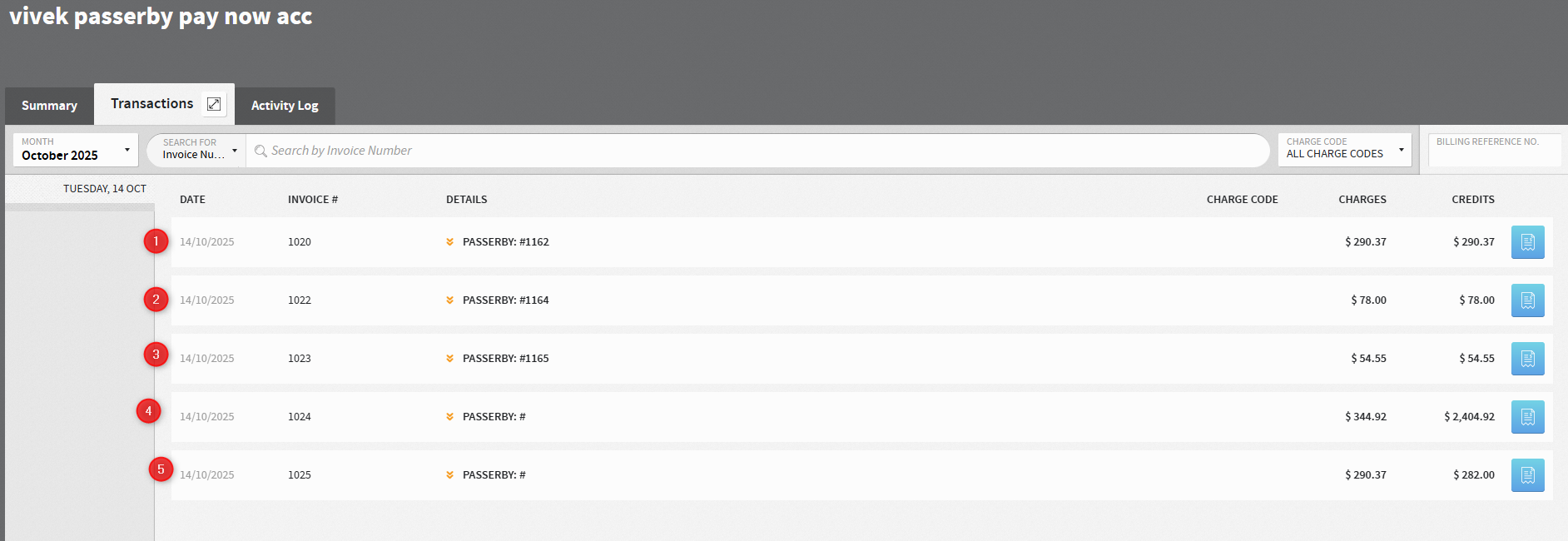
Bills are grouped by business date in the left-side bar.
Each bill represents a Grab and Go or Pay Now transaction.
Once payment is collected, charges and payment are posted and the bill is locked.
When To Void A Bill
- Use Void when a bill was posted by mistake.
- Note: Passerby Accounts do not support Void and Repost. This is intentional.
How To Void A Bill
Open the Passerby Account.
Select the business date of the bill.
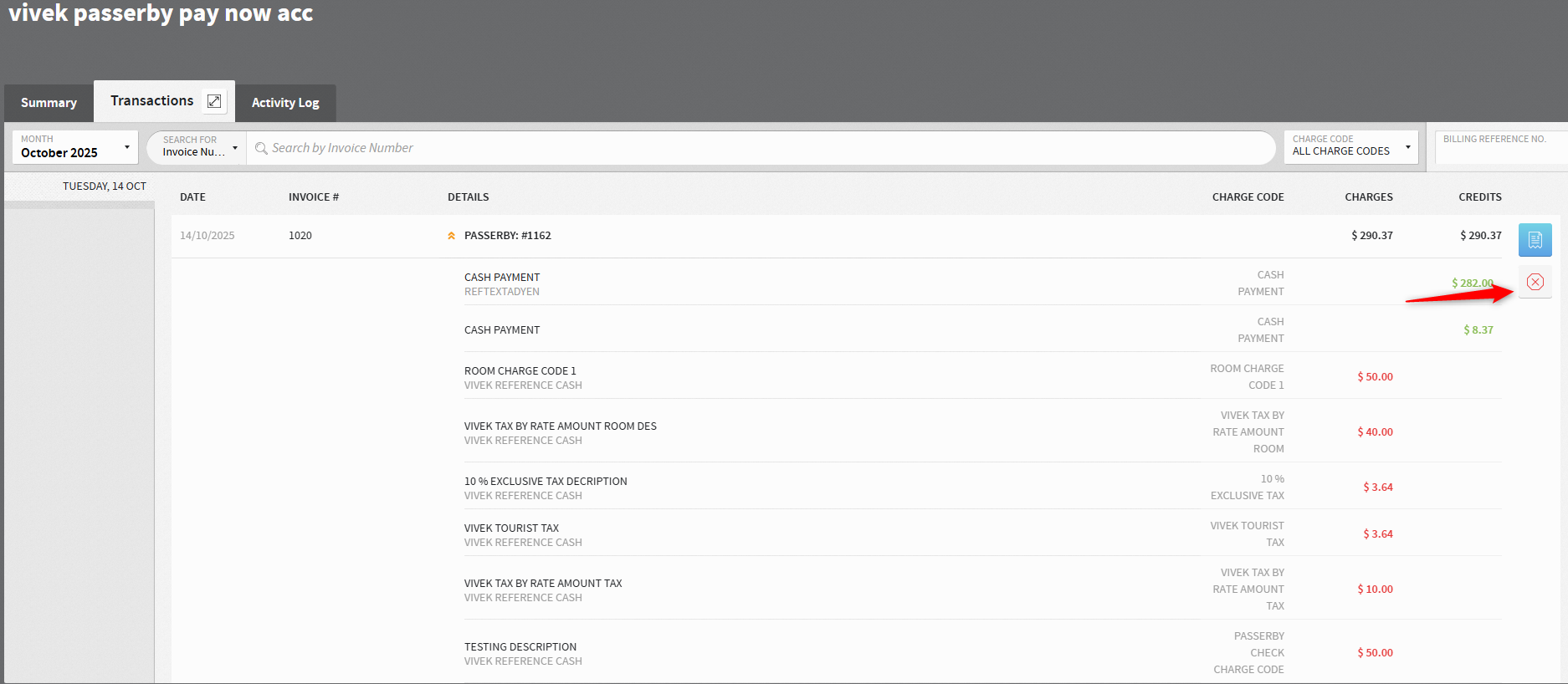
Click the orange arrows to expand the bill.
Review charges and payment.
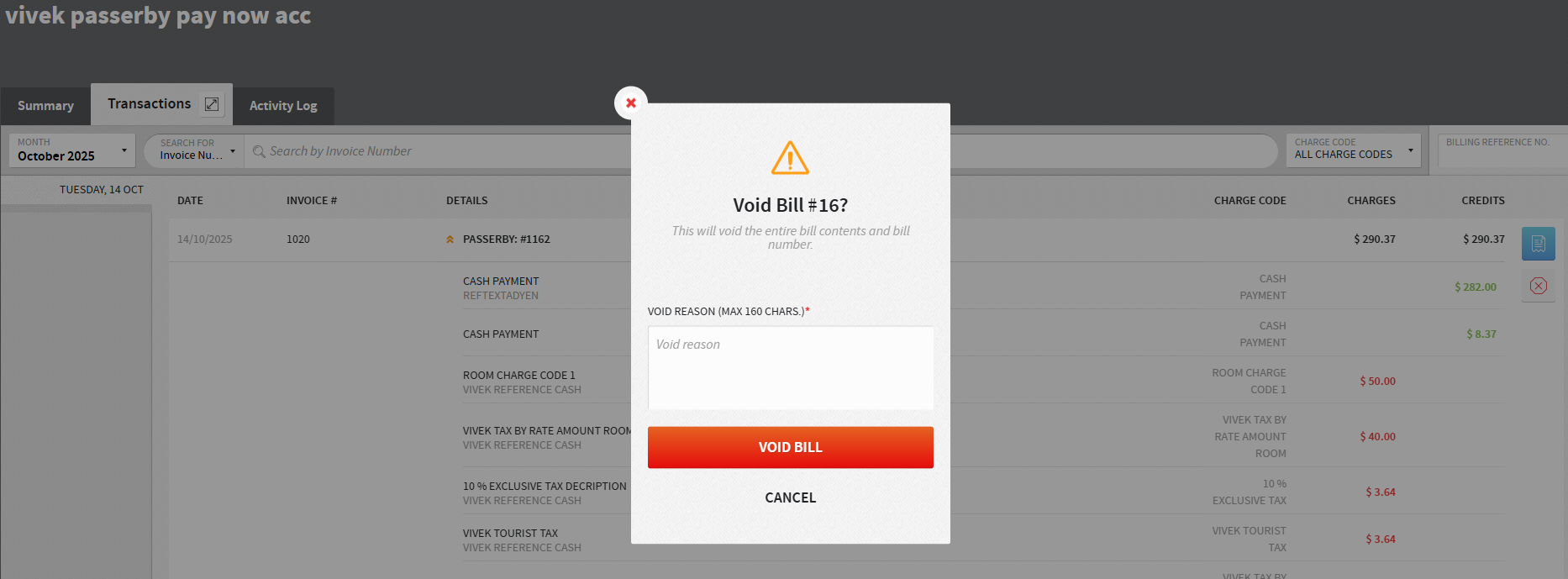
If permitted, click the red cross (Void).
Enter a void reason if prompted.
After The Void
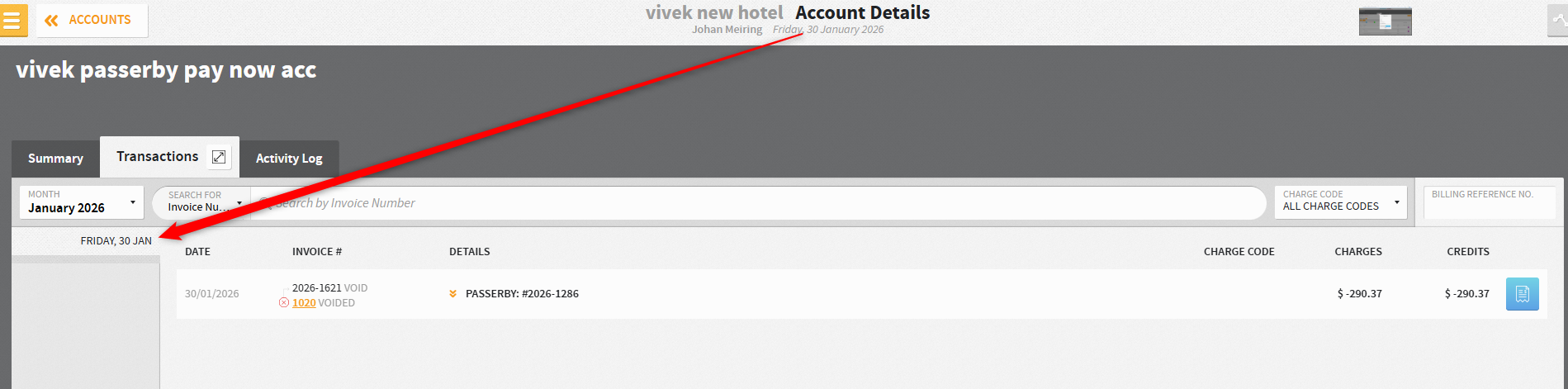
The bill remains visible on the original date with void details.
An orange link lets you navigate between:
The original voided bill
The void bill (reversing entry)


Financial Impact
Counter transactions are posted on the current business date.
Example: A bill from 14 October voided on 30 January creates a void bill dated 30 January.
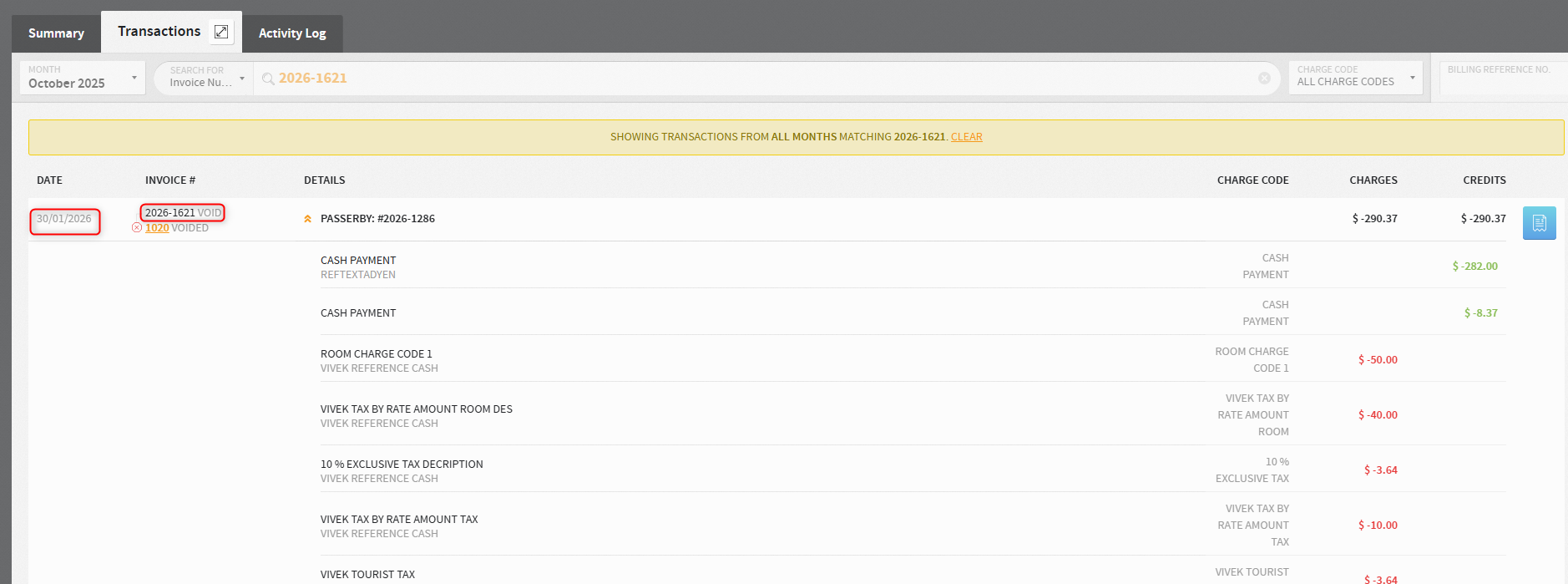
You can find the void bill by navigating to the current business date in the Passerby Account and link back to the original bill.