Stayntouch PMS
[IN PILOT] Payment Link Management
Stayntouch now supports Payment Link Management—from booking through check-out and cancellation. This feature is currently in pilot. Please contact sales@stayntouch.com if you are interested in piloting this feature.
Supported payment gateways include Stayntouch Pay, Shift4, and Elavon.
TABLE OF CONTENTS
- Custom Payment Links: Choose Your Recipient
- Payment Links Get an Activity Tab
- Payment Link For Deposit Requests
- Payment Links, Even After Check-Out
- Deactivate Pending Payment Links When Account Closes
- Payment Links on Cancelled Reservations
- Custom Payment Link Expiry Timeframe
- “Hotel In Copy” Toggle for Payment Confirmations
- Payment Link Stationery
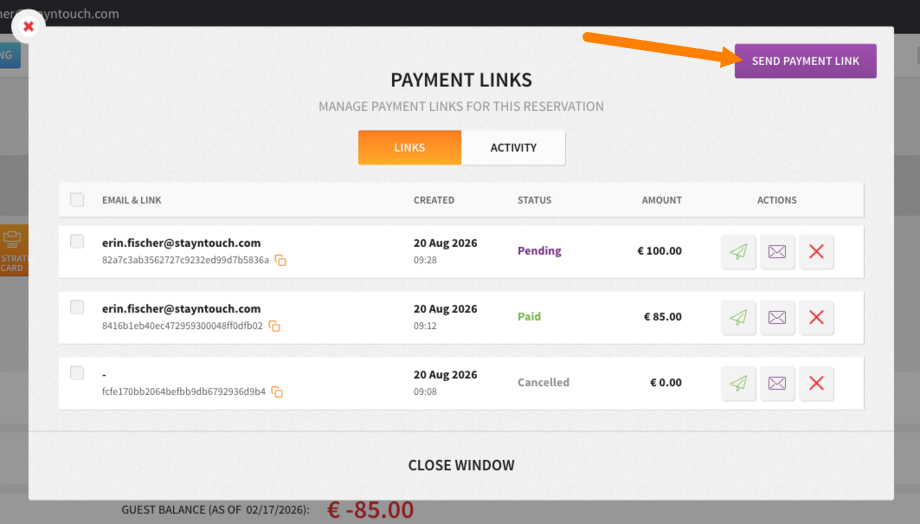
From the Payment Links popup window on the Guest Bill or Front Desk > Accounts, you’ll be given several different options:
- You can resend an existing payment link or send a new payment link
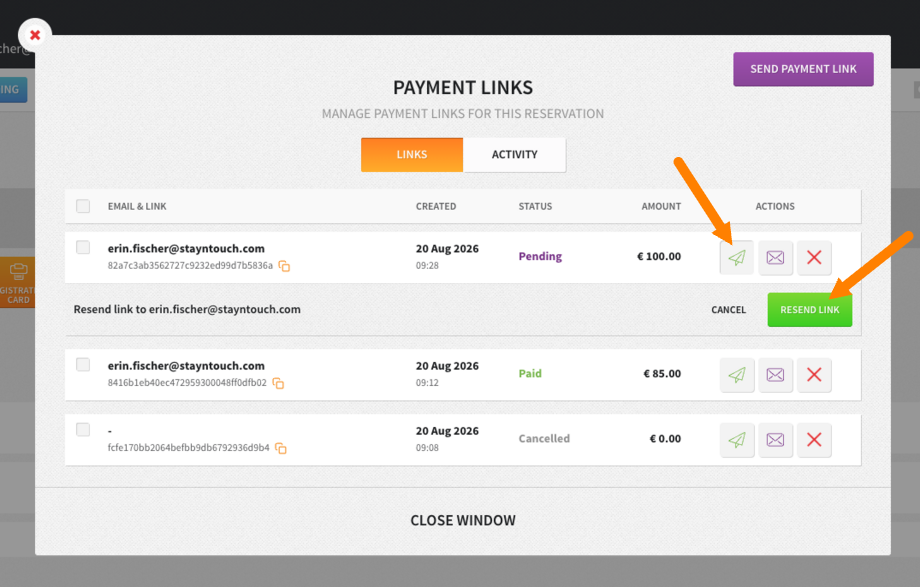
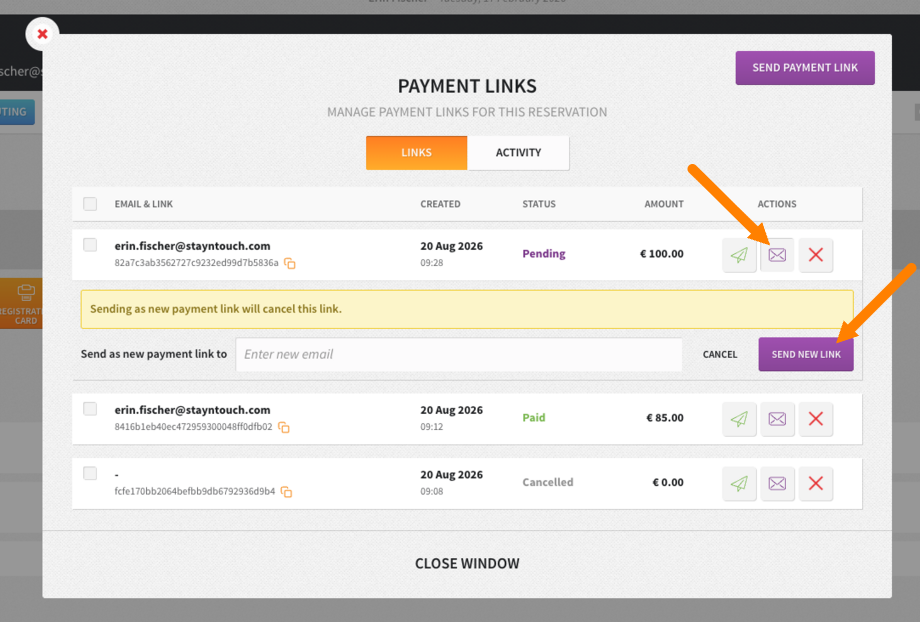
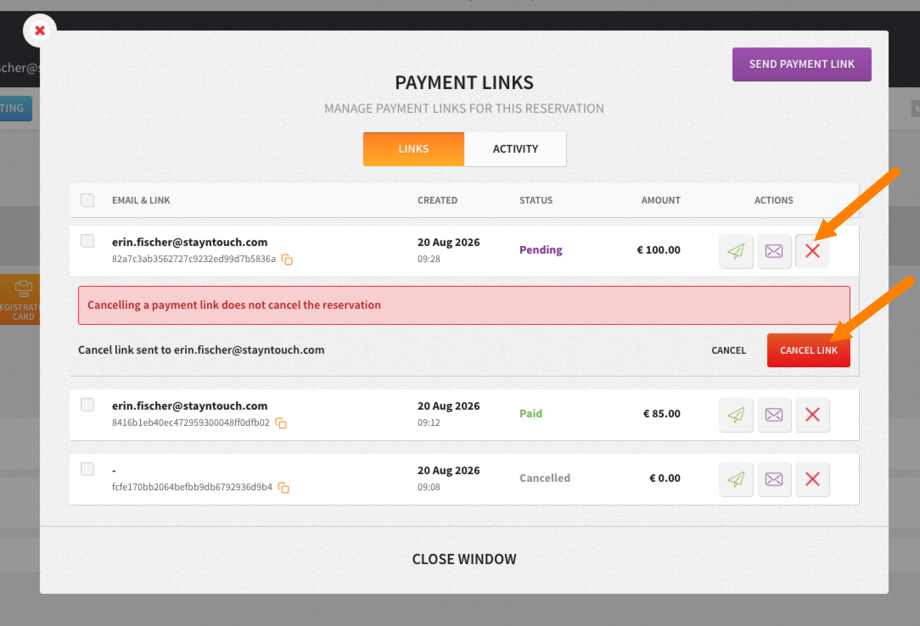
- You can cancel payment links for reservations and accounts
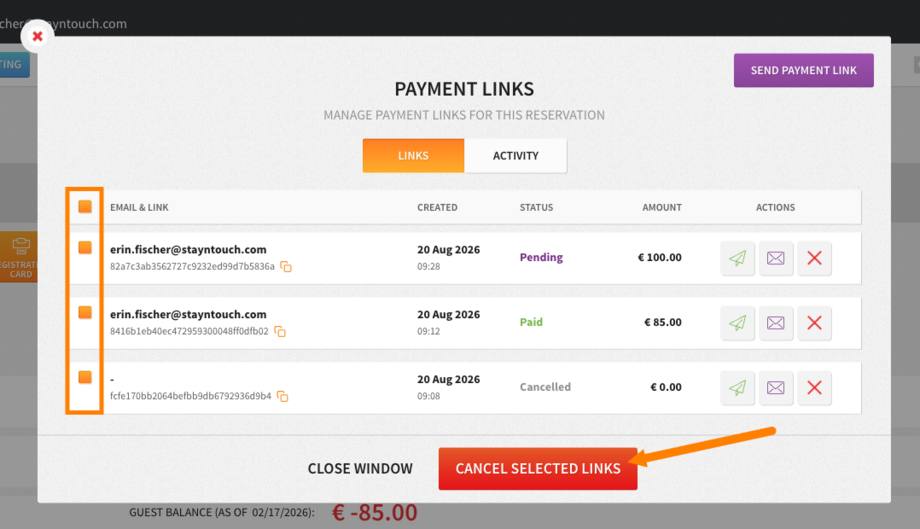
- Multi-select emails to Cancel Selected Links
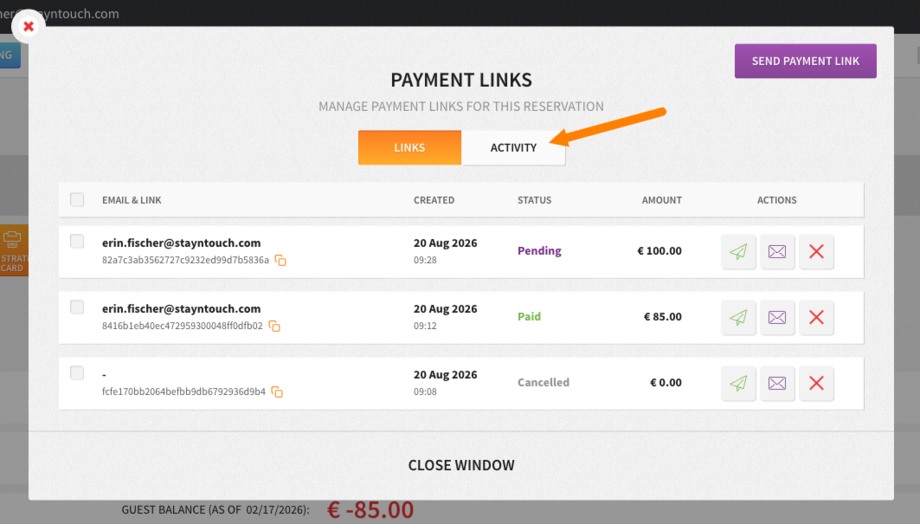
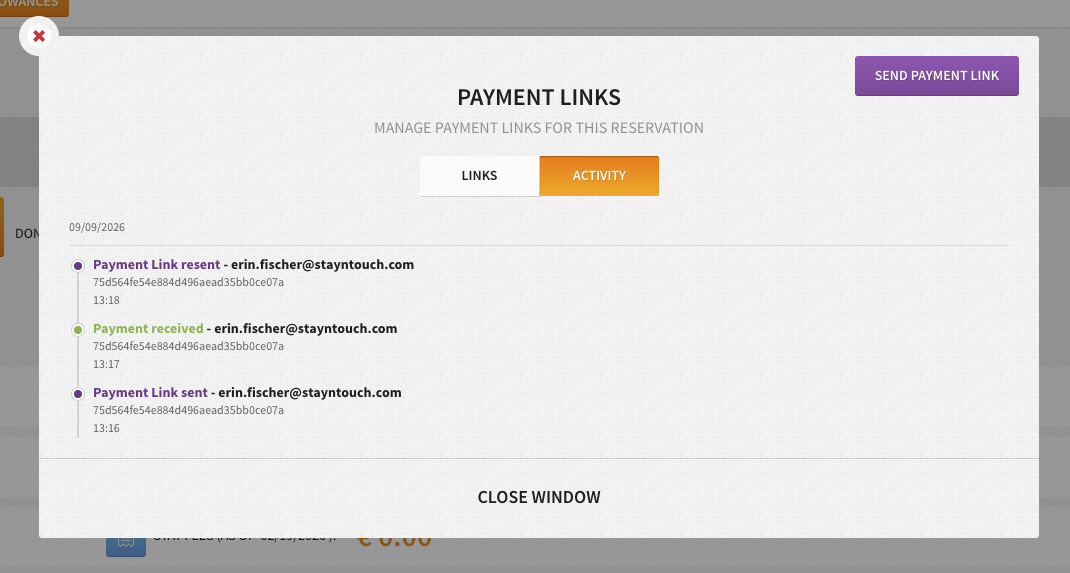
- View payment link activity from the Activity tab
Custom Payment Links: Choose Your Recipient
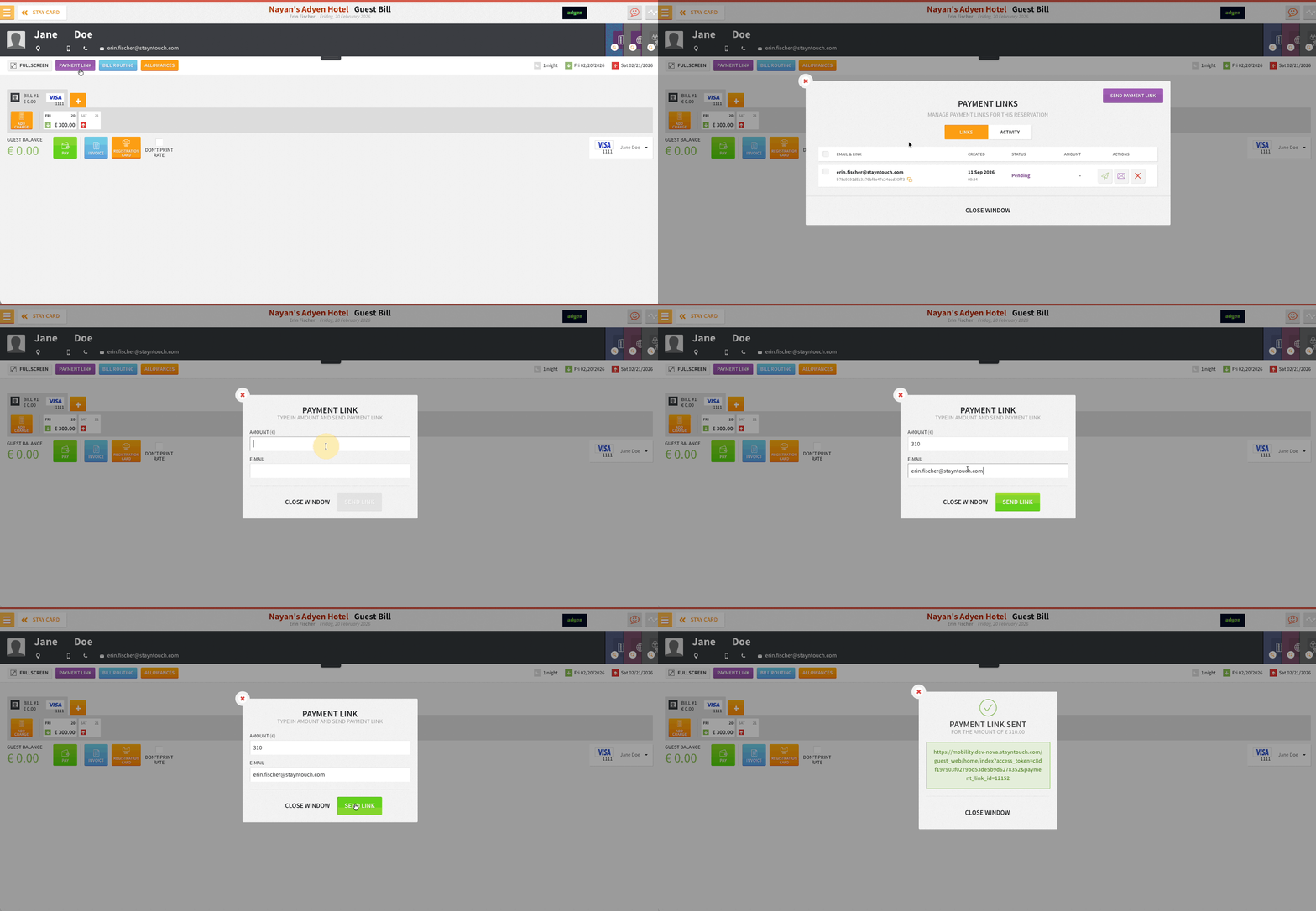
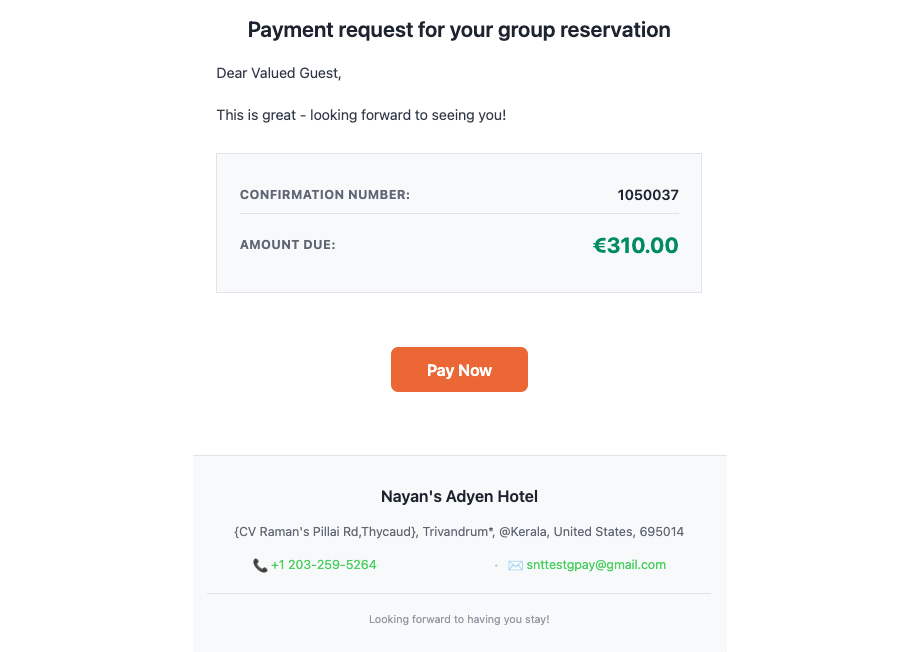
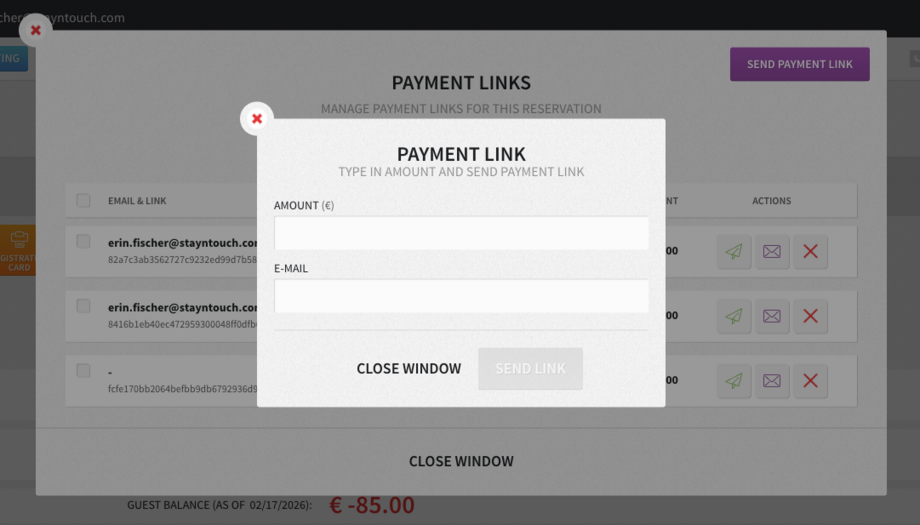
You can now specify who receives a custom payment link! When creating a payment link from a reservation or account, simply enter the amount, add a recipient email, and click SEND LINK. The popup confirms with “Link sent successfully”, and the action is automatically logged in the Activity Log for full traceability.
Payment Links Get an Activity Tab
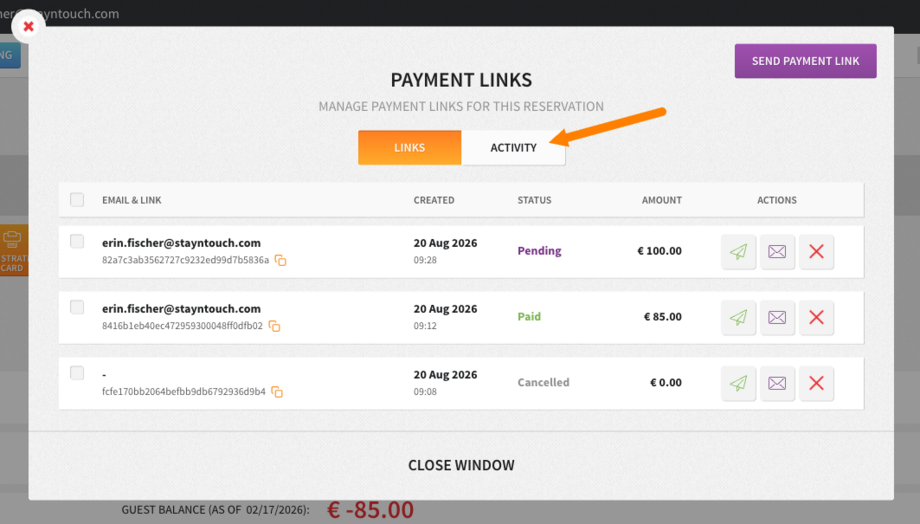
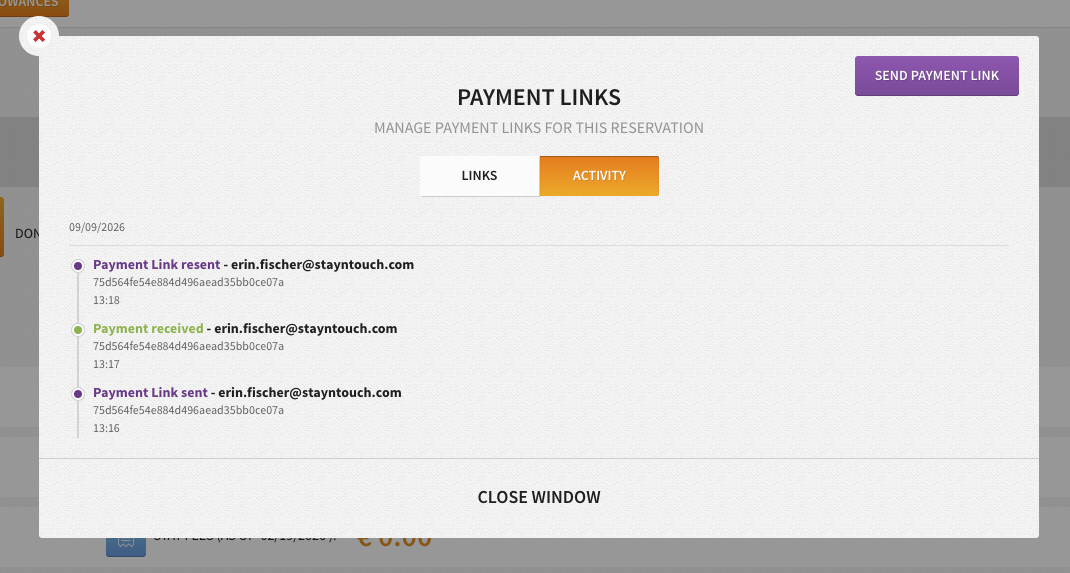
See every payment link action in one place. The new Activity tab (next to Links, on reservations and accounts) logs sends, resends, and cancellations in a chronological, date-grouped timeline.
Payment Link For Deposit Requests
Payment links for deposit requests allow properties to automatically collect deposits by sending guests a secure payment link via email. The link is generated based on existing deposit rules and sent directly to the guest email on the reservation, reducing manual follow-up and improving conversion.
Key Benefits
- Automates deposit collection via secure payment links
- Works with existing rate and reservation deposit rules
- No dependency on automatic card charging
- Full tracking, reporting, and audit visibility
Setup
Under Settings > Financials > Financial Settings > Auto Charge, you’ll find a new Collect deposit via payment link option. When enabled, the PMS will generate and email a payment link to the guest.
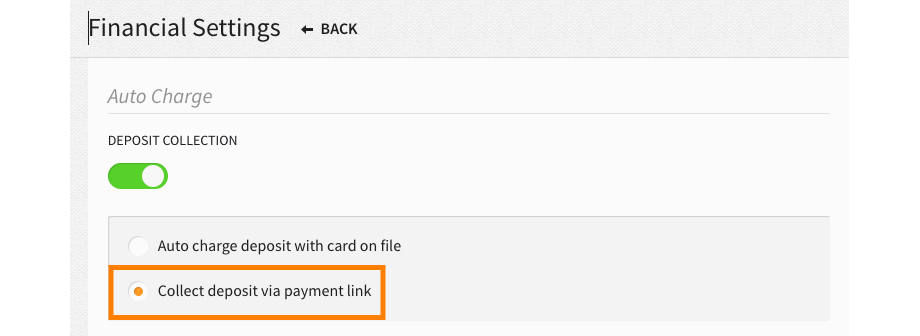
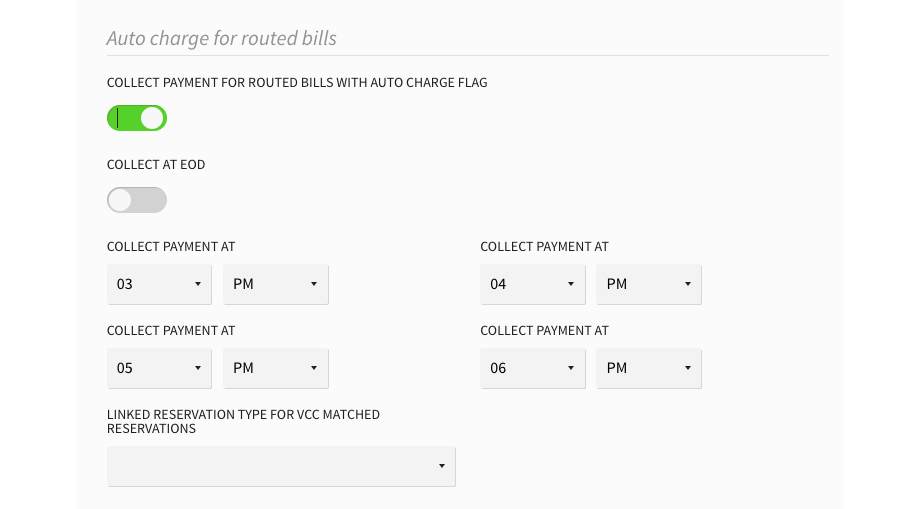
This feature works independently of the Collect Payment for Routed Bills with Auto Charge Flag setting via Settings > Financials > Financial Settings > Auto charge for routed bills, and payment links can be enabled even if Collect Payment for Routed Bills with Auto Charge Flag is not activated. Please note, you cannot enable both Collect Payment for Routed Bills with Auto Charge Flag AND Collect deposit via payment link at the same time.
Auto-charging of routed bills on virtual credit cards (VCCs) runs separately and is not turned off when you enable deposit collection via payment link—the two work side-by-side.
When Payment Links Are Sent
Payment links are sent based on the configured deposit timing:
- At Booking: Sent immediately when the reservation is created (Default validity: 96 hours)
- Day of Arrival: Sent during the End of Day (EOD) process on arrival date
- Custom Interval: Sent based on the Days in Advance setting (e.g., 5 days before arrival)
Behavior Notes:
- Payment links expire automatically once the reservation is checked in
- Unpaid links remain active on the day of arrival until check-in
Tracking & Activity Log
All payment link activity is recorded in the reservation Activity Log, including:
- Date and time sent
- Link validity period
- Status updates
Auto Charge Visibility
Payments completed via payment link will appear via Financials > Auto Charge under Approved Transactions and are clearly flagged as Collected via Payment Link.
Payment Links, Even After Check-Out
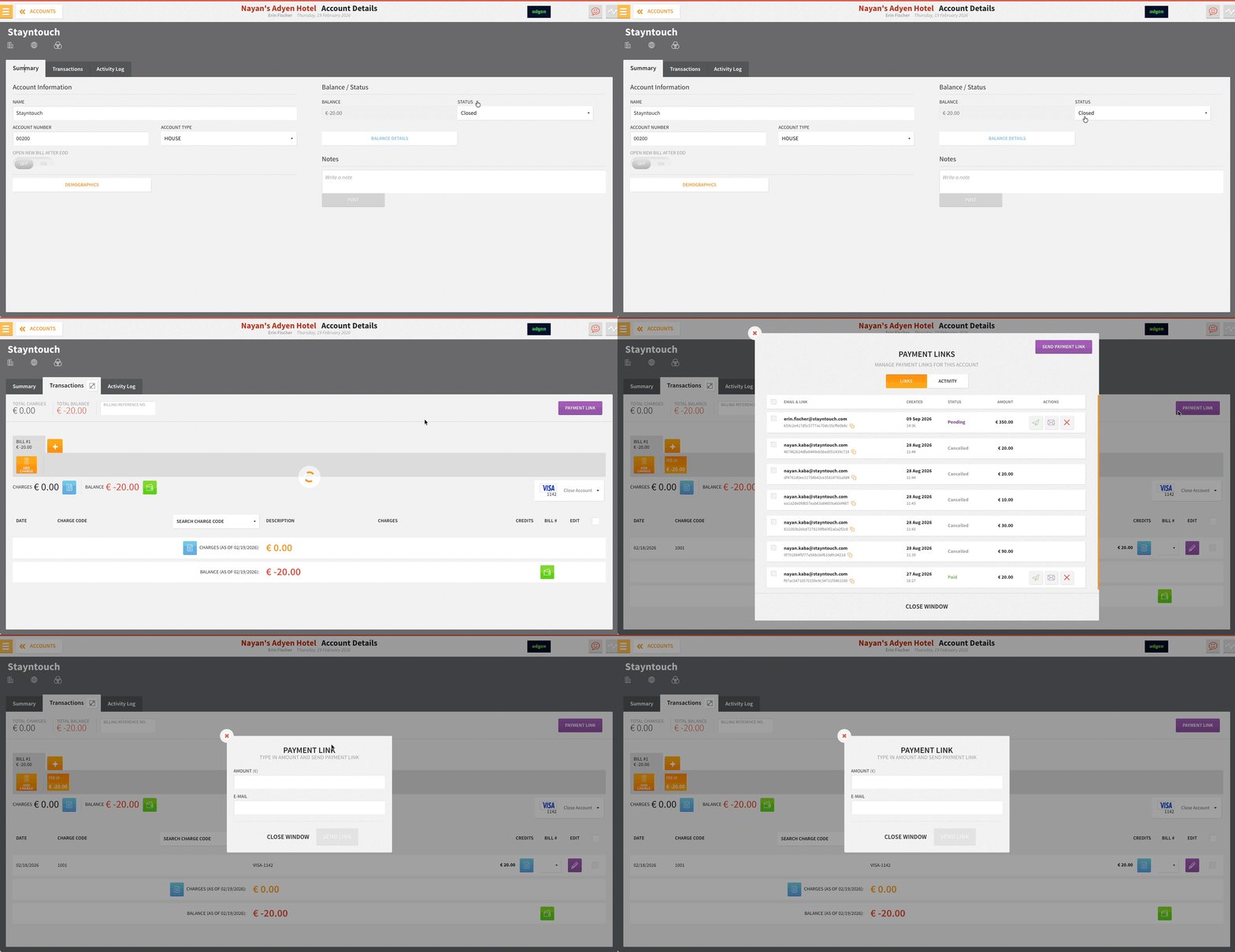
Closing a house or group account no longer means closing the door on payment collection. Hotels can now generate a brand-new custom payment link on a closed account—while any links still active from before automatically go dark the moment the account closes. Guests can still pay, and that payment posts cleanly to the closed bill, all gated behind the existing Post/Move charges to closed accounts permission (charges themselves remain blocked on closed accounts, as expected).
Deactivate Pending Payment Links When Account Closes
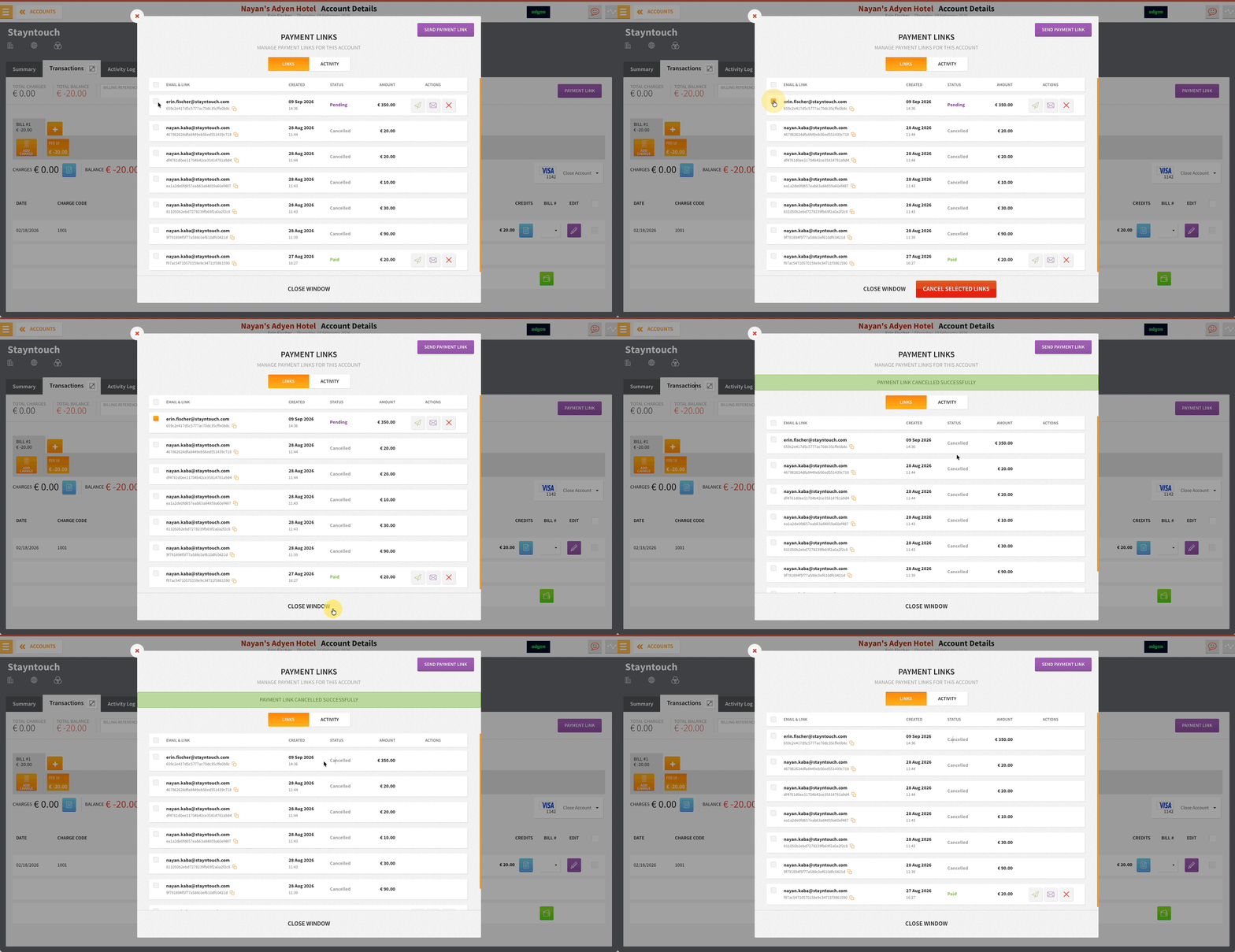
When a house or group account closes, any pending custom payment links get automatically deactivated, so they can't be used after the fact. Users get a heads-up before closing if links are pending, and the deactivation is logged to the account’s activity log for a clean audit trail. Open accounts and new-link generation are untouched.
Payment Links on Cancelled Reservations
Cancelled a reservation but still need to collect a payment? Now you can generate and manage custom payment links directly on cancelled reservations.
What’s New:
- Generate a custom payment link on any cancelled reservation
- View and manage those links right from the reservation
- Works exactly like payment links on active reservations
Custom Payment Link Expiry Timeframe
You can configure the custom payment link expiry timeframe from Settings > Financials > Payment Links under Payment Link Expires in - X - Amount of Days.
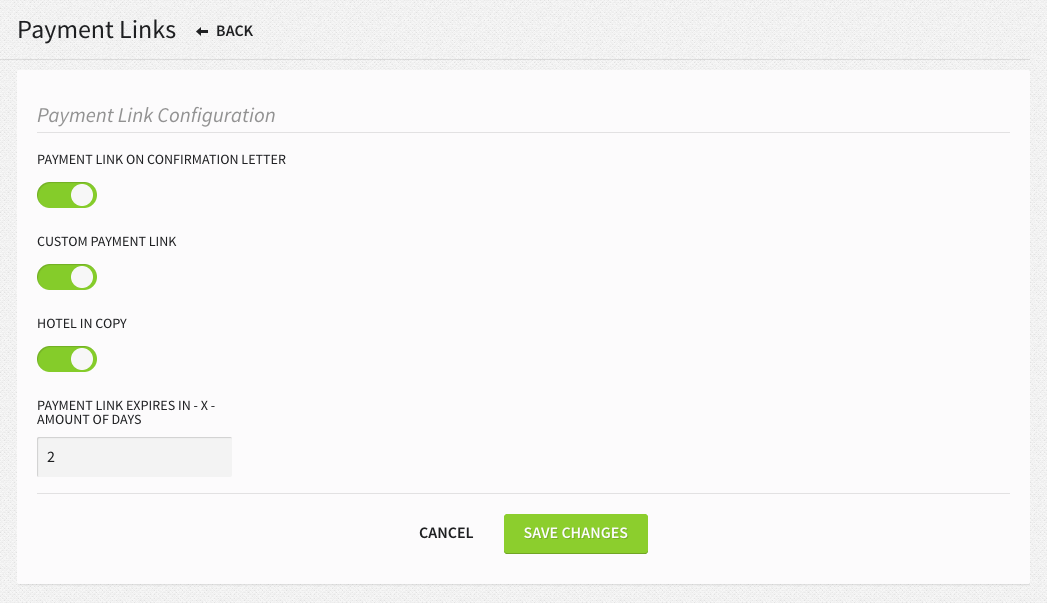
If the field is left as 0 or blank, there is no time-expiry, and the link will stay live until check-in, manual cancellation, payment, a new deposit rule, or reservation cancellation clears it.
The payment link expiry day corresponds to the number of days after the payment link was sent.
“Hotel In Copy” Toggle for Payment Confirmations
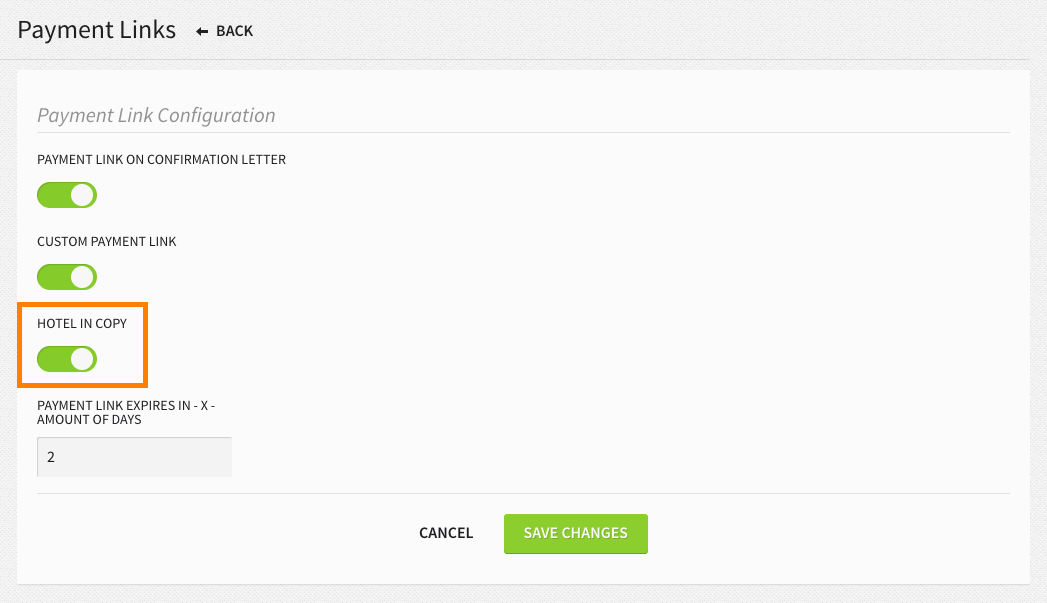
Hotel Admin users can now choose to receive a copy of payment confirmation emails automatically. Simply enable the new HOTEL IN COPY toggle under Payment Link Configuration via Settings > Financials > Payment Links. When turned on, the hotel email from Hotel & Staff > Hotel Details will receive a copy of all payment confirmations—no manual entry needed!
Payment Link Stationery
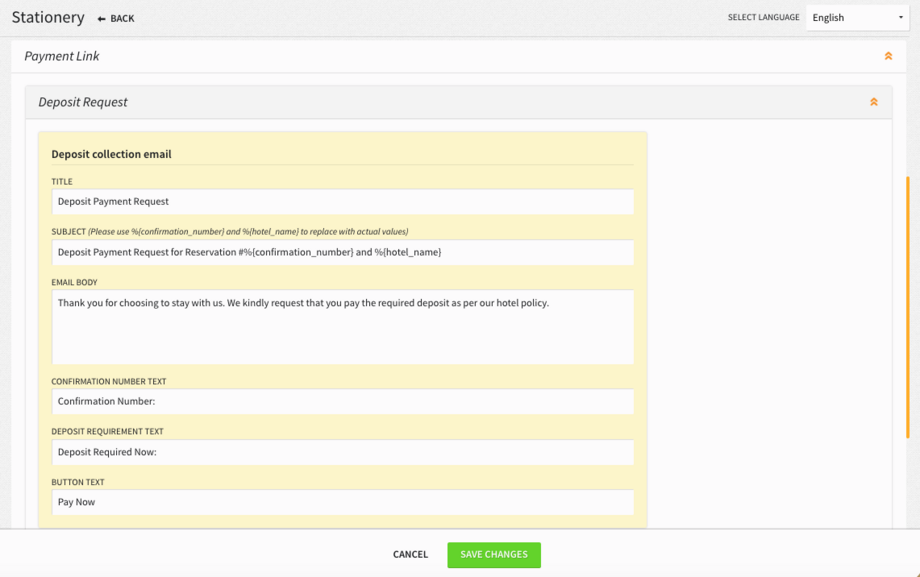
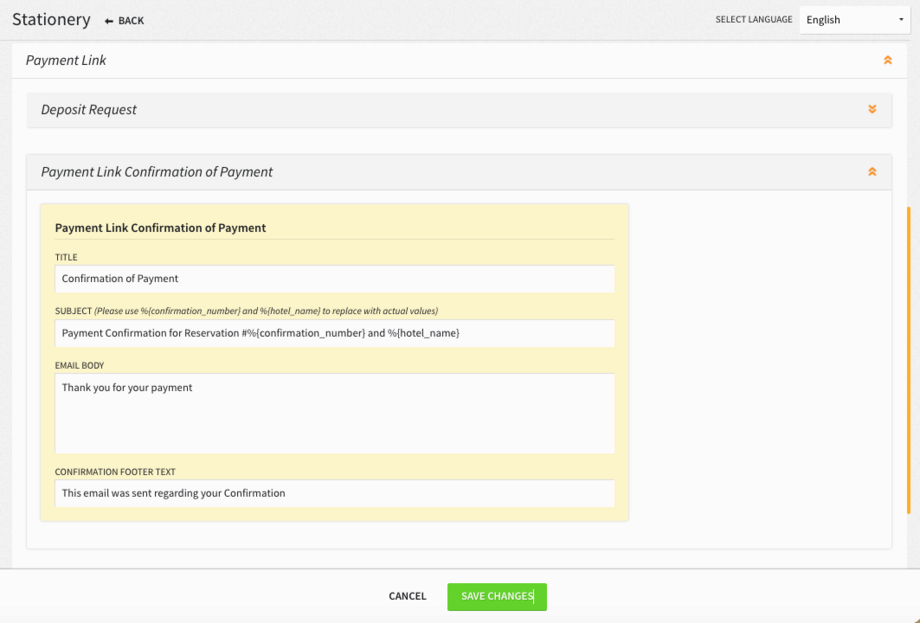
You can configure five different types of stationery for payment links via Settings > Hotel & Staff > Stationery > Payment Link:
- Deposit Request
- Payment Link Confirmation of Payment
- Custom Payment Link Email for Accounts
- Custom Payment Link Email for Reservations
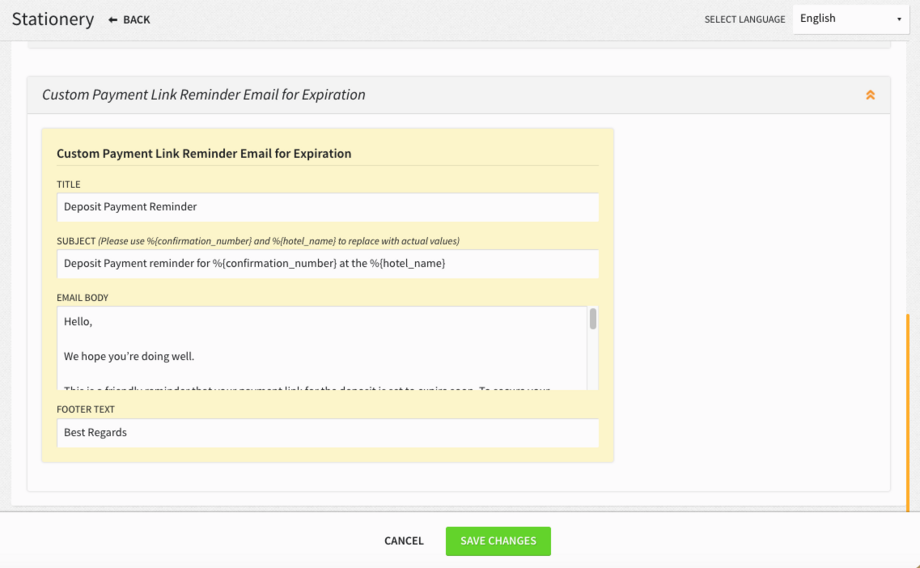
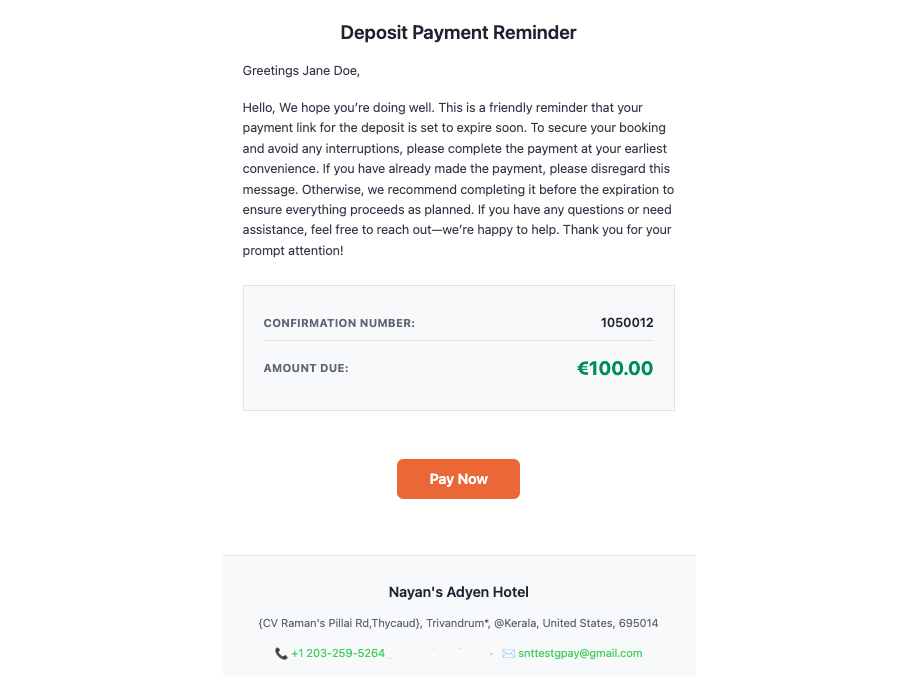
- Custom Payment Link Reminder Email for Expiration
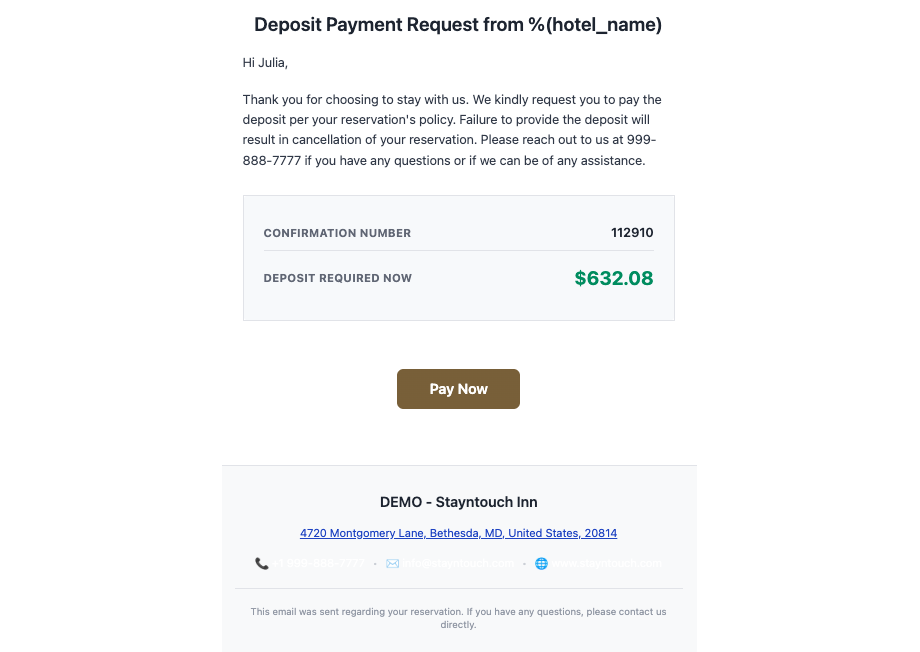
Deposit Request
Guests receive a deposit request email when a deposit payment is requested via payment link. The email uses the configurable Deposit Request template and is sent to the paying guest.
Note: Payment links are sent based on the configured deposit rule’s “Days in Advance” timing (Settings > Rates > Rules & Restrictions > Deposit Requests):
- At Booking: The payment link is sent during the following nightly EOD
- Day of Arrival: Sent during the End of Day (EOD) process on arrival date
- Custom Interval: Sent based on the Days in Advance setting (e.g., 5 days before arrival)
Troubleshooting Tip: For deposit requests to trigger properly on a reservation, a deposit rule needs to be set on the rate code or on the group block, in the Rate Info tab. To see which rate codes currently have deposit rules configured, run the Rate Audit Report via Scheduled Exports—it gives you a full view of the deposit rules in place across your rate codes.
Payment Link Confirmation of Payment
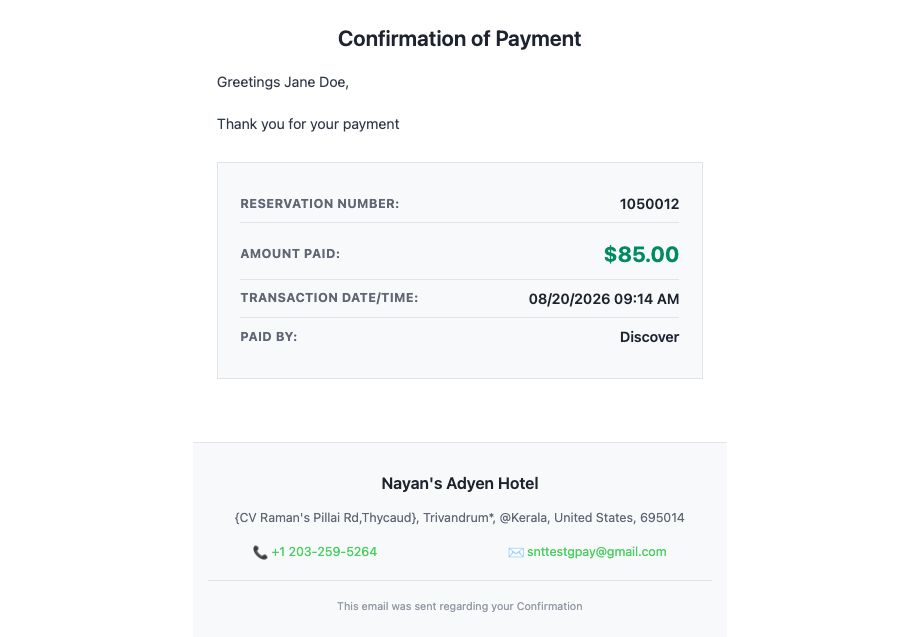
Guests receive an automatic payment confirmation email when they successfully complete a payment via the confirmation letter payment link, custom payment link, and deposit collection via payment link. The email uses the configurable Payment Link Confirmation of Payment template and is sent to the paying guest. Each confirmation is tied to the specific reservation (guest or group), providing clear proof of payment—no extra steps needed.
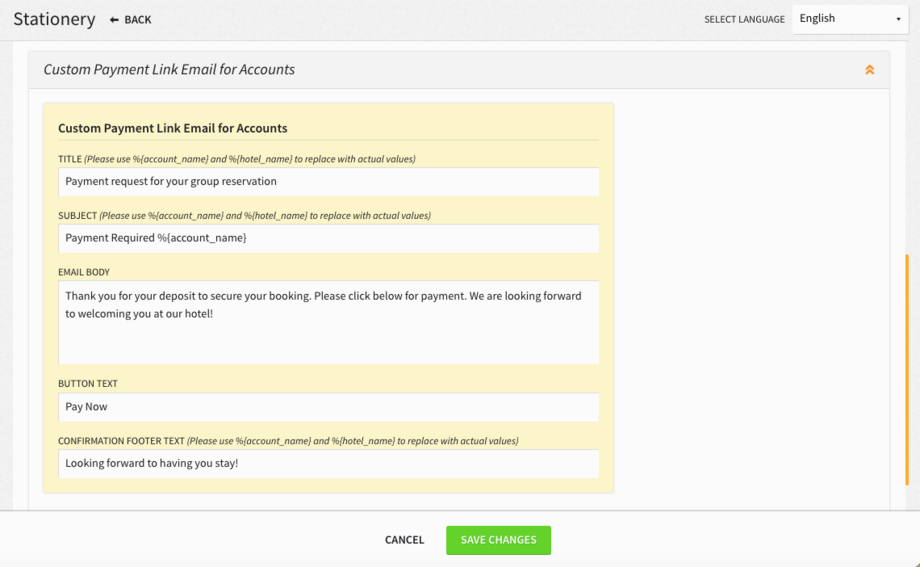
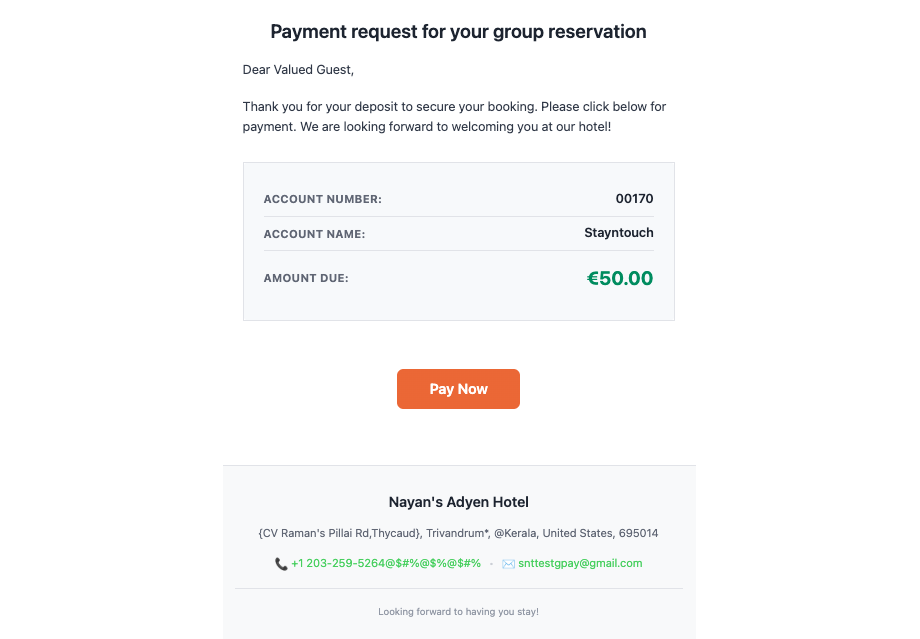
Custom Payment Link Email for Accounts
Guests receive a custom payment link email when payment for an account is requested via payment link. The email uses the configurable Custom Payment Link Email for Accounts template and is sent to the paying guest.
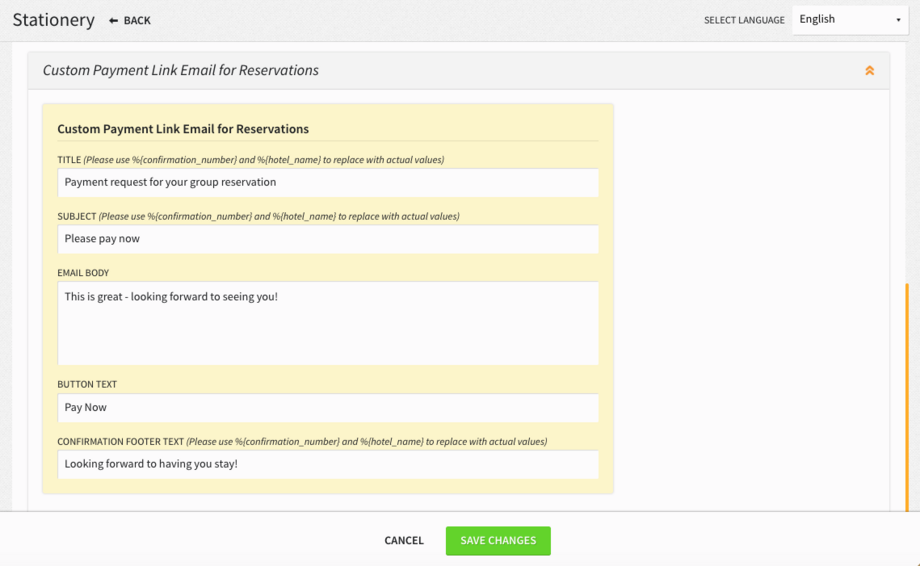
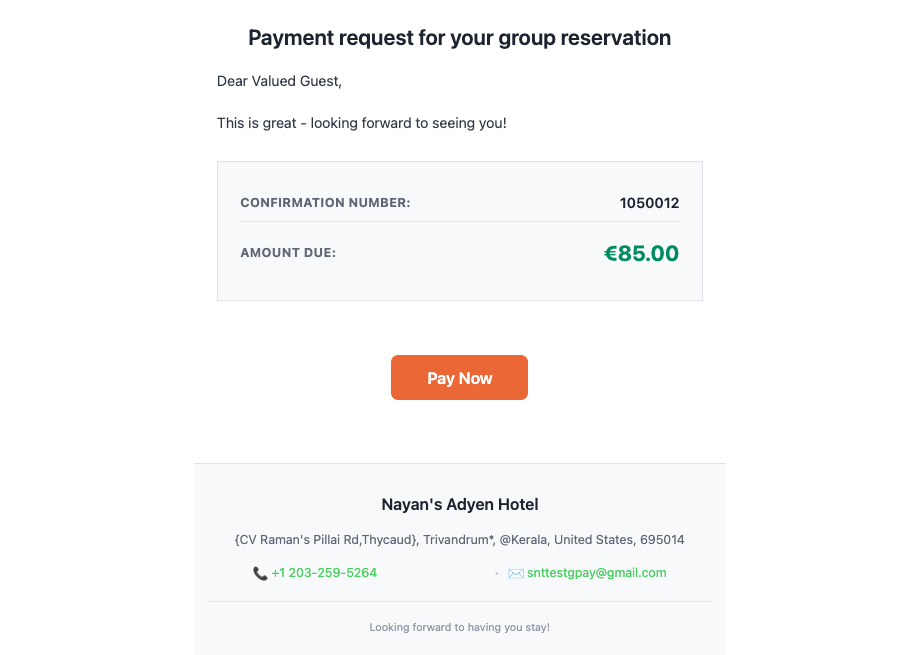
Custom Payment Link Email for Reservations
Guests receive a custom payment link email when payment for a reservation is requested via payment link. The email uses the configurable Custom Payment Link Email for Reservations template and is sent to the paying guest.
Custom Payment Link Reminder Email for Expiration
Guests receive a custom payment link reminder email 24 hours before the payment link sent is about to expire. The email uses the configurable Custom Payment Link Reminder Email for Expiration template and is sent to the paying guest.
Please note, the reminder only goes out if an expiry timeframe is set for payment links via Settings > Financials > Payment Links > Payment Link Expires in - X - Amount of Days. See a full explanation here.