
Applies to:  Stayntouch PMS
Stayntouch PMS How To Reset Two-Factor Authentication (2FA)
This guide explains how to reset a user’s two-factor authentication method from email-based authentication to Google Authenticator.
Prerequisites
You must have the appropriate administrative permissions to reset Multi-Factor Authentication (MFA).
Steps
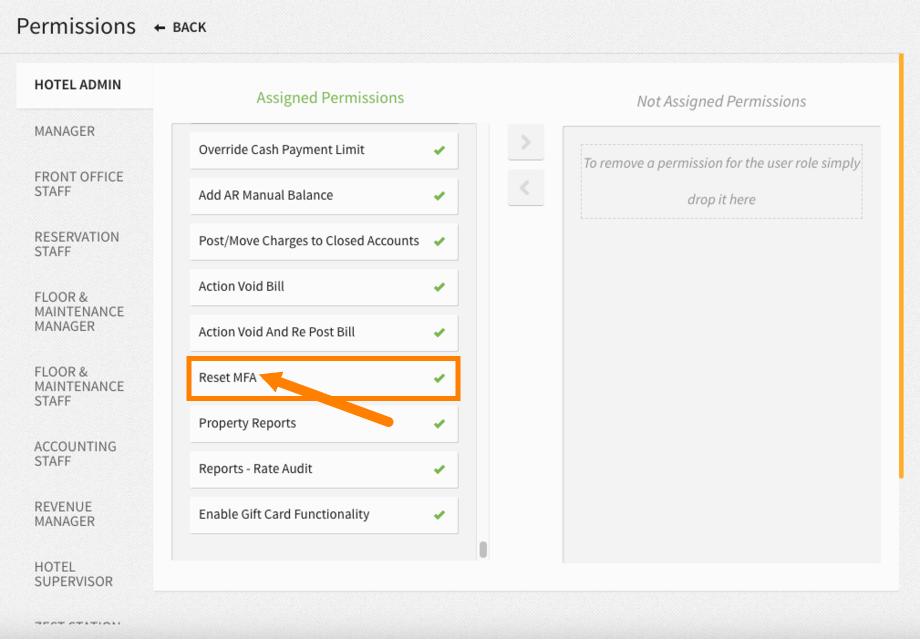
1. Assign MFA Reset Permission: Ensure your user account has the Reset MFA permission enabled from Settings > Hotel & Staff > Permissions.
2. Access User Setup
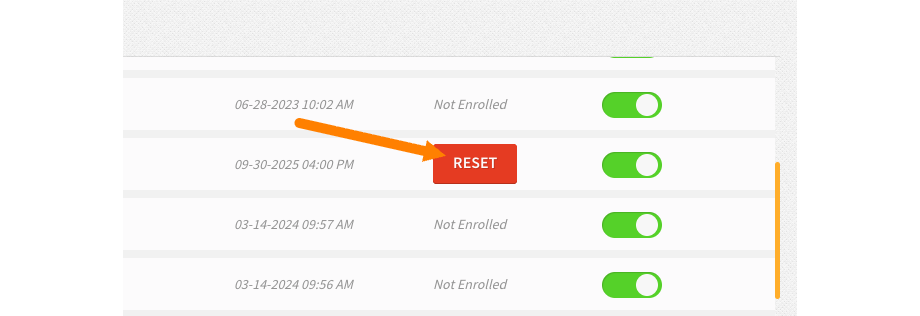
Navigate to Settings > Hotel & Staff > User Setup.
Locate the user whose two-factor settings need to be reset.
Click RESET next to the user’s two-factor settings.
3. User Re-Enrollment
The next time the user logs in, they will be prompted to set up two-factor authentication again.
The user can then configure Google Authenticator as their new 2FA method.
Result
- The user’s previous email-based 2FA is removed, and Google Authenticator is set up during the next login.