
 Stayntouch PMS
[NEW!] Digital Registration Card
Stayntouch PMS now offers Digital registration cards! This feature will allow the property to send the registration cards digitally to a guest-facing kiosk at the front desk. Guests can complete, update and sign their registration card directly on the kiosk.
This feature enables guests to:
- Update their personal emails and replace OTA placeholder emails
- Provide and store digital signatures at check-in
- Accept and digitally sign the hotel's terms and conditions
- Opt in or out of marketing communications
Please note, activation of this feature requires a subscription to the digital registration tablet and is available for an additional fee. Please contact Sales for pricing or more information.
TABLE OF CONTENTS
- Digital Registration Card: User Flow
- Display Configured Photos Via Digital Registration Card When Idle
- Configure Digital Registration Card
- Transform Your Kiosk: Branded Registration Made Simple
- Send Digital Registration Card To Kiosk
- Check-In Just Got Effortless: Seamless Guest Registration
- Registration Card Pull Back, Refresh, Refresh & Continue
- Preferences, Terms & Conditions, & Signature Added To Digital Registration Card
- Digital Registration Card Auto Timeout
- Additional Children Via Digital Registration Card
- Additional Adults Via Digital Registration Card
- Automatic Guest Card Creation For Additional Guests & Children
- Digital Registration Card: Stay Summary & Expanded Stay View
- Connecting Workstations
Digital Registration Card: User Flow
We’ve made guest registration cards smoother than ever!
Send Registration Card To Kiosk
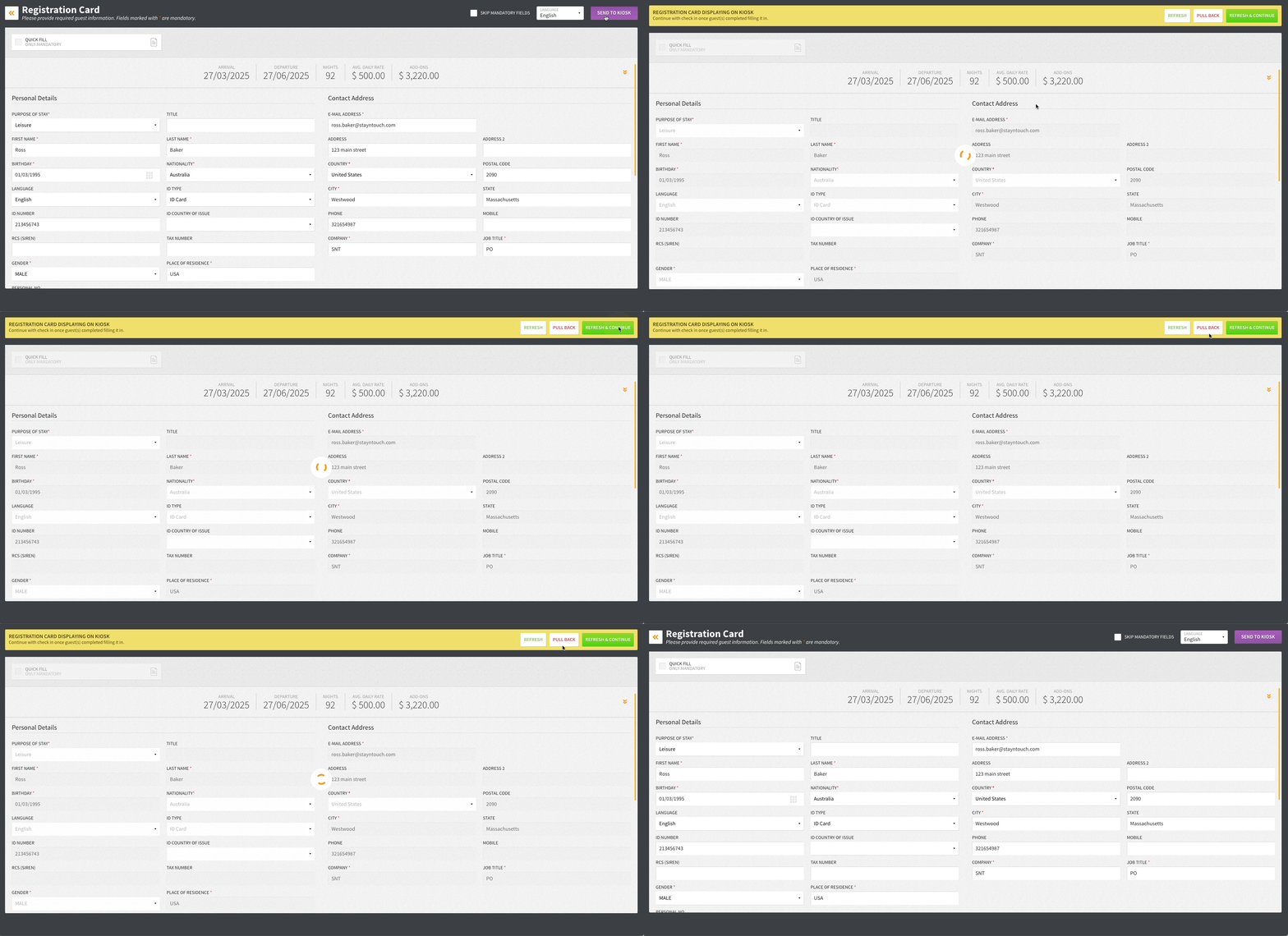
A new SEND TO KIOSK button is now available on the digital registration card. Once sent, all fields and tabs are locked for editing—so your data stays consistent. From there, you can:
- Refresh data
- Pull the card back
- Continue editing when needed
Kiosk Home Screen
When activated, the kiosk home screen gives you a clear, modern view of all guest registration options.
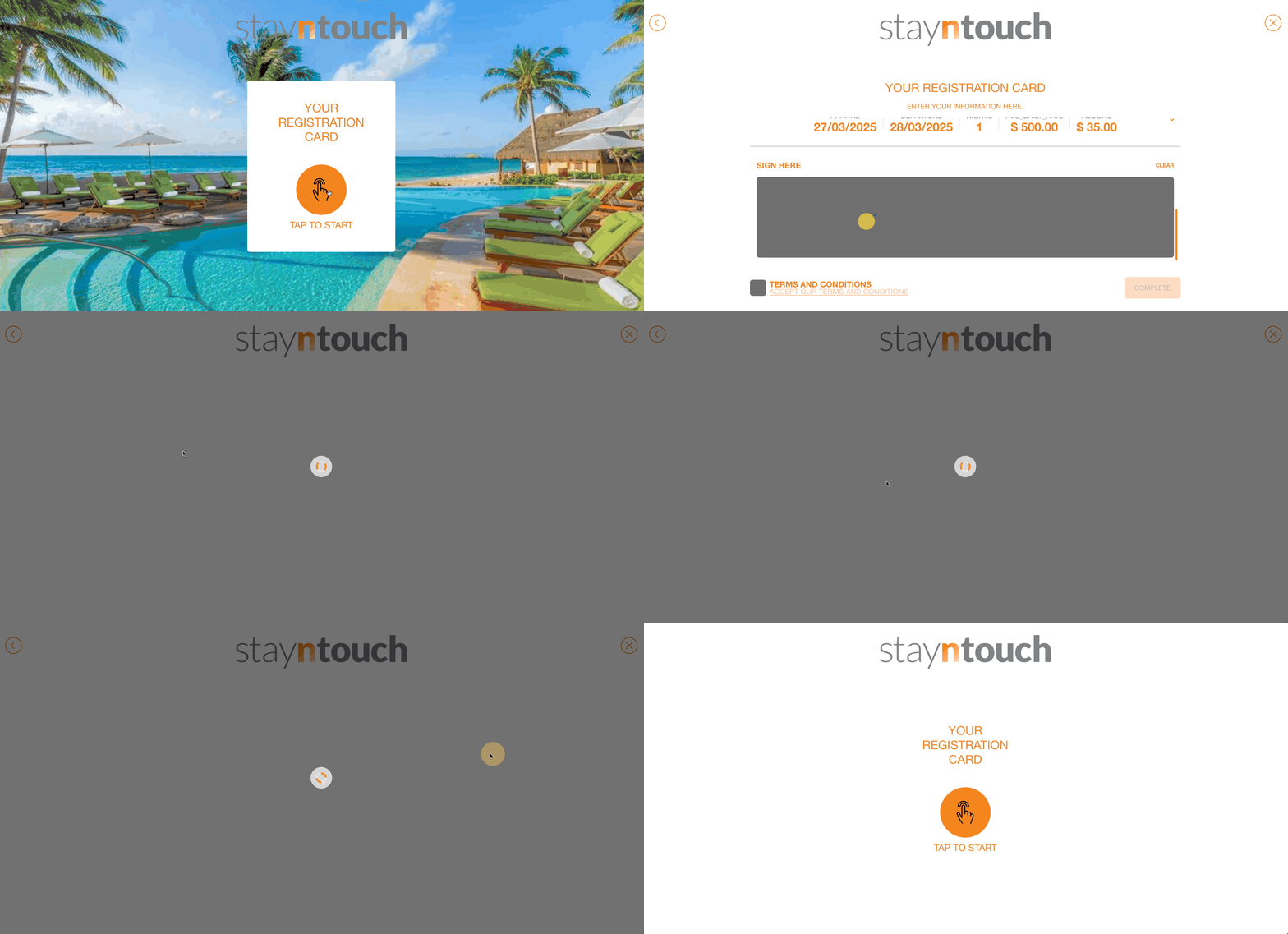
Single Guest
For reservations with one guest, the registration card opens directly with all detail fields ready to complete.
- Actions stay fixed at the bottom for easy access
- The form dynamically fits the screen for a seamless experience
Multiple Guests
For group reservations, you’ll first see a summary showing which guests still need details.
- Add details for main guests, additional adults, or children
- Use SAVE AND CONTINUE to move smoothly through each guest’s form
- The guest list reappears only after all information is complete
Smarter On-Screen Keyboard
To maximize usable space when typing:
- The top navigation and page title hide automatically
- The form expands to full screen for better visibility and ease of entry
Display Configured Photos Via Digital Registration Card When Idle
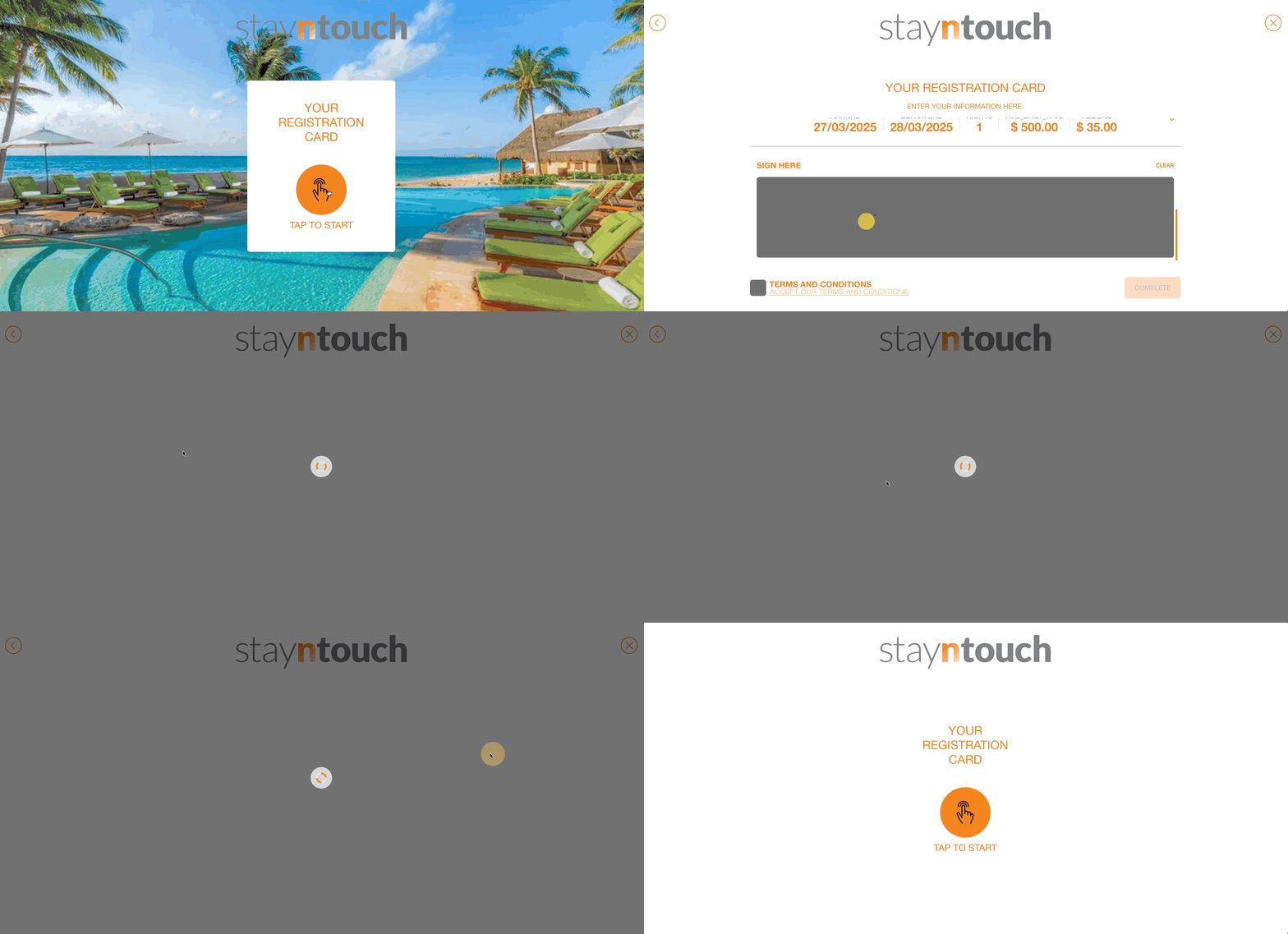
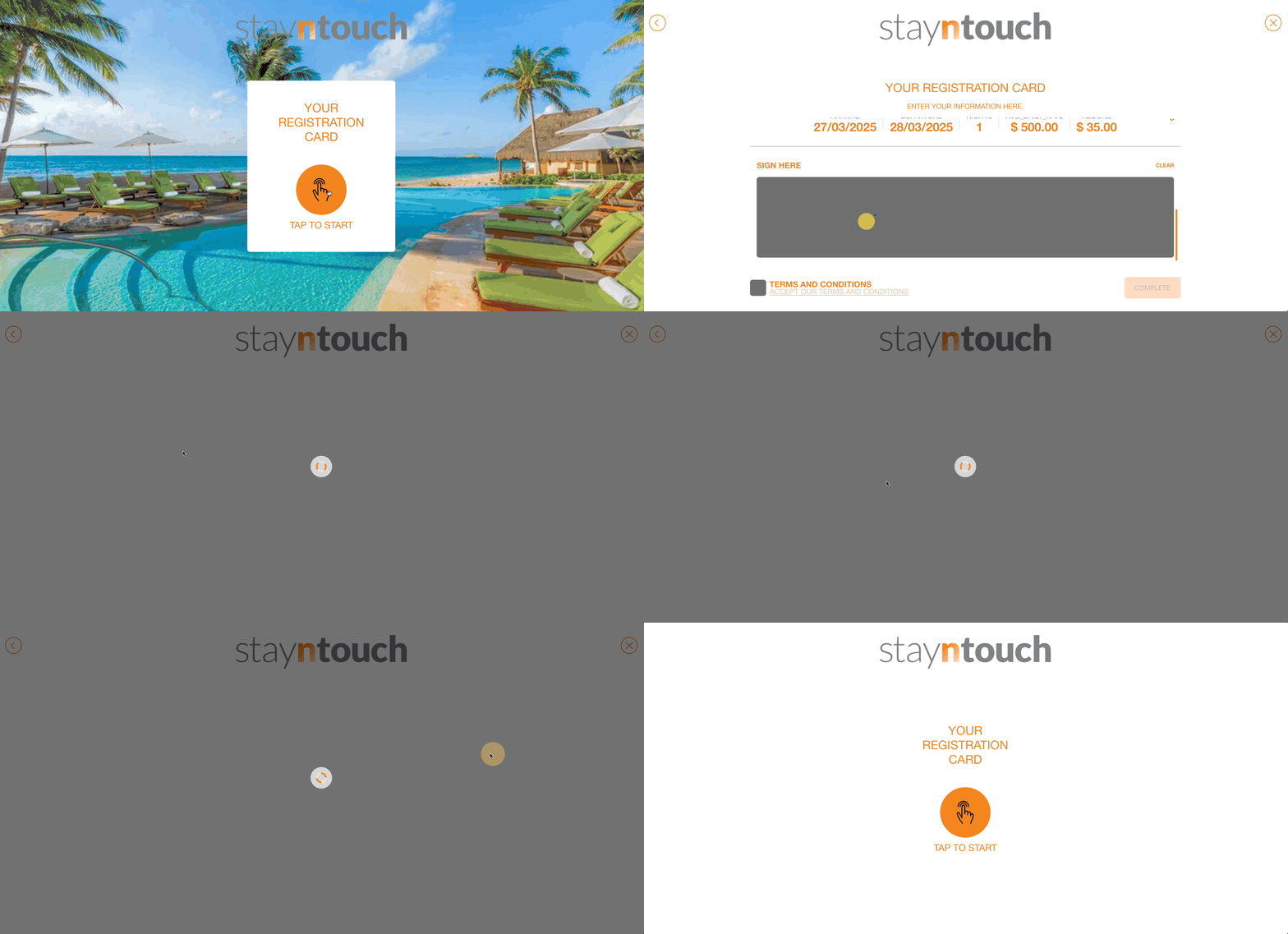
Bring your front desk to life! When the digital registration card isn’t in active use, it now automatically displays your configured property photos—turning idle screens into beautiful digital displays.
What’s New:
- When a kiosk is set to registration card mode, your kiosk now showcases your configured photos.
- If you’ve uploaded one photo, it is displayed continuously.
- If you’ve uploaded multiple photos, they’ll play as a smooth slideshow with elegant crossfades every 5 seconds.
- A hidden button in the bottom-right corner allows quick access back to the kiosk’s admin screen.
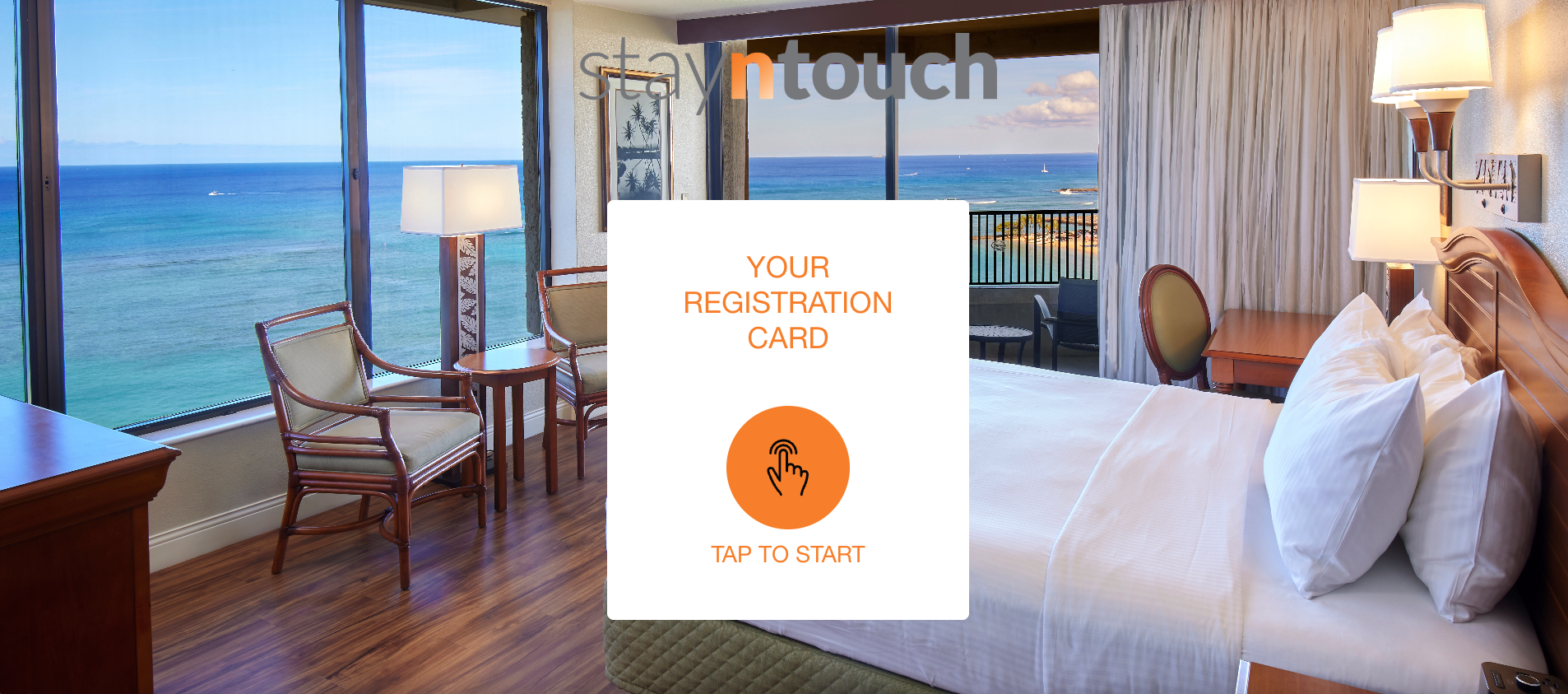
Perfect for adding a touch of style and promoting your property right at the front desk!
Configure Digital Registration Card
Hotel Admin users can now fully customize and manage the digital registration card experience via Settings > Kiosk > Registration! Please note, the digital registration card option appears only when enabled by Stayntouch Admin. Please contact sales.team@stayntouch.com to enable this for your property.
What’s New:
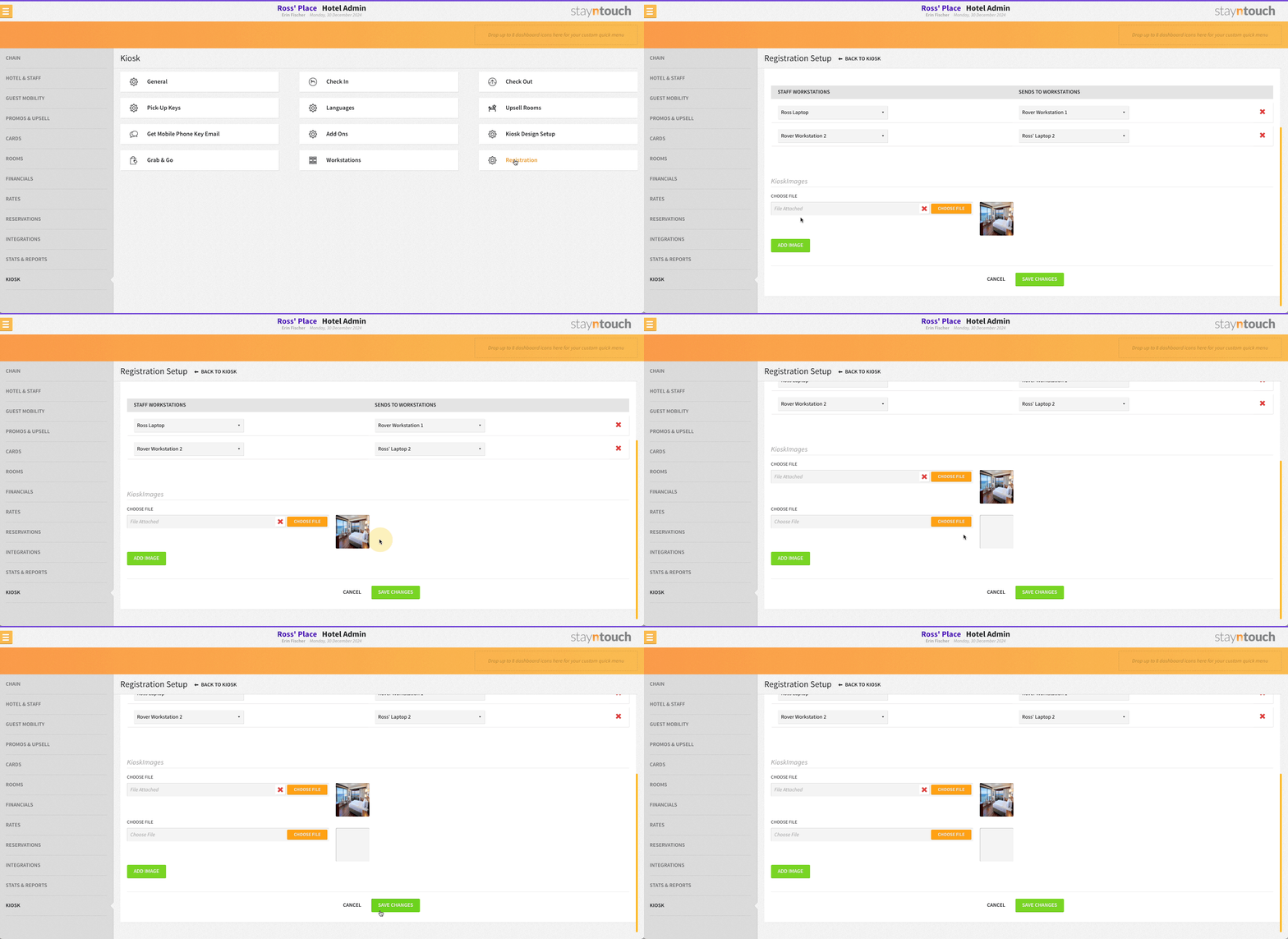
- Registration Kiosk Menu: A new Registration section has been added via Settings > Kiosk.
- Activate Toggle: Easily activate or deactivate the Kiosk Workstations for the registration card.
- Workstation Relationships:
- Assign which staff workstations send to which kiosk.
- Only workstations marked as “Registration” are available for kiosk assignment.
- Once assigned, a workstation can’t be used in another relationship—ensuring clean, one-to-one configuration.
- Add multiple workstation relationships with simple dropdown options.
- Auto Timeout Settings: Choose the INACTIVITY TIMEOUT duration—15 seconds, 30 seconds (default), 45 seconds, 60 seconds, 75 seconds, or 90 seconds.
- Kiosk Images: Upload multiple photos to display on your digital registration card for a personalized, branded guest experience.
- Save & Apply: All settings can be saved and instantly applied to streamline check-ins.

Bonus: A new REGISTRATION option is now available on the kiosk home screen options for quick access.
Transform Your Kiosk: Branded Registration Made Simple
The digital registration card functionality now allows for configuration of a kiosk workstation as a digital registration card to create a welcoming and branded experience at your front desk.
What’s New:
- Registration Button: When a workstation is set up as a digital registration card, a new Registration button will appear in the kiosk’s hidden menu.
- Slideshow Display: Clicking the Registration button launches a slideshow of your uploaded images. Each photo displays for 5 seconds and transitions with a smooth crossfade effect.
- Touch Icon: A central touch icon is shown, styled to match your kiosk’s check-in/check-out button colors from Settings > Kiosk > Kiosk Design Settings.
- Return to Menu: A hidden button in the bottom right corner of every image lets staff easily exit the slideshow and return to the main kiosk menu (Check-In, Check-Out, Grab & Go, etc.).
- Fallback Behavior: If no images are uploaded, the screen will display your configured kiosk background color instead.
Send Digital Registration Card To Kiosk
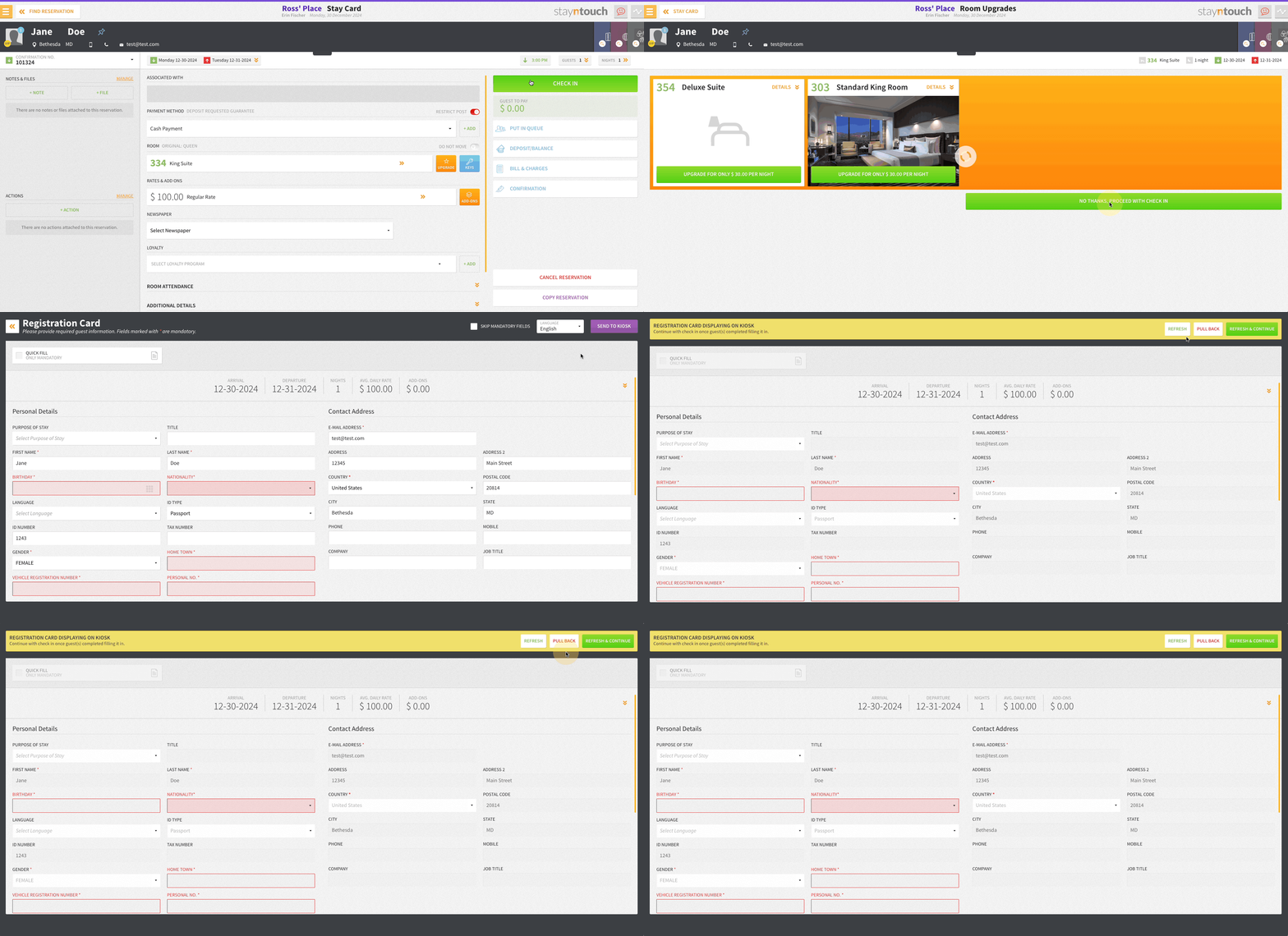
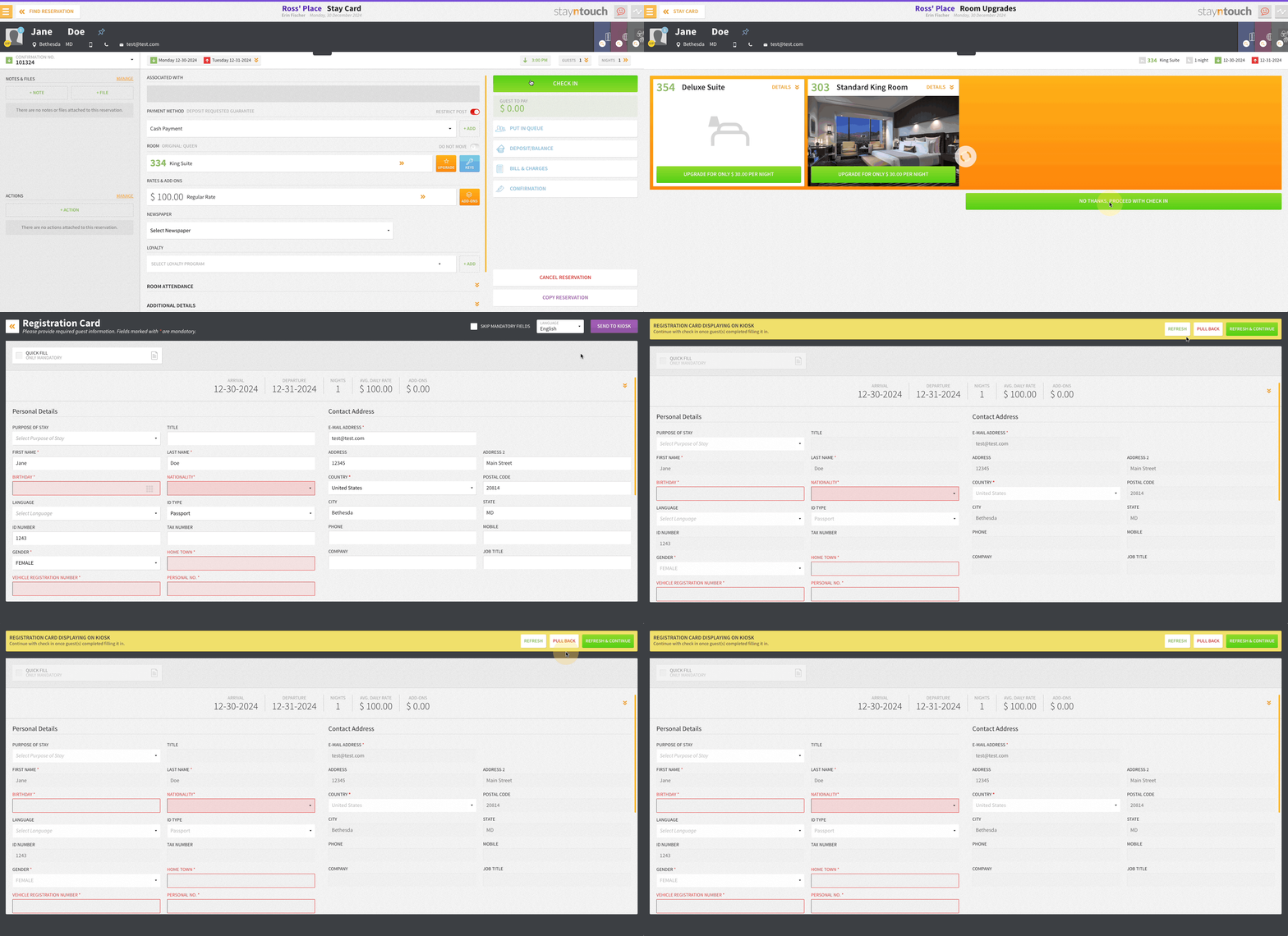
Front desk agents can now send a guest’s registration card directly to a kiosk for completion and signature.
Key Highlights:
- A SEND TO KIOSK button appears in Stayntouch PMS if:
- Digital registration cards are active
- A kiosk workstation is assigned
- Guests can complete, sign, and submit the digital registration card at the kiosk.
- Agents stay on the registration screen with options to:
- Pull back the card
- Refresh
- Refresh and continue
- If CHECK IN is clicked before guest completion, a prompt will appear.
- Auto-expiration:
- Link expires after 30 seconds of inactivity
- Or 5 minutes after guest starts interaction
Check-In Just Got Effortless: Seamless Guest Registration
Front desk operations just got smoother! Guests can now complete their registration card directly on a tablet, and any updates they make are automatically saved and synced to both the PMS registration and guest card—no data lost, no re-entry needed.
What’s New:
- Auto-Save On Action: When guests click PROCEED TO CHECK-IN or BACK, their updates are instantly saved.
- Smart Data Sync: All changes to guest details or registration fields are reflected in the PMS and guest card in real time.
- Streamlined Flow: If there is only one guest, the kiosk jumps straight to their details for faster processing.
- Editable Registration Card: Guests can update their information right from the kiosk—easy and efficient.
- Quick Exit: Clicking the X button removes the registration card from display, saving changes automatically and reverting the kiosk to its configured photo screensaver.
Registration Card Pull Back, Refresh, Refresh & Continue
Front desk agents now have greater control over guest privacy and kiosk activity with the new PULL BACK feature in the PMS. This enhancement allows agents to instantly remove a registration card from a kiosk display, ensuring that guest information is never visible to the wrong person.
How It Works:
- A new PULL BACK button is now available on the PMS registration card screen.
- When selected, the system removes the kiosk workstation ID from the reservation, immediately disconnecting it from the kiosk.
- The kiosk continuously checks (every 5 seconds) to confirm that a reservation is still linked to it.
- Once disassociated, the kiosk automatically returns to its welcome/photo screen, hiding any guest details.
- Any information the guest had entered before pullback is securely saved in the guest registration record.
Additional Enhancements:
- The REFRESH and REFRESH & CONTINUE buttons now ensure PMS registration cards stay synchronized with kiosk input.
- Registration cards remain greyed out while still attached to an active kiosk session.
- Once the kiosk session ends or is cancelled, the registration card becomes editable again.
- Smooth transitions ensure that agents can continue check-in workflows without losing guest data.
Preferences, Terms & Conditions, & Signature Added To Digital Registration Card
We’re making check-in faster and more personalized! The digital registration card now allows guests to share their preferences, accept terms & conditions, and sign digitally.
What’s New:
- Preferences Section:
- Added above guest details for easy access.
- Includes QUICK FILL and NEWS & PROMO (if active).
- Guests can select or deselect each preference.
- Signature Pad:
- Located below guest details (if configured).
- Guests can sign, clear, and resubmit their signature.
- Terms & Conditions:
- Checkbox added next to the COMPLETE REGISTRATION button (if configured).
- Guests can accept or decline the Terms & Conditions.
- Terms & Conditions link opens a popup with the configured message from Settings > Stationery > Terms & Conditions > Kiosk.
Digital Registration Card Auto Timeout
To protect guest privacy and streamline front desk operations, the kiosk registration card now automatically clears inactive sessions:
- Smart Reservation Handling: Clicking a reservation assigned more than 30 seconds ago won’t display sensitive information on the kiosk.
- Configurable Inactivity Timeout: If the kiosk sits idle beyond the set time, the registration card is removed automatically.
- 5-Minute Auto Reset: Regardless of activity, any registration in progress is cleared after 5 minutes, while all completed fields are safely saved.
- Seamless Return to Start: Once cleared, the kiosk returns to the welcome screen.
Additional Children Via Digital Registration Card
When a guest has additional children on their reservation, the digital registration card now supports capturing all mandatory child guest details seamlessly.
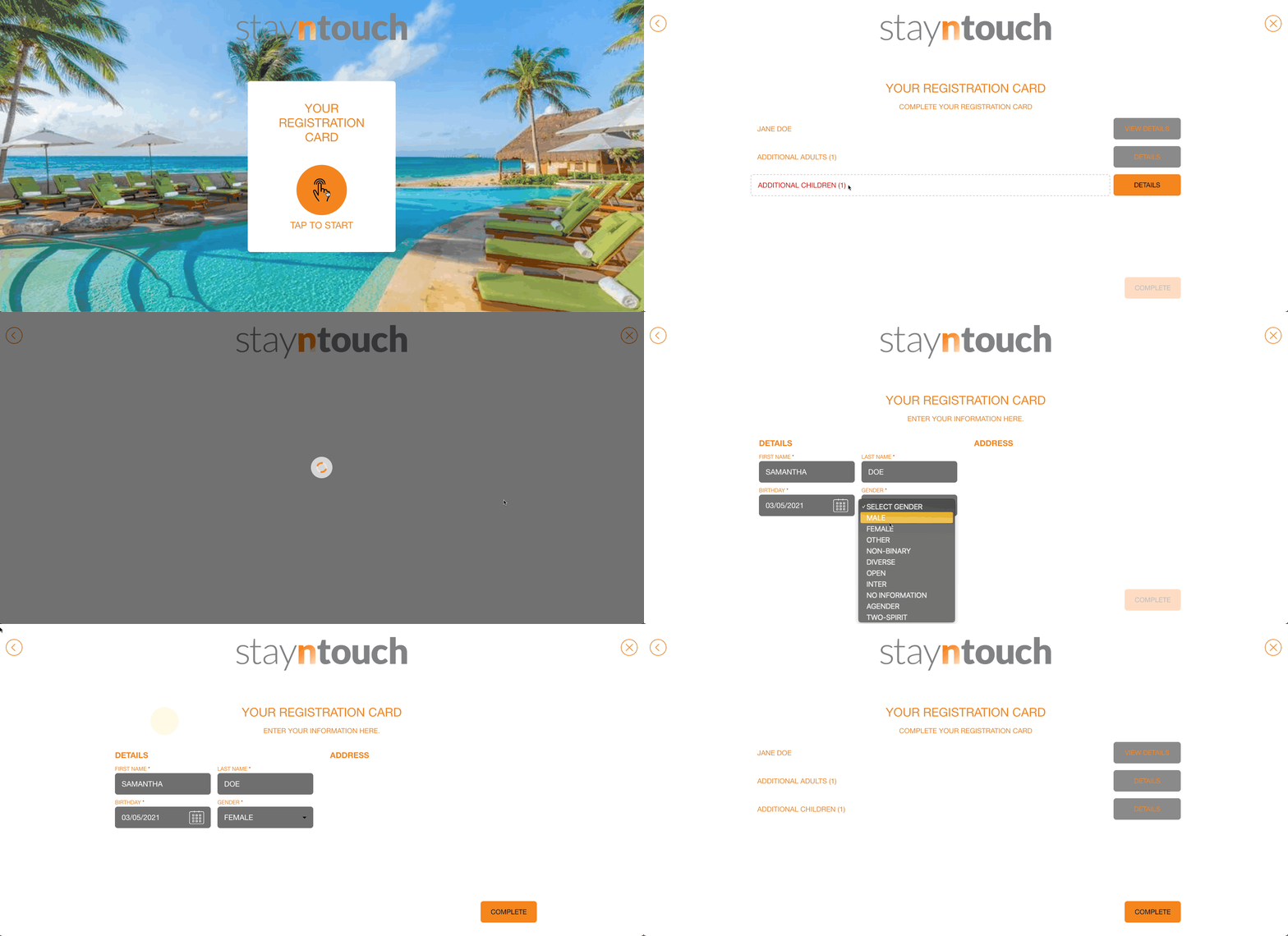
Key Enhancements:
- Smart Guest Details Flow: Guests with children are directed to the Guest Details Summary screen when opening the registration card from the kiosk.
- Child Overview:
- Displays all children’s names; if names are missing, the total number is still shown.
- Names that don’t fit in the box now display with ellipses […] while still showing the count.
- Status Indicators: Green checkmarks for complete details; red for missing mandatory information.
- Easy Editing:
- Users can click ADD DETAILS to fill in or edit guest information.
- Only mandatory fields are shown for all guests.
- Pre-filled information from the guest stay card saves time.
- Automatic Saving:
- Any updates made in the kiosk are automatically saved to the PMS registration card and the guest card.
- Flexible Navigation:
- Back Button: BACK button returns user to the Guest Details Summary screen while saving changes.
- X Button: X button closes the registration card and returns to the pre-configured kiosk photos, saving any changes.
- Complete Registration:
- Guests can finalize registration when all mandatory fields are completed.
- The kiosk returns to the photo screen and the kiosk ID is removed from the reservation.
Additional Adults Via Digital Registration Card
We’ve made check-in smoother for multi-guest reservations! Guests can now easily manage additional adult guest details right from the kiosk—ensuring all information is captured and synced seamlessly to the PMS.
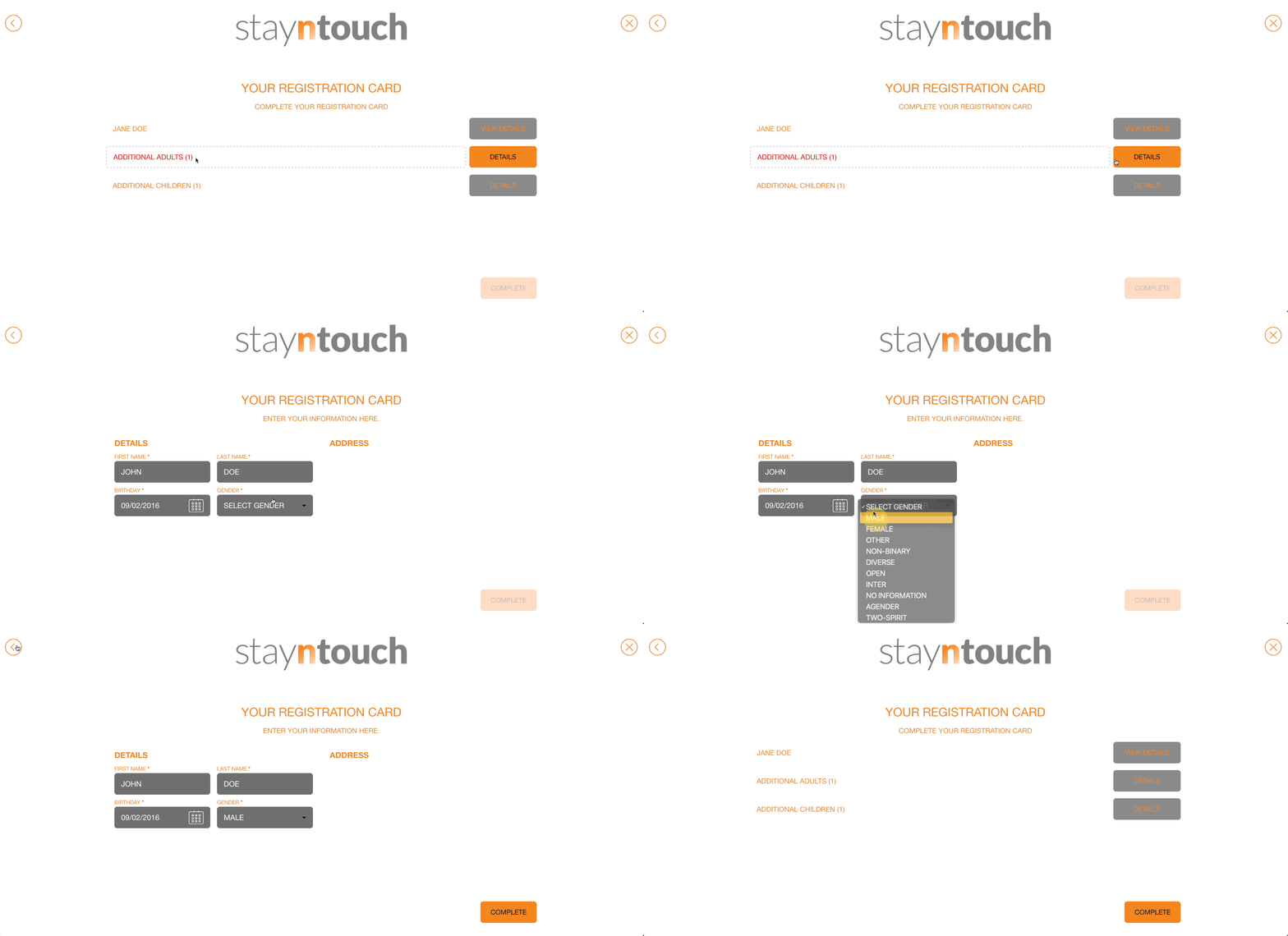
What’s New:
- Guest Details Summary Screen:When a reservation includes accompanying guests, the kiosk now opens to a clear summary screen showing:
- Main guest name (clickable for full details).
- Additional Adults section showing total count and names (with ellipses […] if names overflow).
- Green checkmark for guests with complete details and red names for missing mandatory information.
- Smart Editing Experience:
- Tap ADD DETAILS to fill in or update guest information—pre-filled fields appear where available.
- Only mandatory All Guest or All Adult fields are displayed for faster entry.
- All edits save automatically to the PMS registration card and the guest card.
- Seamless Navigation & Auto-Save:
- PROCEED, BACK, or X buttons—whichever you choose, all updates are instantly saved.
- Returning to the photo screen? The registration card will close automatically, and the kiosk resets to its default display.
- Complete Registration Simplified:
- Once all mandatory fields (for main and additional guests) are filled, the COMPLETE REGISTRATION button finalizes the process.
- The kiosk then returns to its welcome photo screen and removes the kiosk ID from the reservation.
Automatic Guest Card Creation For Additional Guests & Children
When guests use the digital registration card to add an additional adult or child, the system will automatically create a new guest card (if one doesn’t already exist)—no manual steps needed.
Digital Registration Card: Stay Summary & Expanded Stay View
Guests can now view a complete stay summary right on the digital registration card, making check-ins smoother and more transparent.

Highlights:
- Stay summary displayed under guest details, including arrival and departure dates, number of nights, average daily rate, and add-on costs.
- Expandable view for a detailed daily breakdown—date, rate, taxes/fees, add-ons and prices, arrival and departure times, room number, room type, rate name, deposit paid, and deposit payment type.
- Suppressed rates are automatically hidden for clarity.
- Easily collapse or expand the summary for quick reference or in-depth review.
Connecting Workstations
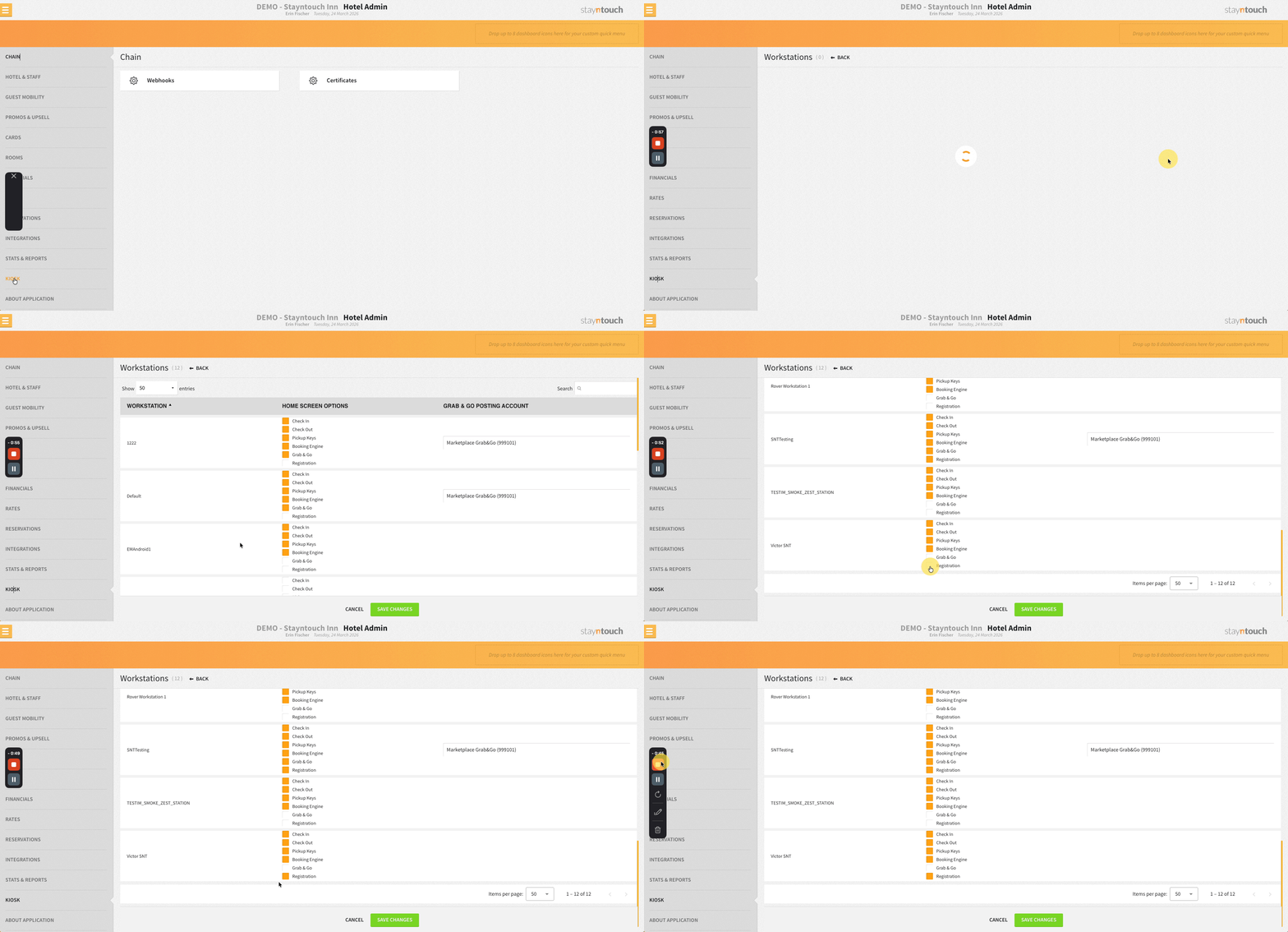
To add the digital registration card option to a workstation, navigate to Settings > Kiosk > Workstations and select the Registration option for the applicable workstation.
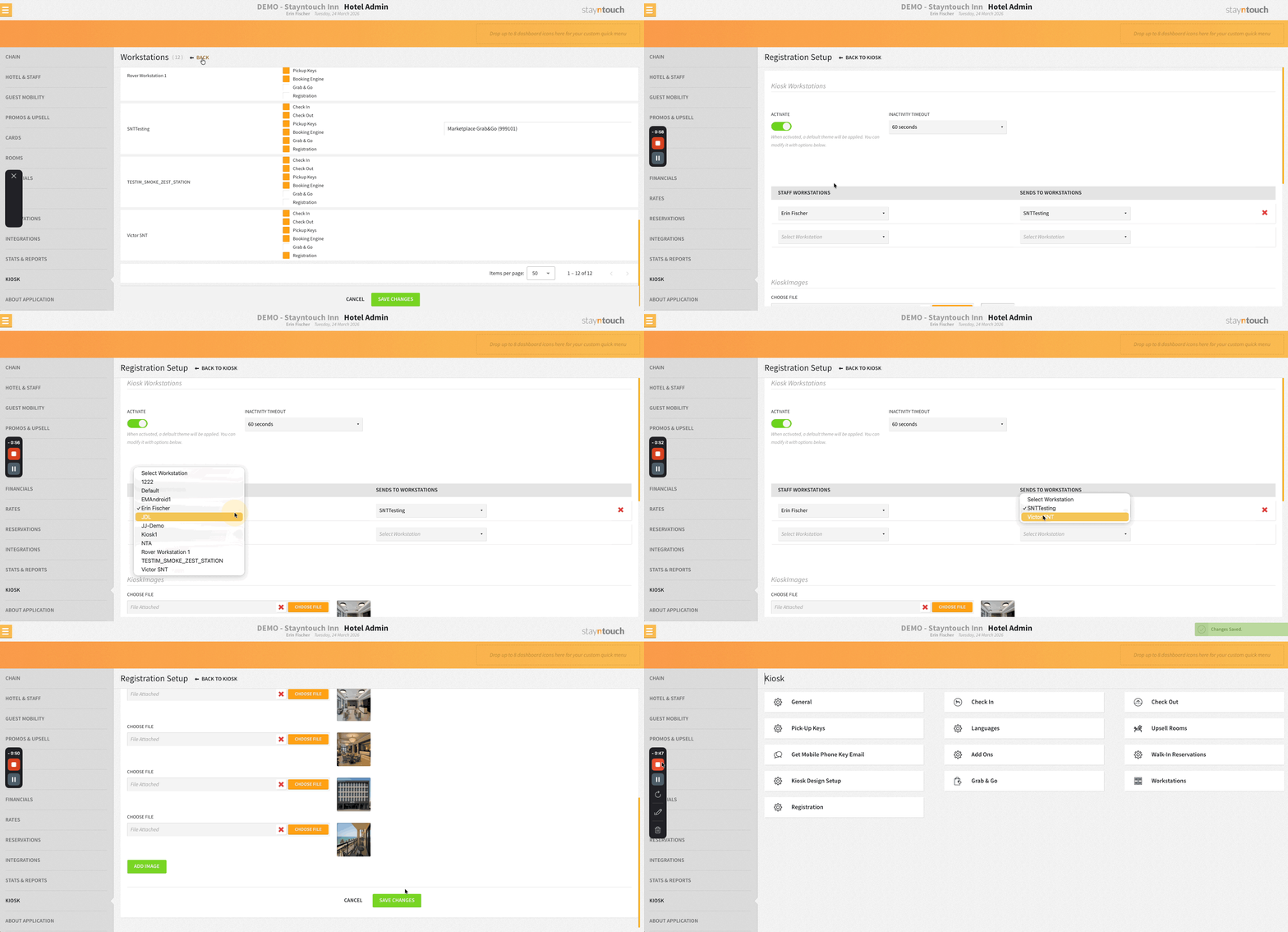
Then, navigate to Settings > Kiosk > Registration, and under STAFF WORKSTATIONS, select the workstation you're working on. Under SENDS TO WORKSTATIONS, select the workstation your iPad is on.
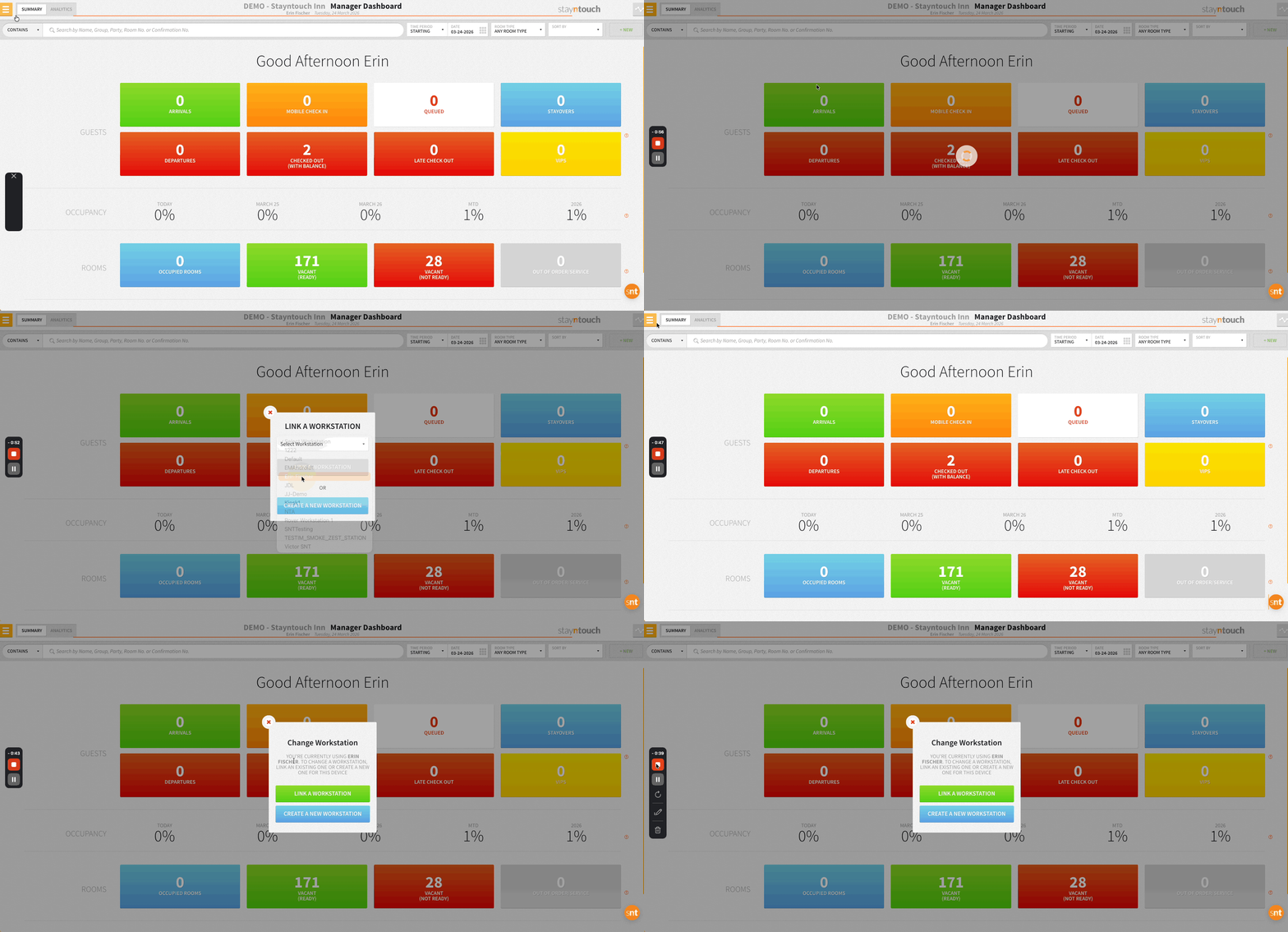
To set your workstation, go to Settings > Set Workstation and click LINK A WORKSTATION. This will then be the workstation you select for STAFF WORKSTATIONS (see above).
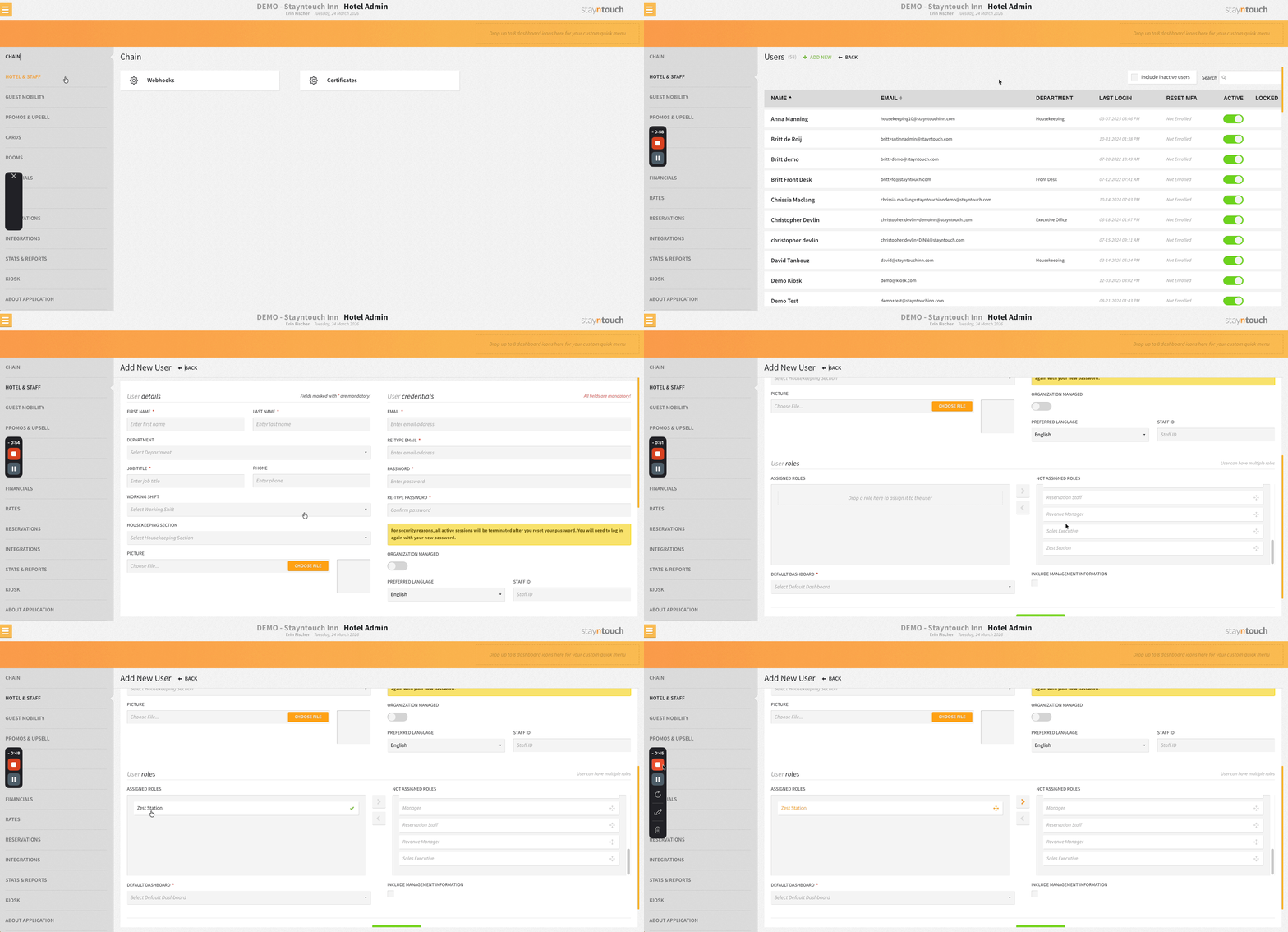
To access the digital registration card screen on the iPad, you'll need to create specific Kiosk User for the iPad. This can be done via Settings > Hotel & Staff > User Setup > + ADD NEW by assigning the new user the Zest Station user role.
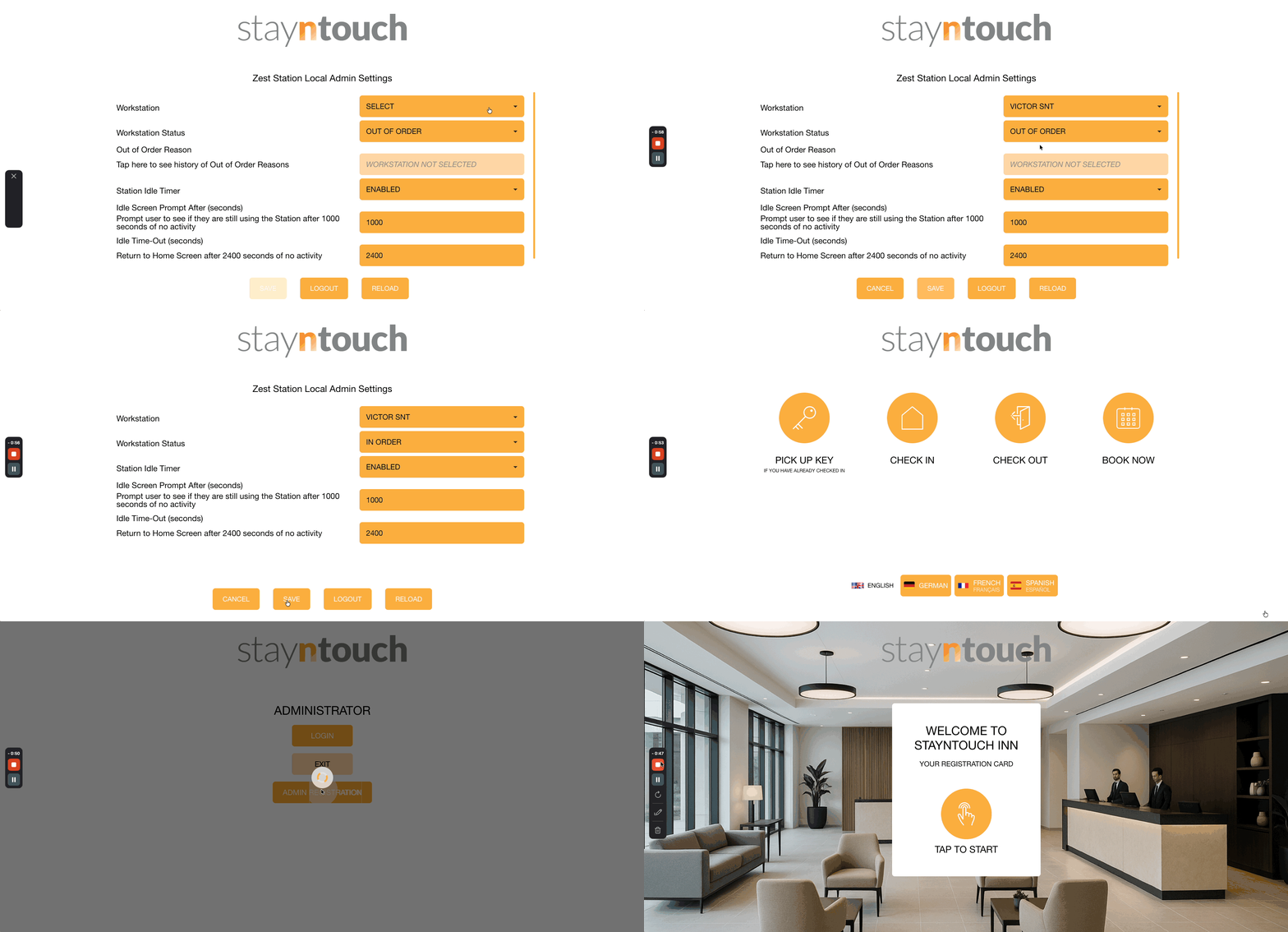
When you sign into Stayntouch on the iPad, you'll then see the Zest Station Local Admin Settings screen. On this screen, set your Workstation as the same workstation you set for SENDS TO WORKSTATIONS (see above).
You'll then be directed to the kiosk home screen. At the bottom right hand corner, tap the corner three times. This will display a popup with the option to select REGISTRATION.
To send the registration card to a guest on the iPad, open the reservation on your workstation, check in the guest, and then click SEND TO KIOSK. The iPad will then prompt the guest to fill out the registration card.